
Print cover designer
You want to assess images and typography, and supply your printer with a print-ready file. Adobe explains how to set up bleed; check the final PDF settings with your printer.


Start by deciding whether you want to choose your own screen or prefer an all-in-one computer with a built-in display. Then compare the configuration with the requirements of your design software, and consider local files, a separate back-up and your printer’s PDF requirements. Adobe recommends 16 GB of RAM for Photoshop and InDesign; it is not a general minimum requirement for every design workflow.
You want to assess images and typography, and supply your printer with a print-ready file. Adobe explains how to set up bleed; check the final PDF settings with your printer.
You work with Photoshop or InDesign, or are considering using them. Adobe lists system requirements for each programme; compare these with the desktop’s operating system and exact configuration.
You store scans, photos and design versions locally, and want plenty of storage as well as a separate way to restore files. Microsoft describes File History as an option for backing up to an external drive or network location.
Ideal if: you want to use macOS and choose your own screen.
Bear in mind: you’ll need to choose the screen separately; the Mac mini base configuration mentioned comes with a 256 GB SSD.
Ideal if: you want to use Windows programmes or already have a suitable screen.
Bear in mind: compare the exact model and check which expansion options and ports it has.
Ideal if: you want a computer with a built-in screen.
Bear in mind: a listed screen resolution alone is no guarantee of colour accuracy for print work.
| What to consider | What should you check? | Who should prioritise this? |
|---|---|---|
| Screen and print preparation | Check whether a screen is included, and ask your printer about PDF settings and bleed. | If I’m having a cover printed, I want to assess the design on a suitable screen and supply the right files. Around 33% of consumers prioritise the screen and print preparation. |
| Design software | Compare your programme and version requirements with the operating system, processor, memory and storage. | If I want to use Photoshop or InDesign, I need to know whether the chosen configuration is suitable for that software version. Around 27% of consumers give software compatibility top priority. |
| Local files and recovery | Check how much space your source material takes up, and choose a separate back-up method that you can test. | If I keep scans, photos and design versions locally, I want to be able to restore them if something goes wrong. Around 20% of consumers prioritise storage and recovery of source files. |
| Workspace and complete setup | Compare what’s included with each model, such as a screen, and check the ports and any expansion options. | If I need to put together a complete workspace, both the space available and the components I need matter. Around 20% of consumers consider their workspace and total purchase the most important factors. |
A computer without a built-in screen requires you to choose one separately. An all-in-one has a built-in screen, but resolution alone tells you nothing about colour accuracy.
Compare the complete setup and check the screen specifications for the exact model before choosing a computer for print work.
Bleed and export settings are determined in the design file; a more powerful computer won’t set them correctly for you.
Ask your printer for their file requirements before you start designing, and check the exported PDF.
Files on your internal SSD are not the same as a separate copy that lets you restore previous files.
As well as internal storage, choose a back-up method, such as an external drive or network location, and test that you can restore files.
Rights and licence terms may apply when you publish something. The Dutch Government explains that permission may be needed for copyright-protected text and photos; terms for font files can vary too.
Check the source and usage rights for images and fonts before sharing or publishing your cover file.
The Mac mini is designed for people who want to use macOS with a screen of their choice. Apple lists various SSD capacities for its Dutch M6 configurations.
The OmniDesk Slim is a desktop without a built-in screen; the OmniStudio is an all-in-one model.
The Slim desktops are an option if you’re looking for a Windows computer with a separate screen.
ThinkCentre is a business desktop range. Lenovo’s Dutch buying guide covers components that can matter for graphic design work.
This selection includes Windows desktops without a built-in screen, all-in-one computers and a Mac mini for anyone who wants to choose a screen separately.
 No image available
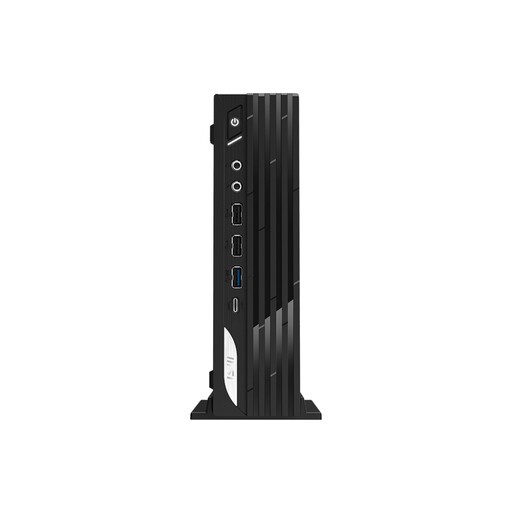
This mini desktop is a good fit for a workspace where you choose your own screen.
The listed configuration has an Intel Core i7-14700, 16 GB DDR5, a 1 TB SSD and Windows 11 Pro. Screen connections include HDMI and DisplayPort.
 No image available
The all-in-one design is a good fit if you’re looking for a computer with a built-in screen.
The listed model has a 27-inch QHD IPS screen, an Intel Core Ultra 5 125H, 16 GB DDR5 and a 1 TB SSD.
 No image available
This all-in-one model is an option if you want a built-in screen and local storage.
The listed configuration has a 27-inch QHD IPS screen, an Intel Core Ultra 7 155H, 32 GB DDR5, a 1 TB SSD and Windows 11 Pro.
 No image available
The built-in screen is a good fit if you want fewer separate components on your desk.
The listed model has a 27-inch QHD screen with 120 Hz, an Intel Core Ultra 7 255H, 16 GB LPDDR5X, a 1 TB SSD and Windows 11 Home. Lenovo lists 99% sRGB coverage; this is a stated specification, not an independent measurement.
 No image available
This compact desktop is a good fit if you want to use macOS and choose your own external screen.
The listed configuration has an M6 chip, 16 GB memory and a 512 GB SSD. Screens are chosen separately; the product information lists HDMI and Thunderbolt connections.
No, 16 GB is not a general requirement for every poetry book cover. For the Photoshop and InDesign versions consulted, Adobe lists 8 GB as the minimum and 16 GB as the recommended amount. Compare the requirements for your programme and version with the exact computer configuration.
Keep a separate back-up as well as your working files, and test that you can restore them. Microsoft describes File History on Windows as a way to copy files regularly to an external drive or network location.
Ask your printer which PDF preset and bleed they require. Adobe explains how to set up bleed and export a print-ready PDF; its example of 3 mm does not replace your printer’s specifications.
No, your statutory guarantee applies even without an additional guarantee product. According to the Dutch Government, the Netherlands has no fixed statutory guarantee period, and the seller must provide a solution if a product is faulty. Compare any extra cover based on the additional rights it offers.
Not automatically: check the rights and licence terms for the specific material and how you intend to use it. The Dutch Government states that permission may be needed for copyright-protected text and photos; Adobe Fonts warns that many font licences do not allow font files to be shared.