
Writers who want to safeguard different versions
You’re working on successive versions of a play and want to be able to restore an external copy, even without the cloud. The Digital Trust Center recommends testing a backup by restoring a file.


First, choose a desktop that works with your writing software and existing documents. Then check that you can connect an external backup drive and restore a file. Microsoft Support explains File History for Windows, while Apple Support covers Time Machine with external storage. Both options require a suitable external drive and a routine for making and testing backups.
You’re working on successive versions of a play and want to be able to restore an external copy, even without the cloud. The Digital Trust Center recommends testing a backup by restoring a file.
You share scenes or revisions with others and want to check that your writing software and document formatting will still work before switching. The Document Foundation offers versions of LibreOffice for Windows and macOS.
You’re looking for a compact desktop, but want to check in advance which peripherals and external storage you’ll need. Lenovo and Apple describe compact desktops with different operating systems and backup methods.
Choose this if: you want to keep using Windows software and your existing documents. Microsoft Support explains File History for saving copies to external storage.
Bear in mind: Windows Backup uses OneDrive for selected folders, so it isn’t the same as a separate external copy you can store elsewhere.
Choose this if: you want to use macOS and your writing software and document files are compatible. Apple Support explains how to back up to external storage with Time Machine.
Bear in mind: check the formatting of shared documents before switching, and remember that you’ll need a separate external storage device.
First, work out how you can restore your manuscript offline. Then check that the computer suits your writing software and your complete workspace.
| What to consider | What should you check? | Who is this important for? |
|---|---|---|
| Restorable offline backup | Check that the external drive connects, that your manuscript folders are included and that you can restore a file. | If you want to keep earlier versions of your play outside the cloud, being able to restore them is a priority. Around 36% of consumers say offline recovery is their main requirement. |
| A comfortable writing setup | Check that your monitor and input devices connect to the desktop and suit your workspace. | If you spend long hours working on scenes and revisions, you’ll want a setup that suits the way you write. Around 29% of consumers give their everyday writing workspace top priority. |
| Writing software and documents | Check that your software is available for the operating system, and test a shared document, including its formatting. | If you share your work with others, you’ll want to be sure they can use your revisions and document formatting. Around 21% of consumers prioritise sharing documents. |
| Everything you need for your workspace | Check whether each configuration requires a monitor, keyboard, mouse and external storage. | If you want to start writing and make an offline copy as soon as you buy your computer, list everything you’ll need first. Around 14% of consumers give a complete workspace top priority. |
Microsoft Support describes Windows Backup as a feature that backs up selected folders to OneDrive. That’s different from an external copy you can store separately.
Decide in advance whether you’ll use File History with external storage. Check that your manuscript folder is included and test restoring a file.
You’ll need an external drive for an external copy. You’ll also need a routine for connecting it and running the backup.
The National Cyber Security Centre warns that connected hard drives and backups can also be affected by ransomware.
Disconnect the drive after a successful backup, and plan when to reconnect it to make new copies.
What’s included varies by configuration. Lenovo notes that a monitor, keyboard and mouse may be sold separately with the ThinkCentre M70q Gen 5 Tiny.
Check what’s included with the exact configuration, which connections you need and which components you still have to buy.
A monitor, input devices and external storage may all be separate parts of your writing and backup setup.
The ThinkCentre M70q Gen 5 Tiny is a compact Windows desktop to consider if you’re looking for a configurable workspace.
The Pro Mini 400 G9 is a compact business desktop running Windows. Configuration 6D494EA#ABH gives you a specific starting point for comparing options.
The Dell Pro Micro QCM1250 is a compact Windows desktop with a choice of configurations.
The Mac mini with M6 chip is a compact macOS option for anyone looking to use Time Machine with external storage.
The ExpertCenter PN54-S1 is a compact PC range to consider if you want to connect multiple devices or monitors to your writing workspace.
This selection includes compact mini PCs and Mac mini configurations for a writing workspace. Check the operating system and external storage you’ll need for each model.
 No image available
A compact Windows option to consider if you’re setting up a small writing workspace. Microsoft Support explains File History for saving copies to external storage.
The product title lists Windows 11, 8 GB DDR4 and a 256 GB SATA SSD. It also mentions BT5.2 and Wi-Fi 5.
File History requires external storage for an offline backup.
 No image available
A good fit for a compact macOS workspace if you check your writing software and document formatting beforehand.
The product title lists an Apple M6 chip with a 12-core CPU and 12-core GPU, 16 GB of memory and a 256 GB SSD.
Apple Support explains how to back up documents to external storage with Time Machine. You’ll need an external storage device.
No image available
A good fit for a compact macOS workspace if you check your writing software and document formatting beforehand.
The product title lists an Apple M6 chip, 16 GB of memory and a 512 GB SSD.
Apple Support explains how to back up documents to external storage with Time Machine. You’ll need an external storage device.
No image available
A good fit for a compact macOS workspace if you check your writing software and document formatting beforehand.
The product title lists an Apple M6 chip, 24 GB of memory and a 512 GB SSD.
Apple Support explains how to back up documents to external storage with Time Machine. You’ll need an external storage device.
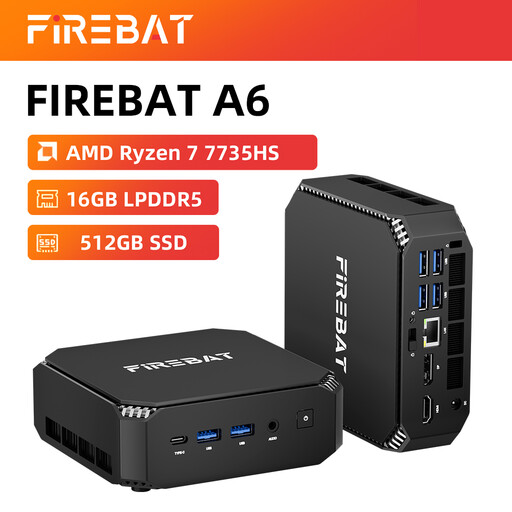 No image available
A compact mini PC to consider for a small writing workspace. Check in advance that its operating system and your writing software suit the way you work.
The product title lists Radeon 680M, 16 GB RAM, a 512 GB SSD, Dual M.2 Slots, Triple Display and Wi-Fi 6.
Yes. Microsoft Support describes File History as a way to save copies of files, including to an external drive. This is different from Windows Backup, which backs up selected user folders to OneDrive. Check which manuscript folders are included and test restoring a file.
Connect a suitable external storage device and set up Time Machine. According to Apple Support, the backup can include documents. Test that you can restore the version you need.
No. Disconnect the drive after a successful backup if you want to keep a copy separate from your computer. Remember to plan when to reconnect it, as a disconnected drive won’t receive new copies. The National Cyber Security Centre warns that connected hard drives and backups can also be affected by ransomware.
No. According to the Dutch government, when you buy a product you’re entitled to a product that works properly, and the seller must help resolve any problems. A manufacturer’s warranty or paid extended warranty is separate from this. Check the terms before choosing additional cover.