Organising and editing photos calls for different considerations from editing walking videos. For photos, look at storage, connections and a suitable screen; for video, choose a computer to suit your software and resolution. For Premiere 25.x, Adobe recommends 16 GB RAM for HD video, and 32 GB or more plus 8 GB of GPU memory for 4K and above. A compact case is handy when desk space is limited, while Lenovo says a tower can offer more upgrade options.
Who is this desktop guide for?
Photo journal creator
You mainly select and edit walking photos, then turn them into a presentation. As well as your computer, think about storage and separate backups: Adobe distinguishes between the Lightroom Classic catalogue and the photo files themselves.
Walking video editor
You also edit video clips. The resolution and version of your chosen software determine which system requirements to check; for Premiere 25.x, for example, Adobe distinguishes between HD and 4K.
Creator with limited desk space
You want a dedicated editing setup without a large computer case, so you’re comparing compact desktops, connections and the equipment you already own.
What should you consider when choosing?
Compact Windows mini PC or slim desktop
Choose this option if: you mainly edit photos, want to use your own monitor and have limited desk space.
Trade-off: a compact size alone doesn’t tell you whether a computer is suitable for demanding video projects. Check the exact memory and storage configuration, as well as the connections.
Mac mini
Choose this option if: you want to use macOS and your editing software and peripherals are compatible with it.
Trade-off: Apple describes an M6 base configuration with 16 GB of unified memory and a 256 GB SSD. Check the version you choose and factor in the cost of any peripherals separately.
Windows tower
Choose this option if: you actually edit video or value upgrade options; match the configuration to your software’s requirements.
Trade-off: a tower takes up more space. Lenovo lists greater upgrade options and more ports as features of tower desktops; this isn’t a performance test of any particular configuration.
First decide what you’ll be editing and which software you’ll use. Then compare storage, connections and the space available in your workspace.
| What to consider |
What should you check? |
Who is this important for? |
| Organising and storing photos |
Check the SSD capacity of the exact configuration and the connections for your camera or card reader. Keep originals and project files separately too; Adobe describes the Lightroom Classic catalogue and the photo files as separate components. |
I want to organise and edit my walking photos without losing track of my photo files. Around 40% of consumers prioritise photo work. |
| Editing video |
Identify your software, software version and resolution. For Premiere 25.x, Adobe recommends 16 GB RAM for HD video, and 32 GB or more plus 8 GB of GPU memory for 4K and above. |
If I also edit walking videos, I want to match the configuration to my software and footage. Around 30% of consumers prioritise video editing. |
| Size and connections |
Compare the dimensions and screen and USB connections of the exact configuration with your existing monitor and card reader. Also check which peripherals are included. |
I want to connect my existing screen and card reader to a small desk setup. A compact workspace is the top priority for around 20% of consumers. |
| Keeping your archive |
Work out where your originals, any videos, catalogue and exports are stored, and make separate backups of them. |
I want to be able to restore my source files alongside my editing project. Around 10% of consumers prioritise keeping their archive. |
Common pitfalls
-
Treating a photo project as if it were automatically a demanding 4K video project
Adobe’s higher memory and GPU recommendations apply to 4K or higher resolutions in Premiere 25.x, not to every photo journal.
First decide whether you’ll actually be editing video, then check the requirements for your software and resolution.
-
Comparing just the computer with the cost of a complete setup
For the IdeaCentre Mini reviewed, Lenovo says the monitor, keyboard and mouse are optional and sold separately.
Before choosing, check which items you already own and whether they can connect to the computer.
-
Assuming a catalogue backup also saves your original photos
Adobe describes the Lightroom Classic catalogue as a database; the photo files themselves are separate.
Make separate backups of your originals and any videos, as well as your catalogue and exports.
-
Assuming similar product names mean the configurations are the same
The Lenovo IdeaCentre Mini 91B2007JEZ and IdeaCentre Mini 01IRH10R are different configurations; Lenovo lists a Core 7 240H for the former, while Joybuy describes the latter with a Core 5 210H.
Compare the full model number and configuration, not just the series name.
Brands to consider
HP
The Dutch OmniDesk range includes slim desktops and 16L models, giving you configurations with different sizes and specifications to compare.
- HP lists 16 GB RAM and a 512 GB SSD for the S03-0606nd, and 32 GB RAM and a 1 TB SSD for the M02-0640nd.
- These specifications apply to the configurations named; they aren’t an independent editing test and don’t automatically apply to other HP desktops.
Lenovo
Lenovo says the IdeaCentre range includes mini PCs, all-in-ones and towers. You can start by considering your available workspace and whether you need upgrade options.
- Lenovo lists 16 GB of memory and a 512 GB SSD for the IdeaCentre Mini 91B2007JEZ.
- For this configuration, the monitor, keyboard and mouse are optional and sold separately. The 91B2007JEZ configuration is not the same model as the IdeaCentre Mini 01IRH10R.
Apple
The Mac mini is a compact macOS desktop to consider if your editing software and existing peripherals are compatible with it.
- Apple lists 16 GB of unified memory and a 256 GB SSD for the M6 base configuration; versions with more memory or storage are also available.
- Check the specifications of the version you choose. These details aren’t an independent speed comparison with Windows PCs.
Dell
On its Dutch website, Dell lists tower desktops, small form factor models and all-in-ones as desktop ranges to compare by form factor.
- Dell says Inspiron desktops are no longer available and that the range is continuing under its new desktop lines. So don’t use an older Inspiron listing as proof of the availability or specifications of a new configuration.
Joybuy products
This selection ranges from a compact Mac mini to desktop PCs with a variety of memory and storage configurations, plus an all-in-one with a built-in screen.
 Image unavailable
Mac mini with Apple M6 chip, 24 GB and 512 GB SSD
A compact macOS desktop to consider if your editing software and peripherals are compatible with it.
Apple M6 chip, 12-core CPU, 12-core GPU, 24 GB memory and 512 GB SSD.
Joybuy
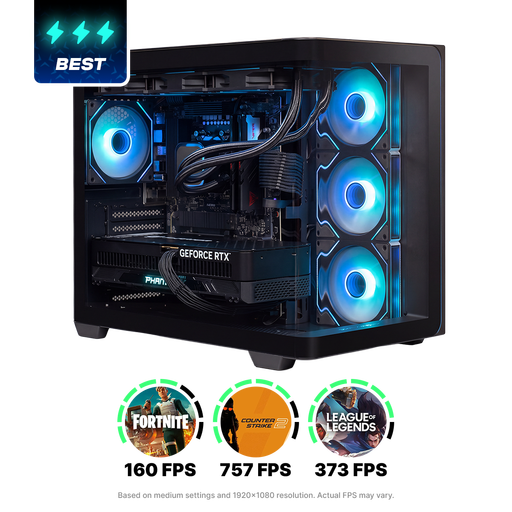 Image unavailable
Almighty Shark R900, Ryzen 9, RTX 5090, 32 GB RAM, 2 TB SSD
The stated memory and storage capacity may be worth considering if you want to keep project files on your computer. For video editing, also check the requirements of your own software.
32 GB RAM, 2 TB SSD, Ryzen 9 and RTX 5090. These specifications alone don’t confirm editing performance for any particular application.
Joybuy
 Image unavailable
ASUS ROG G700TF-07265F666W, Intel Core Ultra 7 265F, RTX 5070
A desktop PC to compare if you want to keep project files on your computer; if you plan to edit video, make sure it meets your software’s requirements.
32 GB DDR5 memory, 1 TB SSD and NVIDIA GeForce RTX 5070 with 12 GB GDDR7 memory.
Joybuy
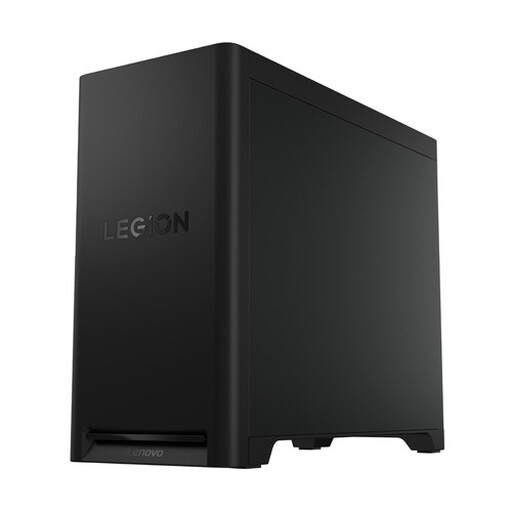 Image unavailable
Lenovo Legion T5 30IAX10, Intel Core Ultra 7, 32 GB RAM, 1 TB SSD
A tower to compare if you’re looking for a dedicated workspace; check the connections and your editing software’s requirements for your own footage.
32 GB DDR5 memory, 1 TB PCIe 4.0 SSD, NVIDIA GeForce RTX 5070 and Wi-Fi 7.
Joybuy
 Image unavailable
MSI Modern AM273QP AI 1UM-061EU all-in-one
A dedicated setup with a built-in screen to consider if you want an all-in-one computer. Check that the connections suit your camera or card reader.
27-inch IPS screen with a resolution of 2560 × 1440 pixels, Intel Core Ultra 5 125H, 16 GB DDR5 memory and 1 TB SSD.
Joybuy
Frequently asked questions
Is 16 GB RAM enough for your journal?
It depends on your footage and software. For Premiere 25.x, Adobe recommends 16 GB RAM for HD video and 32 GB or more for 4K and above. Check the requirements for your own software and version.
What do you need in addition to a mini PC?
Check that your screen, keyboard, mouse and any card reader can connect to the configuration you choose. For the IdeaCentre Mini reviewed, Lenovo says the monitor, keyboard and mouse are optional and sold separately.
Does backing up your photo catalogue also back up your photos?
No, not automatically. Adobe describes the Lightroom Classic catalogue as a database that, among other things, keeps track of where photos are stored; the photo files themselves are separate. So make sure you also keep copies of your originals.
Can you include recognisable walkers in a community presentation?
If an organisation photographs or films identifiable people, or publishes images of them, the Dutch Data Protection Authority says it needs a lawful basis under the GDPR. Consent can be one such basis, but it isn’t the only option. Before publishing, consider who will use the images and on what legal basis.


