Start with the size of your source files and the programmes you actually use. Check the SSD capacity, RAM and connections on the exact configuration before choosing a processor or graphics card. A mini desktop takes up little desk space, a tower offers more configuration options, and an all-in-one combines the computer and screen. 4K video editing has different, software-specific requirements from working with text and photos.
Who is this desktop guide for?
Journal writer with a large photo archive
You want a permanent workstation where you can select and edit photos, then store them alongside your journal. So look for space for your archive as well as a separate backup: Adobe notes that a Lightroom Classic catalogue backup does not also include your edited photos and exports.
Walking video creator
If you edit 4K footage as well as text and photos, compare the requirements of your specific editing programme with the configuration. For 4K and higher resolutions, Adobe recommends 32 GB of RAM or more in its listed Premiere requirements for Windows.
Creator with limited desk space
You want a compact, permanent setup and need to know in advance whether the screen, connections and storage will suit your files. Also consider whether you already have a screen and input devices, or still need to buy them.
What should you look for when choosing?
Start with your main tasks: managing your archive, editing photos and text, possibly editing video, or setting up your workspace. Your file sizes and the software you use will determine the configuration you need.
Mini desktop with separate screen
A good fit if: you have limited desk space and mainly work with text and photos, provided the storage and connections suit your files and peripherals.
Bear in mind: you’ll need a separate screen and input devices; the standard storage may be limited for a growing archive.
Configurable tower
A good fit if: you want to compare configurations or expect to need more memory or storage later.
Bear in mind: the larger case; check the memory, storage and graphics configuration for each model.
All-in-one
A good fit if: you want to combine a computer and screen in one permanent setup, and the screen on your chosen model meets your needs.
Bear in mind: check the screen, connections and configuration together; the model name alone won’t tell you whether the computer is suitable for 4K editing.
| Consideration |
What should you check? |
Who is this most relevant to? |
| Source files and backups |
Work out the size of your current files and expected growth; check internal storage, connections for additional storage and a separate backup. |
I want to keep my photo archive on the computer and have a separate copy too; around 36% of consumers with this use prioritise archive space and backups. |
| Editing photos and journal text |
Make a note of your programmes and compare their system requirements with the memory and storage of the exact configuration. |
If I mainly edit text and photos, I want a computer that suits my software without paying unnecessarily for video hardware; around 29% of consumers prioritise this type of editing. |
| Possible 4K editing |
First work out whether you’ll actually edit 4K video; then check your software’s requirements for RAM, graphics memory and drives. |
I may edit my own 4K walking footage and want to meet my editing programme’s requirements; around 21% of consumers prioritise video editing. |
| Permanent workstation |
Check whether a screen and input devices are included, and whether there are connections for your screen, card reader and backup drive. |
I have limited space and want a practical setup that brings the computer and screen together; around 14% of consumers prioritise a compact, permanent workstation. |
Common buying mistakes
-
Mistaking a catalogue backup for a complete photo backup
In Lightroom Classic, the catalogue backup does not also include your edited photos and exports. So if you only keep that backup, you won’t automatically have a copy of your photo files.
Keep separate copies of your source files and exports, as well as the catalogue backup.
-
Choosing a compact entry-level configuration without checking your archive size
According to Apple, the Mac mini (2024) with M4 comes with a 256 GB SSD as standard; larger storage is available as a different configurable option. Compare the model you’re considering with your existing archive and the extra space you’ll need as it grows.
Check the storage capacity of the exact configuration on offer before ordering.
-
Applying 4K recommendations to a journal with no video
Adobe distinguishes between its Premiere recommendations for HD and for 4K or higher resolutions. The more demanding requirements aren’t automatically necessary for text and photos.
Choose a computer based on 4K requirements if you’ll actually edit that kind of footage with the software in question.
Brands to compare
Apple
The Mac mini (2024) with M4 is a compact desktop for a setup with a separate screen.
- Apple Support lists 16 GB of unified memory and a 256 GB SSD as standard; larger memory and storage configurations are available.
- Factor in the screen and any input devices you need, and check that the storage configuration you choose has room for your archive.
Lenovo
The ThinkCentre Neo 50t Gen 5 is a tower option; check the part number to compare configurations accurately.
- Lenovo Netherlands lists 16 GB of RAM, a 512 GB SSD and integrated graphics for model 12UDCTO1WWNL2.
- These specifications alone don’t prove that this model is suitable for demanding 4K editing.
Dell
Dell offers tower desktops, including the ECT1250, for comparing permanent workstation configurations.
- Dell lists memory and storage upgrade options for the ECT1250.
- Check the exact model: a product overview won’t necessarily show the full configuration you need for this journal.
Joybuy desktops for this use
This Joybuy selection includes all-in-ones, mini PCs and towers for a permanent workstation. Compare storage, memory, connections and included peripherals with your files and software.
 No image available
HP 24-cr0050nd All-in-One
An all-in-one for anyone who wants to use a computer and screen as one permanent setup.
23.8-inch FHD IPS screen; Ryzen 5 7520U; 8 GB onboard memory; 512 GB SSD. The memory isn’t upgradeable, and the power adapter must be purchased separately.
View at Joybuy
 No image available
SOYO Y5Pro Mini PC
A compact mini PC to compare if you want to set up a permanent workstation with a separate screen.
Intel Core i5 8250U/8350U; 8 GB RAM; 256 GB SSD. The description lists HDMI, Type-C and USB connections.
View at Joybuy
 No image available
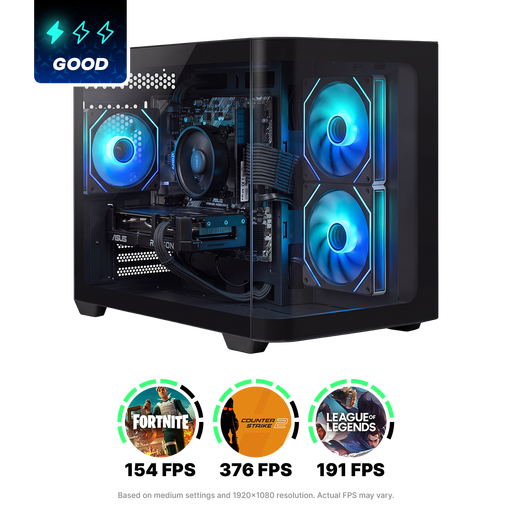
Panoramic Gaming PC, Ryzen 7 5700X
A tower configuration to compare if you’re looking for a separate graphics card and local storage; the specifications alone don’t confirm whether it’s suitable for your editing programme.
Ryzen 7 5700X; GeForce RTX 5060 Ti with 8 GB; 16 GB RAM; 480 GB NVMe SSD.
View at Joybuy
 No image available
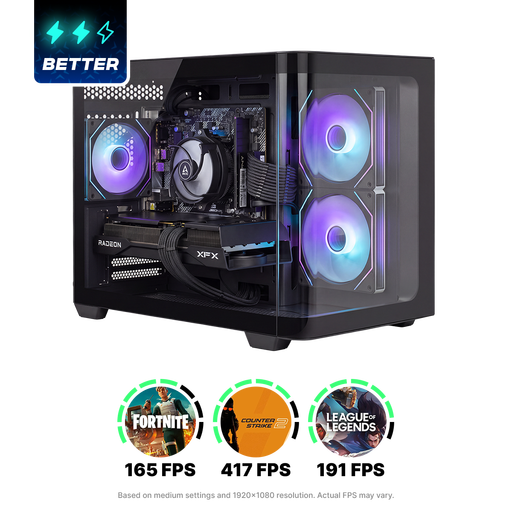
SHARK Max Bite R502 Gaming PC
A desktop with a separate graphics card to compare with other tower configurations; check the requirements of your own software.
Ryzen 5 5500; RX 9060 with 8 GB; 16 GB DDR4; 500 GB NVMe SSD; Windows 11 Home.
View at Joybuy
 No image available
Shark Bloodlust R700 Gaming PC
A tower to compare if local storage and the option to add extra storage drives are important to you.
Ryzen 7; RX9070; 16 GB memory; 1 TB NVMe SSD. The description lists support for extra storage drives and USB, DisplayPort and HDMI connections.
View at Joybuy
Frequently asked questions
Is 16 GB of RAM enough for this journal?
It depends on the programmes you use. Adobe recommends 16 GB of RAM or more for Photoshop; for 4K and higher resolutions, Adobe recommends 32 GB or more for Windows in its listed Premiere requirements. Don’t treat those software recommendations as general requirements for editing text alone.
How can I make sure I don’t lose photos when I switch computers?
Make a separate backup of your original photos and exports if you use Lightroom Classic. Adobe notes that the built-in catalogue backup only contains the catalogue file, not your edited photos or exports.
What should I check besides the computer?
Check what’s included with each model, such as a screen, keyboard and mouse, and whether it has connections for storage and backups. Also allow for any additional storage you may need for the size of your archive.
Do I automatically get a two-year statutory warranty in the Netherlands, and can I cancel an online purchase?
No. According to the Dutch government, statutory warranty in the Netherlands has no fixed duration; what you can reasonably expect from the product is taken into account. For many eligible distance purchases, you have a 14-day cooling-off period. Check whether these rules apply to your purchase.


