
Developer with a bright workspace
If you work beside a bright window, tackling distracting reflections and screen positioning should come first. The Arboportaal offers advice on setting up display screen workstations.


Start by considering where to position your screen: the Arboportaal advises placing your line of sight parallel to the window. Then choose between a mini PC with a separate monitor and an all-in-one. For inspecting web pages on a connected iPhone using Safari, Apple describes a workflow that uses a Mac. Chrome device simulation is useful for checks, but it does not replace testing on the actual device when that is necessary.
If you work beside a bright window, tackling distracting reflections and screen positioning should come first. The Arboportaal offers advice on setting up display screen workstations.
If you want to inspect web content in Safari on a connected iPhone or iPad, you can consider the Mac workflow described by Apple.
If you mainly check mobile views in a browser or test an Android device, you could consider a Windows desktop with a monitor of your choice. Google describes Chrome Device Mode as a simulation, not as running on the actual device.
First, decide whether you need to inspect an iPhone on the actual device or mainly check mobile views in a browser. Then choose a screen setup that suits your workspace: a separate monitor gives you more choice over positioning, while an all-in-one combines the computer and screen.
Best for: anyone who wants to inspect web content in Safari on a connected iPhone or choose their own screen setup.
Bear in mind: you’ll need to choose the monitor and any required input devices separately.
Best for: anyone who mainly uses browser tools or wants to choose their own monitor for the workspace.
Bear in mind: a simulated mobile view is not the same as testing on an actual device.
Best for: anyone looking for an integrated computer and screen setup, provided the specifications of that model suit their desk.
Bear in mind: the screen choice is tied to the all-in-one; an anti-glare finish won’t automatically make an unsuitable position work.
| Consideration | What to look for | Who is it most relevant to? |
|---|---|---|
| Visibility in daylight | Check the screen finish and adjustability of the exact model; see whether you can position it with your line of sight parallel to the window. | If daylight makes it hard to assess small layout details, having a practical screen position is my main priority; around 36% of consumers say visibility in daylight is their primary buying concern. |
| Inspecting on an actual iPhone | Decide in advance whether you need to inspect Safari web content on a connected iPhone; Apple describes a workflow that uses a connected Mac. | If you want to investigate an issue on an actual iPhone, look beyond a browser preview; around 29% of consumers say iPhone inspection is their primary buying concern. |
| Debugging workspace | For the configuration you choose, check the memory, storage and connections for the monitor you want to use. | If you want to use code and browser tools side by side, consider the computer and its screen connections together; around 21% of consumers say a debugging workspace is their primary buying concern. |
| Complete setup and after-sales support | Check what’s included with the exact model and who the seller is. If you’re buying a mini PC, factor in the monitor you choose separately. | If you want to know in advance what you’ll need for a complete workspace and who to contact if something goes wrong, factor that in; around 14% of consumers say a complete setup and after-sales support are their primary buying concern. |
A screen’s specifications don’t tell you how it will work on your desk. The Arboportaal advises placing your line of sight parallel to the window and also highlights the setup and sun blinds as factors to consider.
First decide where the screen can go, then check the finish and adjustability of the model you’re considering.
Google describes Chrome Device Mode as a simulation: the code doesn’t run on the mobile device itself. Apple describes inspecting iOS and iPadOS web content from a connected Mac.
Decide in advance which issues you’ll check in the browser and which ones you want to reproduce on the actual device.
If your testing method requires running on an actual device, you may need access to one.
With a mini PC, you choose the monitor separately; an all-in-one combines the computer and screen. So the price of the computer alone doesn’t give you the full picture of what you’ll need for your workspace.
Compare complete configurations and check what’s included with each model.
A suitable separate monitor and any input devices you need should be included in the cost of putting together a mini PC workspace.
A product description doesn’t always make it clear which model or components are included with your purchase. Your statutory rights and any manufacturer’s warranty are also separate things.
Check the full model code and what’s included against the manufacturer’s information. ACM ConsuWijzer explains that the seller is responsible if, under normal use, a product doesn’t do what you were entitled to expect.
Worth considering for a Mac mini with a separately chosen monitor, particularly if inspecting an iPhone or iPad is part of your workflow.
The ThinkCentre M90a Pro Gen 6 is worth considering if you’re looking for a Windows all-in-one with an integrated screen.
The ProDesk 4 Mini G1i is a compact Windows desktop where you choose the monitor separately.
The Pro Micro QCM1250 is a configurable compact Windows desktop with a monitor that you choose separately.
This selection includes Mac and Windows mini PCs for use with a separately chosen monitor, as well as Windows all-in-one PCs with an integrated screen.
 No image available
Worth considering if you want a Mac setup for inspecting web content on a connected iPhone.
Apple M6 chip; 12-core CPU and 12-core GPU; 16 GB memory; 256 GB SSD. Apple says it supports up to three external displays, depending on the configuration.
 No image available
Worth considering if you want to pair a compact Windows desktop with a monitor of your choice.
16 GB LPDDR5X; 512 GB PCIe 4.0 SSD; Windows 11 Home.
 No image available
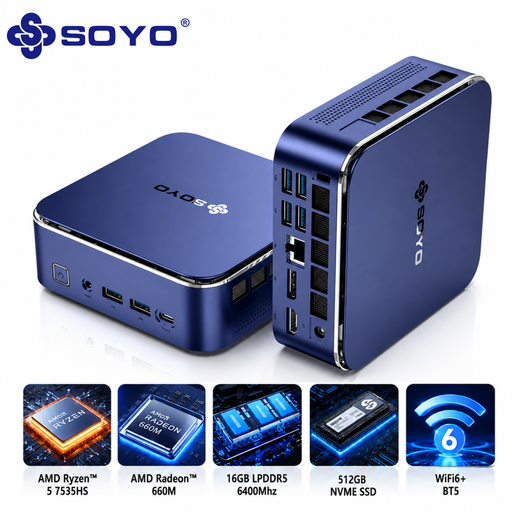
Worth considering if you’re looking for a Windows mini PC with a separately chosen monitor and several listed video connections.
Windows 11 Pro; 16 GB LPDDR5; 512 GB NVMe SSD; HDMI, DisplayPort and USB-C video outputs.
 No image available
Worth considering if you want to use a Windows mini PC with a monitor of your choice.
Intel Core Ultra 7 155H; 16 GB DDR5; 1 TB SSD; Windows 11 Pro.
 No image available
Worth considering if you want a desktop with an integrated screen rather than a separate mini PC and monitor.
27-inch screen; 2560 × 1440 resolution; Intel Core Ultra 5 125H; 16 GB DDR5; 1 TB SSD.
Not always. Google describes Device Mode as a simulation in which the code doesn’t run on the actual device. Test on an iPhone when that difference matters; Apple describes inspecting iOS web content from a connected Mac.
First, adjust the screen’s position and angle. The Arboportaal advises placing your line of sight parallel to the window and recommends considering sun blinds if needed.
No. ACM ConsuWijzer explains that your statutory rights depend on what you were entitled to expect from the product under normal use. If a product is faulty, the seller is responsible for providing an appropriate solution; any manufacturer’s warranty is separate.
For employees, the Arboportaal outlines requirements for safe display screen work. If someone uses a screen for more than two hours a day, these include requirements for the workstation setup and a screen that doesn’t reflect light. This isn’t a universal purchase requirement for every private user.
The Dutch government states that electronic devices placed on the market in the EU must have CE marking. Check the exact model you’re buying: a brand name or Dutch product page alone doesn’t prove that the model meets the applicable requirements.