
If quiet comes first
You create worksheets in a quiet room and want to know how the computer sounds while you work with documents and formulas. Assess noise under comparable conditions, rather than judging by size alone.


Start by checking whether the formula and document software you use runs on the computer. Then choose between a mini PC with a separate monitor and an all-in-one with a built-in screen. A compact case doesn’t prove that a computer will be quiet while you’re creating worksheets, so only compare noise information when the testing conditions are the same.
You create worksheets in a quiet room and want to know how the computer sounds while you work with documents and formulas. Assess noise under comparable conditions, rather than judging by size alone.
You want your formula editor and file formats to suit the way you work. Microsoft Support, for example, explains how to enter formulas in Word. Also check that your usual documents work properly with the operating system you choose.
You’ll need to decide whether to use an existing monitor or choose a computer with a built-in screen. Apple, Lenovo, Acer and HP list different connections and included components for different configurations, so check what your complete set-up requires.
A good fit if: you already have a monitor in a comfortable position or want to choose the computer and monitor separately.
Keep in mind: a compact size says nothing about noise. Apple describes display connections for the Mac mini; Lenovo notes that monitors and input devices are sold separately for the Tiny series reviewed.
A good fit if: you don’t yet have a monitor and want to combine the computer and screen in one set-up.
Keep in mind: you choose the screen as part of the computer. The Acer and HP configurations reviewed have different specifications and included components; this doesn’t establish how noisy they are when creating worksheets.
A good fit if: you want to use a separate monitor and assess the computer’s connections and configuration independently.
Keep in mind: check which other components you’ll need. A compact desktop isn’t automatically quiet while you work.
| What to consider | What should you check? | Who is this most relevant to? |
|---|---|---|
| Noise while you’re concentrating | Compare noise data for light office work and sustained workloads, taking the testing conditions and measurement distance into account. Also make sure the computer can be positioned with its ventilation openings unobstructed. | If I work in a quiet room, I don’t want to rely on a small case or a general description. Around 33% of consumers with this worksheet task put noise at the top of their buying concerns. |
| Formulas and document workflow | Test a representative worksheet using your usual files and formula input in the software and operating system you plan to use. | If you enter lots of equations or want to keep using existing files, a suitable editor and file compatibility are especially important. Around 27% of consumers with this buying question put these first. |
| Screen and connections | Check whether the monitor, keyboard and mouse are included, and whether the connections are compatible with your monitor and printer. | If I’m setting up a permanent workspace, I want to know which components I already have and how everything will fit on my desk. Around 20% of consumers with this task focus on the complete workspace. |
| Components and software you’ll need | Make a list of anything else you need and check the operating system on the exact configuration. Microsoft states that regular support for Windows 10 ended on 14 October 2025. | If you want to get your whole set-up ready to use in one go, you’ll need to look beyond the computer itself. Around 20% of consumers with this buying question want to know first which components and software are missing. |
A compact case or general description doesn’t tell you how loud a particular computer will be while you work.
Compare noise information gathered under clearly stated, comparable conditions. If possible, assess the computer while doing work similar to creating your worksheets.
A computer with a separate monitor may also need input devices or other components. What’s included with an all-in-one varies by configuration.
Check what comes with the exact configuration and make a note of the components you already have before choosing your set-up.
Microsoft ended regular support for Windows 10 on 14 October 2025. Microsoft also lists a separate ESU option for consumers, subject to certain conditions.
If you’re considering an older or second-hand computer, check which supported operating system it can run and what you’ll need to make that happen.
Memory, storage, screen and included components can vary between product or model numbers in the same series.
Check the full model number and the specifications of the configuration you’re choosing.
The Mac mini is an option if you want macOS and prefer to choose your monitor separately.
The Aspire C all-in-one series is designed for those looking for a built-in screen.
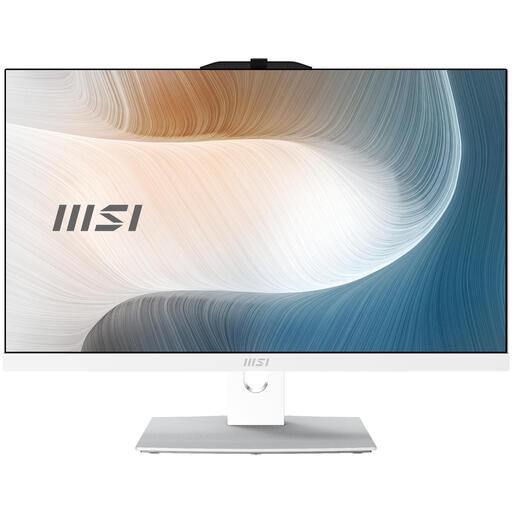
The OmniStudio configuration reviewed combines a computer with a built-in screen.
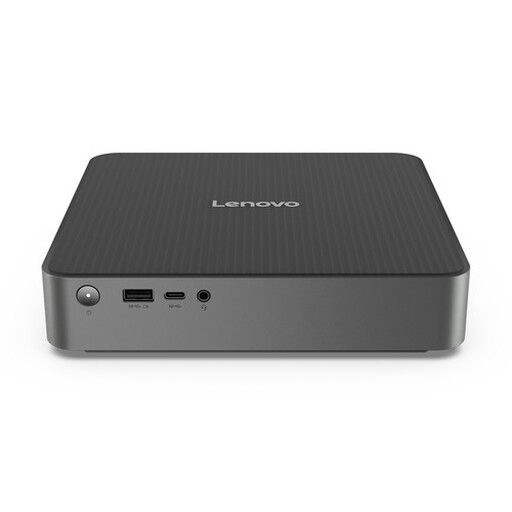
The ThinkCentre M70q Gen 6 Tiny is a compact desktop range for use with a separate monitor.
ExpertCenter PN64 is a mini PC range where you choose the rest of the set-up separately.
This selection includes all-in-ones with a built-in screen and a mini PC for which you choose your own monitor. Check whether the connections and included components on each configuration suit your workspace.
 No image available
An all-in-one that brings the computer and screen together in one set-up. Check that the listed configuration is compatible with your formula and document software.
23.8-inch matte Full HD IPS screen; Ryzen 5 7520U; 8 GB of memory and 512 GB SSD; Windows 11 Home; QWERTY keyboard included. The power adapter must be purchased separately.
 No image available
A mini PC for a workspace with a separate monitor. Check what monitor and input devices you’ll need.
Intel Core 5 210H; 16 GB DDR5 memory and 512 GB SSD; Windows 11 Home. Support for up to three monitors and connections including Thunderbolt 4, HDMI 2.1 and DisplayPort are listed.
 No image available
An all-in-one with a built-in screen. Check that Windows 11 Pro and the connections are suitable for your existing documents and peripherals.
23.8-inch Full HD IPS screen; Intel Core 5 120U; 8 GB DDR5 memory and 512 GB SSD; Windows 11 Pro; HDMI, USB and Wi-Fi 6E. The power adapter must be purchased separately.
 No image available
An all-in-one with a large built-in screen. Consider whether the screen size and resolution suit the way you create worksheets.
27-inch QHD IPS screen with 120 Hz; Intel Core Ultra 7 255H; 16 GB of memory and 1 TB SSD; Windows 11 Home. A wireless keyboard and mouse are listed as included.
 No image available
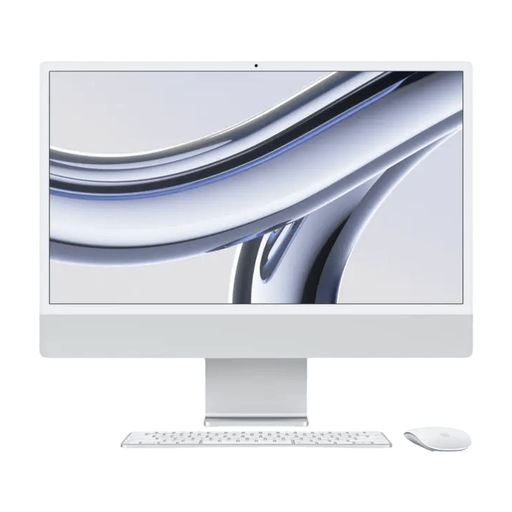
An all-in-one with a built-in screen for those who want to combine the computer and monitor in one set-up. Check that your chosen software works on this model before you buy.
M3 chip; 24-inch 4.5K Retina screen; 16 GB of memory and 512 GB SSD. A QWERTY keyboard is listed.
Start by checking the requirements of your own editor and testing a representative worksheet. Microsoft explains how to enter formulas in Word, but a computer’s specifications don’t prove that every specialist application will run on it.
Before you buy, check the monitor and printer connections, which input devices are included, and where you can position the computer with its ventilation openings clear. Assess the noise while doing work similar to your own; size alone won’t tell you how quiet it is.
You don’t need one to have legal rights to a product that works as it should. According to the Dutch government, there is no fixed statutory warranty period in the Netherlands; the retailer remains your point of contact if something goes wrong. If you pay for an extension, check what extra cover it actually provides.
If you buy online as a consumer from a business, the Dutch government says that in many cases you have a 14-day cooling-off period. Check the terms and any exceptions that apply to your specific purchase. This rule does not automatically apply to business purchases or purchases from a private seller.
Electrical and electronic equipment covered by the relevant EU rules must comply with them; where required, the manufacturer applies the CE marking. The European Union explains that CE is not an independently awarded quality certificate. Dutch rules on display screen work may also apply to an employee’s workspace; Arboportaal explains employers’ obligations. These rules are not a universal product specification for every consumer.