
Magazine designer working beside a bright window
You want to choose a screen and workspace where incoming light and glare are manageable. Arboportaal highlights glare and screen positioning as factors to consider when working with a screen.


Start by choosing a screen you can position well in relation to the window: a faster computer won’t solve glare. With a mini PC or separate desktop, you choose the screen separately; an all-in-one has a built-in screen. Then check your layout software’s requirements and match the colour settings to your print workflow.
You want to choose a screen and workspace where incoming light and glare are manageable. Arboportaal highlights glare and screen positioning as factors to consider when working with a screen.
You review pages and colours for print. Choosing a screen and managing colour require separate consideration; Adobe explains the colour management settings used for printing.
You create magazine pages and may also use other design software. Check the requirements of the apps you actually use and compare them with your chosen configuration; Adobe publishes separate system requirements for InDesign.
First, assess where the screen will sit by the window; computer performance and colour settings answer different questions.
| Factor to consider | What to look for | Who is this most relevant to? |
|---|---|---|
| Screen by the window | Consider positioning, adjustability and glare; see whether a separate screen would be easier to position. | I want to review pages without incoming light getting in the way. Around 36% of consumers are likely to prioritise tackling glare. |
| Colour for print | Match screen evaluation and output settings to your print workflow; ask the printer which profiles you need. | When reviewing colours for print, I want to know how the output is set up. Around 29% of consumers are likely to prioritise print colour. |
| Software and configuration | Check the operating system, processor, memory, storage and display output for the exact app versions you use. | I want my layout software and any other design apps to work with the computer I buy. Around 21% of consumers are likely to check software requirements first. |
| Separate screen or all-in-one | Check what’s included and whether the connections are compatible with the screen you want to use. | I’d rather make a considered choice between an integrated workstation and the freedom to position a separate screen. Around 14% of consumers are likely to prioritise this choice of setup. |
A different computer case won’t change the incoming light or the angle of your screen. Arboportaal highlights glare and screen positioning as factors to consider when working with a screen.
First, assess where the screen will sit by the window and see whether you need to reposition it or use a blind.
An all-in-one has a built-in screen; with a mini PC, you choose the screen separately. This also means the extra items you need for a complete workstation may differ.
Check what’s included and which connections are available for each specific model, and what you already have.
Screen specifications don’t automatically tell you how colours will look in print. Adobe describes colour management settings as a separate step when printing.
Agree the file setup and colour settings with your printer, and assess the output as part of that workflow.
The Mac mini M4 lets you choose a separate screen, while the iMac M4 combines the computer and screen.
The Z2 SFF G1i is a Windows desktop with a separately selected screen, for those who want to take expandability into account.
The ThinkStation P3 Tiny Gen 2 is a compact desktop option where you choose the screen separately.
This selection includes mini PCs with a separately chosen screen and an all-in-one with a built-in screen. Compare the configuration with your software requirements, and assess the screen’s position by the window separately.
 No image available
Suited to anyone who wants to choose and position a screen separately; check that the screen connections work with your setup.
The product name lists an M6 chip with a 12-core CPU and 12-core GPU, 24 GB of memory and a 512 GB SSD.
 No image available
A mini PC for anyone who wants to choose the computer and screen separately; check the connections and app requirements for the specific configuration.
The product name lists 128 GB RAM, a 4 TB SSD and NVIDIA DGX OS. The product description mentions HDMI and USB-C video outputs.
 No image available
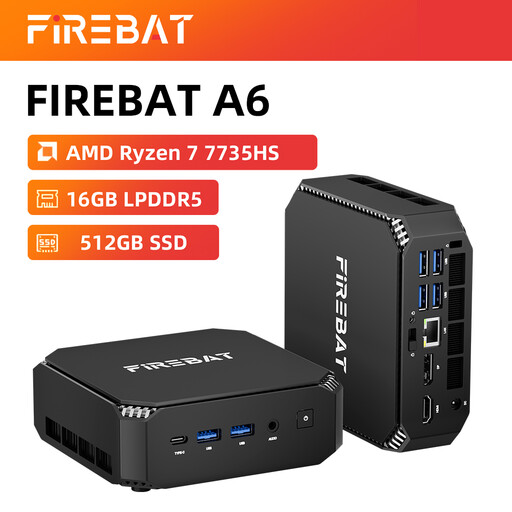
A mini PC for anyone who wants to choose a separate screen; check which connections will work with your preferred setup.
The product name lists Radeon 680M graphics, 16 GB RAM, a 512 GB SSD, two M.2 slots and support for three screens.
 No image available
Suited to anyone who wants to set up the computer and screen separately; check the display outputs for your configuration.
The product name lists 24 GB LPDDR5 RAM, a 512 GB SSD, Radeon 760M graphics and support for output to three screens.
 No image available
Suited to anyone who wants the computer and screen in one device; consider whether you can position the built-in screen well in your workspace by the window.
The product name lists a 27-inch QHD screen, 120 Hz, an Intel Core Ultra 7 255H processor, 16 GB of memory and a 1 TB SSD. The product description also mentions 400 nits, 99% sRGB and Windows 11 Home; these screen specifications alone don’t prove that colours will match print.
Not according to the general Windows minimum requirements for InDesign 21.3 and later listed by Adobe. Adobe sets out separate GPU requirements for optimal GPU performance; check these if your screen setup and workflow make use of them.
First, assess the screen’s position and height, and see whether you need a blind. Arboportaal highlights glare and positioning in relation to windows as factors to consider when working with a screen; a different desktop won’t change the incoming light.
No, a stated colour gamut doesn’t guarantee that. Adobe describes colour management as a separate step when printing; agree the settings and required file setup with your printer.
Employers have obligations to ensure employees can work safely with screens. Arboportaal mentions, among other things, a screen that doesn’t reflect light and suitable positioning in relation to windows. This isn’t a product specification for every private buyer.
For online consumer purchases, ACM ConsuWijzer states that you have a 14-day cooling-off period after delivery, subject to exceptions. You’re also entitled to a statutory guarantee if a product doesn’t meet what you could reasonably expect under normal use; the seller is your point of contact.