Choose a desktop to suit your teaching materials. If you mainly work with text and slides, you may need a different configuration than for lengthy or intensive video editing. Check the requirements of your chosen software and consider the complete exhibition setup, including the screen, connections, cables and, if needed, audio.
Who are these desktops for?
Lesson creator working with slides and text
Works mainly with Dutch-language text, images and presentation slides, and wants to display the material at the exhibition venue too. Lenovo Netherlands and Apple Netherlands describe desktops with different screen and connection options.
Video lesson creator
Records explanations, screen footage or spoken content and edits them into a lesson. Your chosen editor, project size and resolution all matter; Adobe and Microsoft Support offer guidance specific to their software.
Exhibition setup organiser
Wants to present the teaching materials on a screen and, if needed, with sound. Apple and Lenovo’s specifications show why it’s important to check the screen setup and connections for your chosen configuration in advance.
What to consider when choosing
First, decide which software and files you’ll use. Then check that the desktop and every part of your presentation setup will work together.
| What to consider |
What should you check? |
Who is this important for? |
| Editing text and slides |
Check the requirements of the software you plan to use, the operating system and the storage. Also check which items are included with the configuration you choose. |
If I mainly create text, images and slides, I want a practical, complete workstation without paying extra for high-end video editing I don’t need. Around 33% of consumers prioritise editing text and slides. |
| Editing video |
Start with your editing software and the resolution of your source footage. Microsoft Support recommends at least 8 GB of available RAM for Clipchamp and says that 16 GB or more is better. For Premiere 26.x, Adobe recommends 16 GB RAM for HD media and 32 GB or more for 4K and higher; also check the separate requirements for graphics capabilities and storage. |
If my lesson includes recordings or editing, I want to choose a configuration that suits my actual project and software. Around 25% of consumers prioritise video editing. |
| Connecting the presentation setup |
Check the ports on the exact computer and the presentation screen. Make sure you have the right cables or adapters, and test the picture and, if needed, sound with the complete setup. |
When I need to show the lesson on a separate screen, I want to know in advance how to connect the computer and presentation screen. Around 25% of consumers prioritise their presentation setup. |
| Complete workstation and maintenance |
Compare what’s included with each configuration, including the screen and input devices. Also check what options are available for accessing the memory and storage on the exact model. |
If I need to put together a complete workstation, I want to factor in any missing items and future maintenance. Around 17% of consumers prioritise total costs and maintenance. |
Common buying mistakes
-
Assuming every lesson needs 4K specifications
Adobe’s recommendation of 32 GB or more RAM applies to 4K and higher resolutions in Premiere 26.x; it isn’t a general requirement for editing text or using every video editor.
First, work out which software and source files you’ll use. Then compare the configuration with that software’s requirements.
Choosing memory or graphics hardware without checking could mean paying for capabilities your workflow doesn’t need.
-
Comparing only the computer when looking at an all-in-one
The Lenovo ThinkCentre M70q Gen 5 Tiny we reviewed is sold without a built-in screen, while the iMac we reviewed has one.
Compare complete workstations and check whether the screen, cables and input devices are included with the configuration you choose.
With a standalone mini PC, you may also need to arrange a screen, cable or input device.
-
Assuming similar model names mean the same configuration
A configuration may differ in some respects from a model with a similar name. For example, the iMac configurations described have different numbers of CPU cores.
Check the full model name and the specifications of the exact configuration before deciding what to buy.
-
Showing images and music without checking permissions
The rules on recognisable images of pupils and copyrighted material depend on the content and how the exhibition can be accessed.
Before showing anything, check who appears recognisably in the footage and what rights apply to all the images, text and music you use. The Dutch Data Protection Authority and Auteursrecht.nl explain what to consider in these situations.
Brands to compare
Apple
Apple offers both a standalone compact desktop and an all-in-one with a built-in screen. Your choice will depend in part on your screen setup.
- Apple Netherlands lists HDMI and Thunderbolt among the connections on the Mac mini M6. The configurations described start with 16 GB of memory and a 256 GB SSD.
- The Mac mini doesn’t have a built-in screen. The iMac does have a built-in 24-inch screen, but configurations differ in chip, ports and storage.
Lenovo
The ThinkCentre M70q Gen 5 Tiny is a compact Windows desktop worth comparing if you have a suitable screen or want to use one separately.
- For configuration 12TD0017MH, Lenovo Netherlands lists an Intel Core i5-14400T, 16 GB RAM and a 512 GB SSD. Lenovo also mentions tool-free access to memory and storage.
- The screen is sold separately. These specifications apply to configuration 12TD0017MH; check that the offer is for this exact configuration.
HP
The ProDesk 4 SFF G1i is a Windows desktop with a larger case than a Tiny PC, designed to be used with a separate screen.
- For configuration 9H7T5ET#ABH, HP Netherlands lists Windows 11 Pro, an Intel Core Ultra 7 265, 16 GB RAM, a 512 GB SSD and Intel Graphics.
- These specifications alone don’t prove that the desktop meets the requirements of every Premiere workflow. Check the requirements of the software you use.
Dell
The OptiPlex Micro is a compact business Windows desktop worth comparing if size and mounting options matter to you.
- Dell presents the OptiPlex Micro 7020 as a compact desktop with mounting options.
- Check the RAM, storage and other configuration details for the specific model you’re considering.
Joybuy computers for lessons and exhibitions
This selection includes an all-in-one, a compact mini PC and desktops configured for video editing. If you’re editing video, check the requirements of your chosen software. When putting together your presentation setup, look out for any screens, cables or other items you may need to buy separately.
 No image available
HP 24-cr0050nd 895R0EA#ABH all-in-one PC
The built-in screen could suit a workstation where the computer and display sit together.
23.8-inch FHD IPS screen, AMD Ryzen 5 7520U, 8 GB memory and a 512 GB SSD. The product description says the memory can’t be upgraded and the power adapter must be purchased separately.
View at Joybuy
 No image available
SOYO Y5Pro mini PC, Intel Core i5 8250U/8350U, 8 GB, 256 GB
This compact Windows 11 mini PC could suit a workstation with a separate screen.
8 GB DDR4 memory, 256 GB SATA SSD, two HDMI outputs and a Type-C video output. Check that the connection is compatible with the screen you’ll use for the exhibition.
View at Joybuy
 No image available
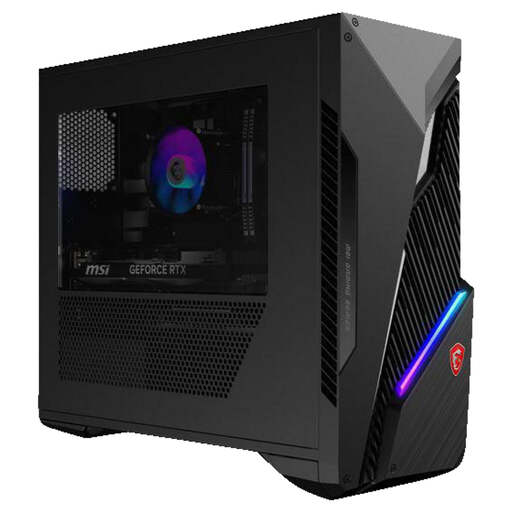
MSI MAG Infinite S3 14NVM7-3002EU
This desktop PC may be worth considering if your editing needs call for a standalone desktop. Compare its configuration with the requirements of your chosen software.
Intel Core i7-14700F, RTX 5060 Ti, 16 GB memory, 1 TB SSD and Windows 11 Home.
View at Joybuy
 No image available
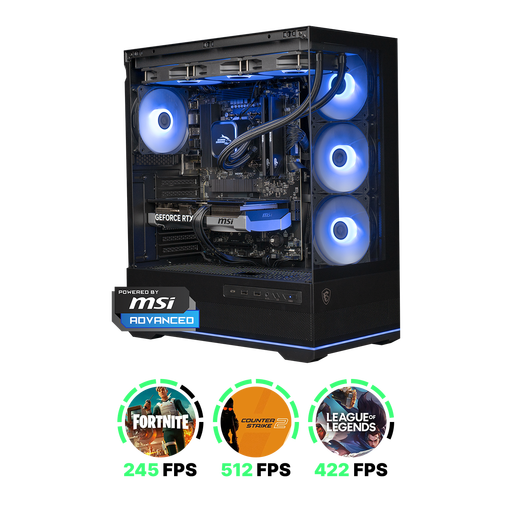
Shark Ultimator R700, RTX 5070/R7/16GB/1TB
The product description mentions video and photo editing. Check that the configuration meets the requirements of your editing software.
Ryzen 7 7800X3D, RTX 5070, 16 GB memory and a 1 TB NVMe SSD. The product description says the power adapter is sold separately.
View at Joybuy
 No image available
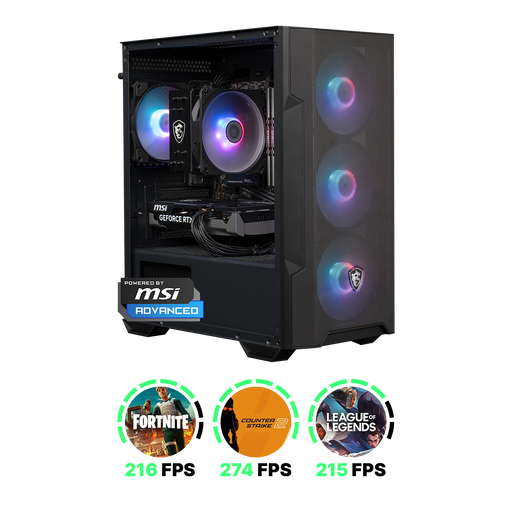
Shark Max Bite R501, RTX 5060/R5/16GB/1TB
The product description mentions video and photo editing. Compare the configuration with your software and project requirements before choosing.
Ryzen 5 5500, RTX 5060, 16 GB memory and a 1 TB NVMe SSD. The product description says the power adapter must be purchased separately.
View at Joybuy
Frequently asked questions
Does a desktop for a Dutch-language lesson need a dedicated graphics card?
Not simply because of the language or the exhibition. Consider the editor and video files you’ll use: Adobe publishes separate graphics requirements for Premiere 26.x, while Microsoft Support discusses RAM and project size for Clipchamp, among other things. Compare the configuration you choose with your software’s current requirements.
How can I make sure a recorded lesson plays properly at the exhibition?
Export a representative section in advance and play it on the actual setup, checking both picture and sound. Microsoft Support notes that problems can arise when exporting longer Clipchamp projects. OBS Project warns that a system meeting the basic requirements may not necessarily handle every recording or streaming task.
Are a screen and keyboard usually included with a mini desktop?
It depends on the configuration and offer. Lenovo says the screen and wireless input devices are sold separately for the ThinkCentre M70q Gen 5 Tiny we reviewed. Check what’s included with your chosen configuration and whether you have the right screen cable.
What rights apply when you buy a desktop online?
When you buy from a business at a distance, you’ll usually have a 14-day cooling-off period; the Dutch government also notes that exceptions may apply. If a product is faulty, contact the seller. The Dutch government lists free repair or replacement as possible solutions.
Can a lesson shown at an exhibition include recognisable pupils or copyrighted music?
It depends on the material and how the exhibition can be accessed. The Dutch Data Protection Authority explains the conditions for recording and publishing recognisable images of pupils, including the need for consent in the school situation it describes. Auteursrecht.nl distinguishes between using material for teaching in the classroom and making it available outside the curriculum, which may require permission. Check the specific exhibition and the rights for all the material you use before showing it.


