Start by considering your file formats, editing software and the connection to your presentation screen. Then assess the complete workstation, including the monitor and input devices. A compact Windows desktop or Mac mini may be suitable if your software and peripherals are compatible. For actual video editing, check the requirements for the software version and video files you use: Adobe bases its Premiere recommendations on media resolution, not on every kind of lesson editing.
Who is this choice for?
Lesson material editor
You work on text or slides before meeting the client and mainly want to be sure you can open, edit and display your files in the software you use. Microsoft Support outlines the system requirements for Microsoft 365; LibreOffice Help notes that Impress can import and edit PowerPoint presentations.
Presenter with an existing screen
You want to connect your desktop to an existing monitor or presentation screen. Check the ports on the exact model you choose and test the display in advance. Lenovo Netherlands and Apple Netherlands describe the connections available on their named desktops, while Microsoft Support explains how to set up a presentation across multiple screens.
Lesson video creator
You actually edit video as part of your lesson work. Choose a configuration to suit the software version and footage you use; Adobe bases its Premiere recommendations on factors including media resolution.
What should you look for?
Compact Windows desktop
A good fit if: your lesson and presentation software requires Windows and you have, or plan to choose, a suitable separate monitor.
Bear in mind: the Lenovo model mentioned does not include a keyboard or mouse, and the monitor is sold separately.
Mac mini
A good fit if: your software, files and peripherals work with macOS and you want to use a separate monitor.
Bear in mind: check the memory and storage configuration, and make sure the monitor and any adapters will work with your setup.
Windows desktop for video editing
A good fit if: you actually edit video and the requirements of your software and video files call for a more powerful configuration.
Bear in mind: for Premiere 26.x on Windows, Adobe recommends 16 GB RAM for HD media and 32 GB or more for 4K and above. These recommendations apply to that specific workflow.
| What to consider |
What should you check? |
Who is this important for? |
| Software and files |
Check the operating system, software licence and supported file formats. Open your actual lesson files and review the final slides in the software you plan to use. |
I want to open and edit my lesson files without having to switch programmes at the last minute. Around 36% of consumers put software and file compatibility first. |
| Presentation screen |
Compare the video output on the exact desktop with the screen’s input. Also test the display settings and, if you use them, the presenter notes view. |
Before meeting the client, I want to check that the image displays properly on the intended screen. Around 29% of consumers prioritise the presentation connection and checking the display. |
| Complete workstation |
For each configuration, check whether the monitor, keyboard, mouse, cables and required software are included or already available. |
I don’t want to discover before the meeting that I’m missing something I need to edit or present the lesson. Around 21% of consumers prioritise having a complete workstation. |
| Video editing |
First decide whether you’ll be editing video. Then compare your software version and source footage resolution with the requirements for memory, graphics processing and storage. |
If I edit lesson videos, I want to choose a configuration that suits those files, rather than one intended only for text or slides. Around 14% of consumers prioritise video editing. |
Common buying mistakes
-
Assuming a mini PC is a complete presentation setup
The Lenovo model reviewed does not include a keyboard or mouse, and the monitor is sold separately. Other configurations or bundles may differ.
Check what’s included with each model on offer and which parts you already have.
You may still need to arrange a monitor, keyboard, mouse, cables or software.
-
Assuming models in the same series have identical specifications
The Dell QBS1250 configuration reviewed has a different processor from the Joybuy offer in the same model series.
Compare the full model number, processor, memory and storage before treating different configurations as equivalent.
-
Applying video requirements to every kind of lesson editing
Adobe bases its Premiere recommendations on video media resolution; they don’t automatically apply to editing text or slides.
First decide whether you’ll be editing video, then check the requirements for the specific software version and files you’ll use.
-
Assuming consumer rules also apply to a business purchase
The ACM information about the cooling-off period applies to consumers. KVK distinguishes between consumer protection and business purchases.
Before paying, check who is legally making the purchase and which terms and conditions apply.
Brands to consider
Lenovo
The ThinkCentre Neo 50q Gen 5 is a compact business Windows desktop designed for use with a separate monitor.
- For model 13B9CTO1WWNL2, Lenovo Netherlands lists Windows 11 Pro, 16 GB DDR5 memory and a 512 GB SSD.
- This model does not include a keyboard or mouse; the monitor is sold separately. Check the exact configuration.
Apple
The Mac mini M6 is a compact macOS desktop for a workstation with a separate monitor, provided your software and peripherals are compatible.
- Apple lists configurations with 16 GB memory and a 256 or 512 GB SSD, with support for HDMI and Thunderbolt displays.
- Check your chosen configuration and the compatibility of your files, software and monitor; the available connections alone don’t guarantee compatibility.
HP
The Pro Mini 400 G9 is a small Windows desktop for a permanent workstation.
- For model 9H6Z2ET#ABH, HP Netherlands lists Windows 11 Pro, an Intel Core i5-14500T, 16 GB RAM and a 512 GB SSD.
- Check that the model on offer matches this specific configuration and its connections.
Dell
The Pro Slim Plus QBS1250 is a Windows desktop in a slim case.
- For the configuration mentioned, Dell Netherlands lists a Core Ultra 5 235, Windows 11 Pro, 16 GB DDR5 and a 512 GB SSD.
- Other processors in the same model series don’t automatically mean you’re looking at the same configuration; compare the full specifications.
Desktop options at Joybuy
The selection includes Mac mini configurations and Windows desktops, including an all-in-one and an OMEN 35L. Before choosing a model, compare software compatibility, monitor setup and the items included.
 No image available
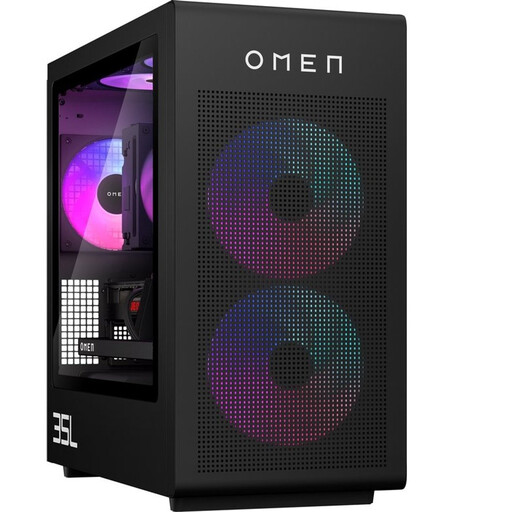
OMEN 35L Gaming Desktop GT16-0162nd D49NFEA#ABH
A Windows desktop to consider if you edit lesson files using Windows software. For video editing, check that the configuration meets the requirements of your software and files.
- Windows 11 Home
- 16 GB DDR5 memory
- 1 TB SSD
- Dedicated graphics card
- HDMI and DisplayPort connections
- The product description says it has a tool-free upgrade design.
View at Joybuy
 No image available
Apple Mac mini M6, 16 GB memory, 256 GB SSD
A compact macOS desktop to consider if your lesson files and editing software work with macOS and you use an external monitor.
- M6 chip with 12-core CPU and 12-core GPU
- 16 GB memory
- 256 GB SSD
- HDMI and Thunderbolt; the product description says it supports up to three external displays.
View at Joybuy
No image available
Apple Mac mini M6, 16 GB memory, 512 GB SSD
A compact macOS desktop to consider if your lesson files and editing software work with macOS and you use an external monitor.
- M6 chip with 12-core CPU and 12-core GPU
- 16 GB memory
- 512 GB SSD
- HDMI and Thunderbolt; the product description says it supports up to three external displays.
View at Joybuy
No image available
Apple Mac mini M6, 24 GB memory, 512 GB SSD
A compact macOS desktop to consider if your lesson files and editing software work with macOS and you use an external monitor.
- M6 chip with 12-core CPU and 12-core GPU
- 24 GB memory
- 512 GB SSD
- HDMI and Thunderbolt; the product description says it supports up to three external displays.
View at Joybuy
 No image available
Acer Aspire C24-A WI5418 NL All-in-One, 23.8-inch, 16 GB, 1 TB SSD
An all-in-one to consider if you’re looking for a workstation with a built-in monitor and input devices. Check in advance that its connections are suitable for your presentation screen.
- 23.8-inch Full HD IPS display
- Intel Core 5 120U
- 16 GB DDR5 memory
- 1 TB SSD
- Windows 11 Home and HDMI
- Wireless keyboard and mouse
- The product description says the power adapter must be purchased separately.
View at Joybuy
Frequently asked questions
Do I need the same computer for a lesson with slides as I do for video editing?
Not necessarily. Start with the requirements of the software and files you actually use. Adobe’s Premiere recommendations apply to specific video workflows and aren’t a general minimum requirement for editing text or slides.
How can I avoid problems with slides and presenter notes when meeting a client?
Open the final presentation in the software you plan to use, then test the connected screen and presenter view. Microsoft Support explains how to show a PowerPoint presentation on a second screen with separate presenter notes. Check the display settings in advance.
How do I make a backup before editing?
Save a separate copy of your lesson files and check that you can restore them. Microsoft Support describes File History as a Windows feature for copying and restoring files.
When I buy a desktop online, do I always have 14 days to change my mind and a statutory guarantee?
For an online purchase by a consumer in the Netherlands, ACM ConsuWijzer says there is usually a 14-day cooling-off period after delivery. You’re also entitled to a product that meets reasonable expectations under the statutory guarantee. As a desktop may also be bought for business use, consumer rights don’t automatically apply to every business purchase. Check who is legally making the purchase and which terms and conditions apply.
Do privacy rules apply to files from a lesson or client presentation?
If an organisation processes personal data in those files, it must protect that data properly, according to the Dutch Data Protection Authority. If this applies to you, make sure storage and access follow your organisation’s procedures.


