What should you look for when buying?
Start by checking your school’s software and device policy. Then check how both monitors connect, and choose a size that suits your workspace.
Compact Windows desktop
A good fit if: you want to use two screens in a small workspace and your school supports the Windows configuration you’ve chosen.
Keep in mind: Lenovo lists built-in DisplayPort and HDMI on the ThinkCentre neo 50q Gen 5, but optional ports and configurations may vary.
Larger Windows desktop
A good fit if: you have room for a larger case and want to compare a specific configuration; HP says the OmniDesk 16L M03-0612nd supports up to two monitors.
Keep in mind: check the video connections and whether your school accepts the operating system on the configuration you’ve chosen.
Mac mini
A good fit if: your school applications run on macOS and your screens can connect to the ports on your chosen configuration.
Keep in mind: Apple specifies support for up to three external displays on the Mac mini with M6; check your cables and any adapters you may need, too.
| What to consider |
What should you check? |
Who should consider this? |
| Two separate screens |
Check that the exact PC supports two displays at the same time, that its outputs suit your monitors and that you have the right cables. |
If you want to use resources alongside your lesson plan, both screens need to connect properly. Around 36% of consumers give screen compatibility top priority. |
| School software and device management |
Ask your school which operating systems, applications and types of device management are allowed. |
If you want to use school accounts or teaching platforms on your desktop, your school needs to support that combination. Around 29% of consumers prioritise school compatibility. |
| Working on lesson tasks at the same time |
Compare the memory, storage and operating system with the requirements of the programmes you use. Also check that you can arrange the screens as you’d like. |
If you want to view a resource while editing a lesson plan, check the requirements of those programmes. Around 21% of consumers prioritise this kind of multitasking. |
| Workspace and accessories |
Measure the space available and check which monitors, cables and adapters you already have or need. |
If your workspace is limited or you’re putting together a complete two-screen set-up, the size and connection accessories matter. Around 14% of consumers prioritise the set-up and the complete package. |
Joybuy products for this choice
This selection includes compact desktops, such as Windows mini PCs and various Mac mini configurations. For each model, check that its connections, software and included accessories suit your workspace.
 Image unavailable
SOYO Y5Pro Mini PC, Intel Core i5 8250U/8350U, 8 GB DDR4, 256 GB SATA SSD
A compact Windows mini PC to consider if you want to use two screens in a small workspace. Check that the exact configuration is compatible with your monitors.
The product description lists two HDMI outputs and support for multiple displays at the same time. The stated dimensions are 105 × 113 × 45 mm.
View at Joybuy
 Image unavailable
Apple Mac mini M6, 16 GB, 256 GB SSD
A compact option if the school applications you need run on macOS. Ask your school to confirm before you choose.
The product title lists an M6 chip with a 12-core CPU and 12-core GPU, 16 GB memory and 256 GB SSD. Apple specifies support for up to three external displays on the Mac mini with M6. Check which connections and cables your screens need.
View at Joybuy
Image unavailable
Apple Mac mini M6, 16 GB, 512 GB SSD
A compact option if your school software runs on macOS. Check in advance that your school’s policy allows this desktop, too.
The product title lists an M6 chip with a 12-core CPU and 12-core GPU, 16 GB memory and 512 GB SSD. Apple specifies support for up to three external displays on the Mac mini with M6. Check the connections and cables your monitors need.
View at Joybuy
Image unavailable
Apple Mac mini M6, 24 GB, 512 GB SSD
Consider this compact desktop if the school applications you need run on macOS and the device is allowed under your school’s policy.
The product title lists an M6 chip with a 12-core CPU and 12-core GPU, 24 GB memory and 512 GB SSD. Apple specifies support for up to three external displays on the Mac mini with M6. Check that its connections suit both monitors.
View at Joybuy
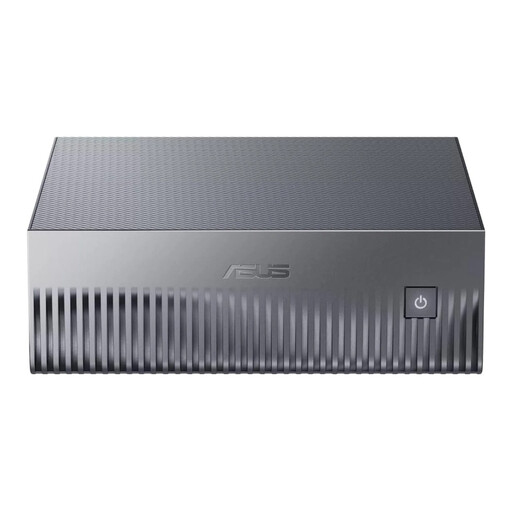 Image unavailable
ASUS Ascent GX10 GX10-GG0003BN GB10, 128 GB LPDDR5x, 1 TB SSD
The product title identifies this model as a mini PC. Before choosing it for lesson planning, check its video outputs and support for two separate screens.
The product title lists 128 GB LPDDR5x memory and a 1 TB SSD.
View at Joybuy
Frequently asked questions
How do I use two monitors as a separate workspace?
Connect both screens using suitable cables, then select Extend in Windows. You can then arrange the screens in the display settings. First, check that the exact PC supports two separate displays. Microsoft explains how to set up multiple displays in Windows.
Can I use any desktop for school accounts and pupil data?
No. The product specifications alone won’t tell you. Ask your school which devices and applications are allowed, and how access and management are handled. Kennisnet outlines considerations for managed and unmanaged devices.
Should I buy extra cover if the manufacturer’s warranty is short?
Not just to get your statutory guarantee rights when buying as a consumer in the Netherlands. These apply alongside any manufacturer’s or retailer’s guarantee. What you could reasonably expect from the product is what matters, and the retailer is your point of contact, according to ACM ConsuWijzer. If a school or organisation is buying, you should check the applicable business terms separately.
Are there Dutch rules for a computer-screen workspace?
Yes. In an employment relationship, the employer has obligations relating to safe computer screen work. Arboportaal outlines requirements for the workspace and breaks from screen work. This doesn’t mean you have to buy a particular brand or exactly two monitors.
What can I do with my old computer?
The Dutch government lists collection points, your local council recycling centre, and returning it to the shop or online retailer where you buy a new, similar device.


