Start with the teaching programmes and files you use, then check whether you already have a suitable monitor and peripherals. A mini PC or micro desktop works with a separate monitor, while an all-in-one may be a good fit if you also need a screen. Check the exact configuration, connections and included items, and follow your school’s security requirements when handling pupil data.
Who is this choice relevant to?
Teacher using school-specific software
You want to create teaching materials at home using programmes and files that also need to work at school. Check that the software is compatible with the operating system and working environment of the computer you choose.
Teacher with an existing monitor
You’re looking for a desktop computer for research, documents and presentations, and want to keep using your current monitor. Check the connections and what’s included with the specific configuration.
Teacher without a complete workstation
You need a screen as well as a computer, and are comparing an all-in-one with a separate computer and the peripherals you’ll need.
What should you look for when choosing?
Mini PC or micro desktop with a separate monitor
A good fit if: you already have a suitable monitor or want to choose your computer and monitor separately.
Check: the connections, power supply, operating system and included peripherals for each configuration.
All-in-one
A good fit if: you don’t have a monitor yet and want to buy the computer and display as one workstation.
Check: whether your teaching programmes support macOS, and whether the ports and storage on your chosen configuration meet your needs.
Business Windows micro desktop
A good fit if: your teaching programmes require Windows or you’re looking for a work computer that can be managed separately.
Check: the configuration and service terms; the product-line name doesn’t tell you what’s included in every version.
First check which software you use, then decide whether you need a separate monitor or a built-in screen. After that, compare the configuration and connections.
| What to consider |
What to look for when buying |
Who is this important for? |
| Teaching programmes |
Check that the operating system and sign-in method you need are supported. |
If I need to use programmes or files at home that also work at school, I want to know in advance whether that’s possible. Around 29% of consumers prioritise software compatibility. |
| Working on several things at once |
Compare the memory and SSD in the exact configuration with the requirements of your programmes. |
I want to use research, documents and presentations side by side, so I pay attention to the configuration. Around 23% of consumers prioritise smooth multitasking. |
| Screen and connections |
Check your monitor, video connections, peripherals and available desk space. |
If my workspace is short on room or I want to connect my existing monitor, the computer and its connections need to work for me. Around 18% of consumers make their workspace set-up a top priority. |
| Files and security |
Decide where to store your files and how to restore them; if you handle pupil data, check your school’s requirements. |
I want to be able to restore teaching materials and, if I handle pupil data, know what access and storage are permitted. Around 18% of consumers prioritise keeping files safe and protected. |
| Complete workstation and service |
Check which items and support are included with the exact configuration. |
I want to know what else I’ll need and what service is included before putting together a complete workstation. Around 12% of consumers first consider the full set-up and aftercare. |
Things to check before buying
-
Assuming a mini PC or Kit is a complete workstation
A standalone computer doesn’t automatically come with a screen and all the other items you need. Lenovo says that a screen for the specified ThinkCentre configuration is sold separately. ASUS states that the NUC 14 Pro Kit reviewed did not include a pre-installed operating system, memory or storage.
Compare the contents of the box for the exact configuration with the equipment you already have.
You may also need a screen, input devices, memory, storage or an operating system.
-
Treating the minimum Windows requirements as a guide to comfortable lesson preparation
Microsoft warns that apps and added hardware may have higher requirements than the minimum system requirements for Windows 11.
Check the requirements of the programmes you actually use against the configuration you’ve chosen.
-
Confusing a large SSD with a backup
Extra internal storage doesn’t automatically create a separate copy of your files. Microsoft describes backing up to an external drive or network location.
Decide which teaching folders to copy and test that you can restore a file.
You may need an external storage device or another backup solution to keep a separate copy.
-
Not checking support and warranty in more detail
Microsoft ended regular support for Windows 10 on 14 October 2025 and mentions an Extended Security Updates route. ACM ConsuWijzer also distinguishes between a manufacturer’s warranty and your statutory rights.
If you have an existing computer, check its current security support. When buying, check both the service terms and your statutory rights.
Brands to compare
Lenovo
The ThinkCentre M70q Gen 5 Tiny is a compact business Windows desktop designed for use with a separate monitor.
- For configuration 12TD0017MH, Lenovo specifies a Core i5-14400T, 16 GB RAM, a 512 GB SSD and Windows 11 Pro.
- According to Lenovo, the screen and certain peripherals are sold separately. These specifications don’t necessarily apply to other configurations.
Apple
The Mac mini is designed for use with a separate monitor, while the iMac has a built-in screen.
- Apple specifies a Mac mini configuration with M6, 16 GB memory and a 256 GB SSD. The iMac M4 mentioned has a built-in 24-inch screen.
- Check the software compatibility, ports and storage for the configuration you choose; these specifications aren’t an independent performance test.
ASUS
The NUC 14 Pro is available as a Mini PC and as a Kit.
- The product line includes different configurations to compare as compact PCs.
- According to ASUS, the Kit reviewed doesn’t include a pre-installed operating system, memory or storage. Check the configuration and box contents of the version you choose.
Dell
The Dell Pro Micro QCM1250 is a business Windows desktop range with a choice of configurations and service options.
- Dell shows a configuration with Windows 11 Pro, 16 GB DDR5 and a 512 GB SSD.
- Dell says configurations can be selected or customised, so don’t assume the specifications and service shown apply to every QCM1250.
HP
The Pro Mini 400 G9 is a compact business desktop range to compare with other micro desktops.
- HP describes the Pro Mini 400 as a small PC for a range of workspaces.
- Check that the configuration suits your software and working environment; product-line descriptions don’t necessarily apply to every version.
Compact desktops at Joybuy
This product selection focuses on compact desktops for use with a separate monitor. For each model, check that the operating system, connections and configuration suit your teaching programmes and workspace.
 Image unavailable
SOYO Y5Pro Mini PC, Intel Core i5 8250U/8350U, 8 GB DDR4, 256 GB SATA SSD
A compact Windows 11 PC to compare for a workstation with a separate monitor; check that the configuration you choose works with your teaching programmes.
The title lists 8 GB DDR4 and a 256 GB SSD. The product description mentions two HDMI outputs, a Type-C video output, four USB ports and gigabit Ethernet.
View at Joybuy
 Image unavailable
Apple Mac mini M6, 24 GB, 512 GB SSD
A compact desktop for use with an external monitor; check that macOS works with the teaching programmes you need.
The product title lists 24 GB memory and a 512 GB SSD. The product description mentions Thunderbolt 4, USB-C, HDMI and support for up to three external displays.
View at Joybuy
 Image unavailable
NVIDIA DGX Spark Founders Edition, 128 GB RAM, 4 TB SSD
Check that NVIDIA DGX OS and the connections are suitable for the software and screens you need for your workstation.
The product title lists a GB10, 128 GB RAM and a 4 TB SSD. The product description mentions HDMI and USB-C video outputs.
View at Joybuy
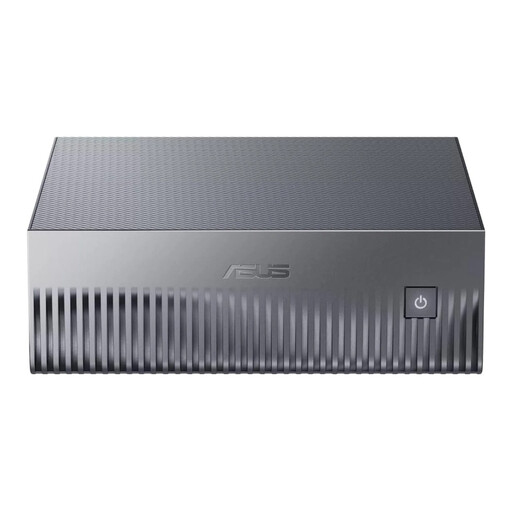 Image unavailable
ASUS Ascent GX10 GX10-GG0003BN, 128 GB LPDDR5x-SDRAM, 1 TB SSD
A mini PC to compare for a compact workstation; first check that the model is suitable for the software you use.
The product title lists 128 GB memory and a 1 TB SSD. The product description mentions Wi-Fi 7; available video connections depend on the model configuration.
View at Joybuy
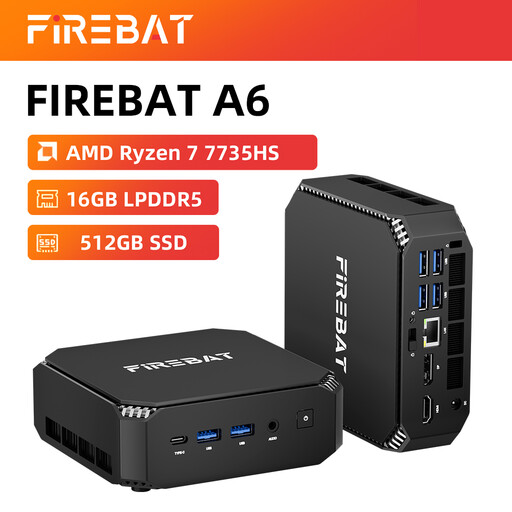 Image unavailable
FIREBAT Mini PC A6, AMD Ryzen 7 7735HS, 16 GB RAM, 512 GB SSD
A mini PC to compare for use with a separate monitor; check that the connections suit your monitor and peripherals.
The product title lists 16 GB RAM, a 512 GB SSD, support for three displays and Wi-Fi 6.
View at Joybuy
Frequently asked questions
Do I need an all-in-one to prepare a history lesson?
No, not if you already have a suitable monitor: you can compare a mini PC or micro desktop instead. If you don’t have a monitor yet, an all-in-one has a built-in display. In either case, check the software, connections and box contents for the exact configuration.
What do I need to connect before I can use a mini PC?
Check the display connection, input devices, power supply and network connection for the configuration you choose. According to ASUS, the NUC 14 Pro Kit reviewed also doesn’t include a pre-installed operating system, memory or storage.
How can I make a restorable copy of locally stored teaching files?
Microsoft describes File History as a way to make copies to an external drive or network location. Check which folders are included and try restoring a file; internal SSD storage isn’t the same as keeping a separate copy.
Can I store pupil data on my personal desktop at home?
First ask what home-working environment, storage and access your school permits; don’t assume you have general permission. The Dutch Data Protection Authority says schools must be able to demonstrate that they have appropriate technical and organisational measures in place for pupil data.
Am I always entitled to exactly two years’ legal warranty on a desktop in the Netherlands?
No. ACM ConsuWijzer distinguishes between the duration of a manufacturer’s or seller’s warranty and your statutory rights. A product must meet the standard you can reasonably expect when used normally. If something goes wrong, ask the seller what solution is appropriate; an offered warranty period doesn’t automatically end your statutory rights.


