Start by deciding how much of the installation you want to handle yourself, then check Linux support for the exact configuration. A PC supplied ready to use with Linux can reduce the initial setup; if you install Ubuntu yourself on a compact PC, check whether that specific version is supported. Also make sure the case, ports and any upgrade options are suitable for your shared desk.
Who is this option for?
New to Linux
You mainly want to learn Linux without having to troubleshoot lots of installation problems straight away. Compare a PC supplied ready to use with Linux against a specific Ubuntu configuration. TUXEDO Computers describes its PCs as ready to use with Linux, while Canonical publishes certified desktop configurations.
Using a shared desk
You need to fit the computer and cables into a shared setup, so pay attention to the case, any monitor mounting options and the ports. TUXEDO Computers lists a VESA mount for the Nano Pro Gen14; check that your monitor and desk setup are suitable for it.
Installing Linux yourself
You want to practise installing Linux or upgrade components later. Check Linux support for the complete configuration and back up your data before installing it on a computer you already use; Canonical recommends this for computers that have been used before.
What should you look for when buying?
Linux pre-installed
Best for: getting started with Linux straight away, without making installation your first learning task.
Bear in mind: this won’t teach you how to install Linux; check which configuration and software are included.
Installing Ubuntu yourself
Best for: getting hands-on with the installation and checking the exact configuration in advance.
Bear in mind: a listing for one configuration doesn’t prove that every version or Ubuntu release will work in the same way.
Reusing an existing PC
Best for: trying out Linux on your current computer and at your current desk before deciding whether it’s right for you.
Bear in mind: back up your data before changing the drive; BitLocker may mean extra steps are needed to install Linux alongside Windows.
| Consideration |
What to look for |
Who is this most important to? |
| Linux on your chosen configuration |
Check the exact model, components and Ubuntu version you plan to use; if in doubt, try the features you need using a live USB. |
If I mainly want to learn without hardware or installation problems, I want to know whether my complete configuration is suitable. Around 36% of consumers put compatibility first. |
| Space and ports |
Measure the available space and check the video, USB and network ports. A VESA mount is only useful if your monitor and shared setup are suitable for it. |
If I share a desk, I want to know where the PC will fit and whether I can connect my screen and peripherals. Around 29% of consumers mainly consider desk space and ports. |
| Reusing or buying |
Try Ubuntu from a USB drive before changing an existing drive. Canonical recommends 25 GB of free disk space for Ubuntu Desktop; also check the storage on the PC you’re considering. |
If I want to check whether Linux works on my existing computer first, I don’t want to buy new hardware unnecessarily. Around 21% of consumers put reusing equipment or costs first. |
| Upgrading later |
Check which RAM and SSD slots the version you’re ordering has, and what’s already installed; an upgrade option doesn’t mean the PC comes with the upgraded configuration. |
If I want to experiment further later, I want to know which components I can actually change. Around 14% of consumers put upgradeability first. |
Common pitfalls
-
Assuming a certified model name covers every version
Canonical lists specific configurations. A different processor, wireless network card or Ubuntu version isn’t automatically covered by the same listing.
Compare the full configuration with the listing and, if in doubt, test the features you need using a live USB.
-
Changing the drive straight away for a dual-boot setup
Canonical warns that installing Ubuntu alongside a Windows installation encrypted with BitLocker can cause problems with partitioning and may result in data loss.
Back up your data first and decide how to handle the encryption before starting the installation.
-
Confusing maximum upgradeability with what you’ll receive
A product may offer upgrade options without the version you order including the maximum amount of memory or storage.
Check the RAM and SSD configuration you’ve selected, and which slots are free. If you need additional components later, you may have to buy them separately.
Brands to consider
TUXEDO Computers
Linux-focused, configurable desktops; the Nano Pro Gen14 is a compact range with a listed VESA mount.
- TUXEDO Computers says its PCs come ready to use with Linux and lists accessible RAM and SSD slots for this model.
- Check the version you’ve chosen and the terms of delivery; upgrade options don’t tell you what’s included in your order.
Lenovo
The ThinkCentre M70q Gen 5 is a compact business desktop range; Canonical lists the model among its certified desktops.
- Canonical’s listing gives you a starting point for checking Ubuntu support for each configuration.
- Don’t assume the same support applies to every processor, wireless network card or retailer configuration.
HP
The Elite Mini 800 G9 is a compact desktop range; Canonical lists specific certified configurations.
- The listed Core i5-14600T configuration is a specific option to use as a basis for comparison.
- Don’t assume it’s the same as another version, such as a retail model with a different processor and Windows 11 Pro.
ASUS
NUC mini PCs are an option if you’re looking for a small computer and want to check Linux support for each model.
- ASUS says that certain Linux distributions have been validated on some NUCs.
- ASUS describes support for those validated distributions as best-effort; the brand name alone doesn’t guarantee Linux support.
Dell
Dell offers compact Pro Micro desktops and lists Ubuntu as an option in its workstation range.
- The different product ranges give you a starting point for comparing compact cases and Ubuntu configurations.
- An Ubuntu filter for workstations doesn’t confirm that a specific Pro Micro version comes with Ubuntu.
Compact desktops at Joybuy
These Joybuy products are compact desktops for a shared desk. Check which operating system comes with each version and what installation steps are needed to use Linux.
 No image available
Lenovo Yoga Mini 01IPH11 Copilot+ PC
A mini desktop to consider if you’re looking for a compact computer for a shared desk and want to install Linux yourself.
Intel Core Ultra 5 325, 16 GB LPDDR5X memory and 512 GB PCIe 4.0 SSD.
The listed configuration comes with Windows 11 Home; check Linux support for this version.
Joybuy
 No image available
SOYO M5 Mini PC AMD Ryzen 4300U
A compact desktop to consider if you want to connect several peripherals at a shared desk; check Linux support for this version yourself.
16 GB LPDDR4 memory and 512 GB SSD.
The product title lists HDMI 2.0, Type-C and DisplayPort 1.4 for triple-display output.
The listed version comes with Windows 11 Pro; Linux requires a separate installation.
Joybuy
 No image available
FIREBAT R3 Mini PC AMD Ryzen 5 7430U
A mini PC to consider if you’re looking for a compact desktop for a shared workspace; check that Linux is suitable for the version you’ve chosen before installing it.
16 GB RAM and 512 GB SSD.
The product title lists output for three displays.
Joybuy
 No image available
FIREBAT F1 Mini PC AMD Ryzen 5 7640HS
A compact desktop to consider for a shared desk with multiple screens and peripherals; check Linux support for the exact configuration.
24 GB LPDDR5 RAM and 512 GB PCIe 4.0 SSD.
The product title lists output for three displays, USB 4.0, HDMI 2.1 and 2.5G Ethernet.
Joybuy
 No image available
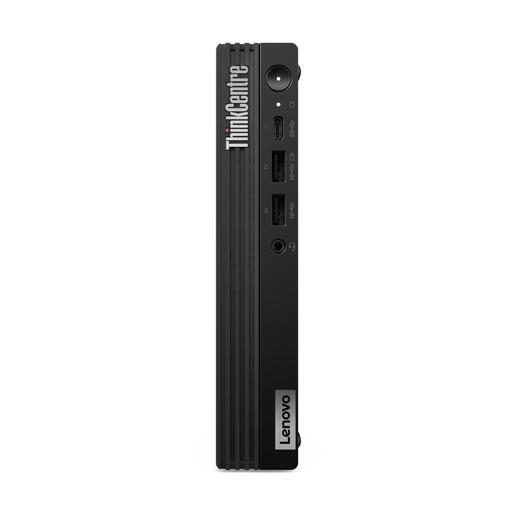
Lenovo ThinkCentre M70q Gen 5
A compact desktop to consider if you want to upgrade the memory or storage later; check Linux support for this specific version.
Intel Core i7-14700T, 16 GB DDR5 memory and 512 GB SSD.
The description lists two DIMM slots and two M.2 slots, as well as VESA mounting options.
The listed version comes with Windows 11 Pro; Linux requires a separate installation. According to the product description, the power adapter is not included.
Joybuy
Frequently asked questions
How can I try Linux before changing my existing PC?
You can try Ubuntu Desktop from a USB drive without installing it first. During the trial, test the features you need at your shared desk, and back up your data before installing it later.
Can I install Windows and Ubuntu side by side?
You may need to take extra steps if Windows uses BitLocker. Canonical warns that the Ubuntu installer may not be able to partition an encrypted Windows drive correctly for a side-by-side installation. Back up your data and make sure your files and recovery keys are safe before changing any settings.
Am I automatically entitled to exactly two years’ warranty on a computer in the Netherlands?
No. According to the Dutch government, the Netherlands has no fixed statutory warranty period. You’re entitled to a product that works as it should, and the seller is your point of contact if there’s a problem. What you can expect depends on factors including the product and whether it’s new or second-hand.
Where can I take a computer for disposal in the Netherlands?
When buying a new, similar appliance, private individuals can return their old computer to the retailer free of charge, including when buying online. The Dutch government also lists collection points and options provided by local councils.


