First, choose a screen setup that’s comfortable for editing, then check whether your word processor lets you enlarge the text in the document itself. An all-in-one keeps the computer and screen together. With a mini PC or desktop with a separate screen, you choose the monitor yourself, but you’ll also need to check the connections and any missing components.
Who is this choice relevant to?
Editor who wants to read larger text
You write and check a lot of text, and want to enlarge it while you work without accidentally changing the print layout. Microsoft Support explains how to adjust the on-screen text size separately from changing the text in a document.
Creator of the large-print version
You want to enlarge the text in the handbook itself and check the pages before printing or sharing the document. Microsoft Support explains how to change the font size in Office apps and preview pages in Word before printing.
Choir coordinator with an existing workspace
You may already have a screen or input devices and want to work out whether a separate desktop would suit them. Lenovo states that the keyboard and mouse are sold separately for configuration 12SCCTO1WWNL1; Dell and Apple describe computers that can be used with a separately chosen screen.
What should you look for?
All-in-one PC
Choose this if: you want a compact workspace and can assess the integrated screen beforehand.
Bear in mind: the screen and included accessories vary by configuration.
Mini PC with a separate screen
Choose this if: you already have a suitable screen or want to choose your own monitor.
Bear in mind: check the connection and find out separately which input devices and software you need.
Desktop with a separate tower
Choose this if: you want to keep or replace a separate screen and have room for a tower.
Bear in mind: consider the computer, monitor, connections and input devices as one complete workspace.
| What to consider |
What should you check? |
Who is this important for? |
| Comfortable editing |
Assess the screen size, anti-glare finish and adjustment options of the exact configuration. Also check whether you can enlarge the text or display scaling in the operating system. |
If you want to make text appear larger while writing without changing the document layout, this is the top priority for consumers who want to edit comfortably; around 36% of consumers in this choice context. |
| Large print in the document |
Check that you can adjust the document text in your word processor, and preview the page layout before printing or sharing a PDF. |
If the handbook you hand out needs larger text, it’s important to be able to check the final pages too; around 29% of consumers put the large-print version first. |
| Complete workspace |
Check the exact model code, operating system and whether the screen, keyboard and mouse are included. |
If you want to know which components you already have and what else you need to get started, this is what consumers who prioritise a complete workspace focus on most; around 21% of consumers. |
| Using an existing screen |
Compare your monitor’s connections with those on the exact computer configuration, and check that the screen is comfortable to use at your preferred magnification. |
If you want to keep using an existing monitor or replace it separately later, choosing a separate screen is relevant; around 14% of consumers put this first. |
Common pitfalls
-
Confusing a larger screen with larger text in the handbook
Enlarging on-screen text and changing the font size in a document are two separate actions. Making things appear larger on your computer won’t automatically change the text you share.
Check both how easy the text is to read while editing and the font size and page layout of the final version.
If input devices aren’t included, you’ll need to arrange them separately.
-
Comparing only the computer when choosing a separate screen
With a mini PC or desktop with a separate tower, you’ll also need to consider the screen and its connection. An existing monitor may be suitable, but check that its connections are compatible with the exact computer configuration.
Make a note of which components you already have and check what other peripherals and software you need.
Depending on your existing workspace, you may also need a suitable screen, input devices or software.
-
Confusing the manufacturer’s warranty with the Dutch statutory guarantee
The Netherlands Authority for Consumers and Markets explains that there is no fixed time limit for the statutory guarantee in the Netherlands. A manufacturer’s warranty is separate.
Consider information about the manufacturer’s warranty alongside your statutory rights and what you could reasonably expect from your purchase.
Brands to consider
HP
The OmniStudio 24cu0612nd gives you an idea of what a complete all-in-one configuration can include.
- For this configuration, HP lists a 23.8-inch FHD screen, Windows 11 Home, 12 GB RAM, a 512 GB SSD, and an included keyboard and mouse.
- The stand described is tilt-adjustable; check whether its adjustment options suit your workspace. These are HP specifications, not the findings of an independent performance test.
MSI
The Modern AM242P 1M-1223EU is an all-in-one with an anti-glare screen.
- For this model code, MSI specifies a 23.8-inch FHD screen, 8 GB RAM, a 512 GB SSD and Windows 11 Pro.
- Check the stand and included input devices for the exact configuration; features of other AM242P variants don’t automatically apply to this model.
Lenovo
The ThinkCentre Neo 50a Gen 5 is an all-in-one range; configuration 12SCCTO1WWNL1 is a clear example of how included items can vary.
- Lenovo lists an anti-glare 23.8-inch FHD screen for this configuration.
- For configuration 12SCCTO1WWNL1, the keyboard and mouse are sold separately. Check what’s included with the configuration you choose.
Dell
The Pro Micro QCM1250 is a mini desktop for anyone choosing their screen separately.
- Dell’s product page identifies the QCM1250 as a Micro desktop.
- Dell warns that images may differ from the configuration selected. Check the configuration you’ve chosen and how it connects to your screen.
Apple
The Mac mini offers a macOS option for anyone who wants to use a separate screen.
- Apple describes support for external displays with the Mac mini.
- Support varies by configuration. Check compatibility with your monitor and consider what else you need for a complete workspace.
Joybuy products
This selection features all-in-one computers with an integrated screen, including thin-client models. If you’re considering a thin client, first check that its operating system and the software you need are suitable for your working environment.
 No image available
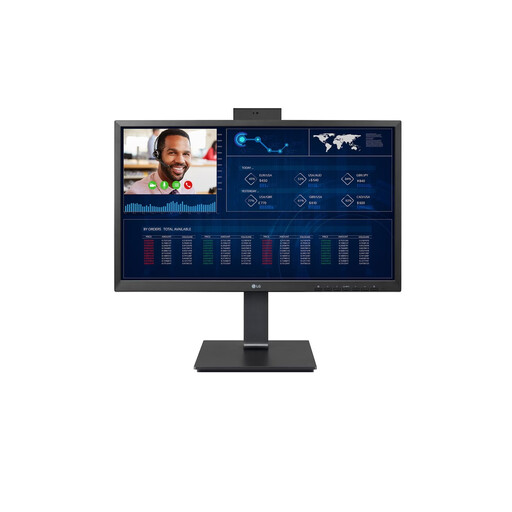
LG AIO 24CQ651N-6N
A good fit if you want an integrated screen, provided the thin client is compatible with your IT environment.
The product description lists a 24-inch FHD IPS screen and a thin client for cloud and VDI applications. The operating system depends on your IT environment or may not be included; check before buying.
View at Joybuy
 No image available
MSI Modern AM273QP AI 1UM-061EU
A good fit if you want an integrated 27-inch screen for editing and checking text.
The product name lists an Intel Core Ultra 5 125H, 16 GB DDR5-SDRAM and a 1 TB SSD. The product specifications list a 27-inch QHD IPS screen and Windows 11 Pro.
View at Joybuy
 No image available
MSI Modern AM273Q AI 1UM-058EU
A good fit if you want an integrated 27-inch screen and Windows 11 Pro in one workspace.
The product name lists an Intel Core Ultra 7 155H, 32 GB DDR5-SDRAM, a 1 TB SSD and Wi-Fi 6E. The product specifications list a 27-inch QHD IPS screen and Windows 11 Pro.
View at Joybuy
 No image available
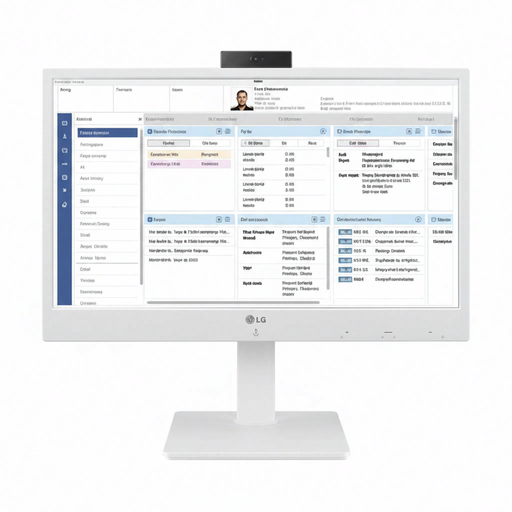
LG All-in-One Thin Client 24CR670N-6P
A good fit if you want an integrated screen and already know how a thin client will be used in your IT environment.
The product description lists a 24-inch FHD IPS screen and cloud and VDI applications. The operating system depends on your IT environment or may not be included; check that the software you need is available.
View at Joybuy
 No image available
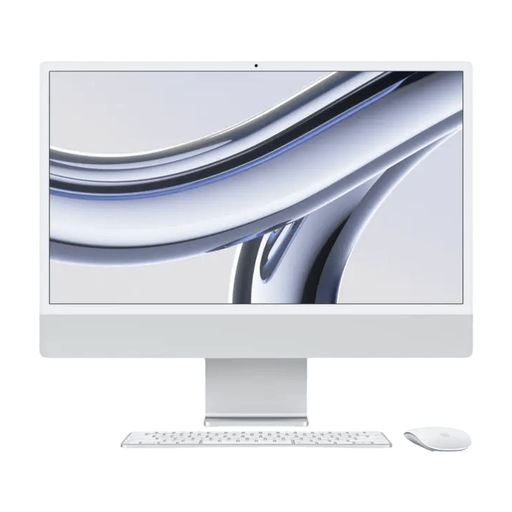
Apple iMac 24-inch M3 16 GB 512 GB Silver (2023)
A good fit if you want an all-in-one with macOS and an integrated screen for writing and checking text.
The product name lists a 24-inch model with M3, 16 GB of memory and 512 GB of storage. The product specifications list a 24-inch 4.5K Retina display and macOS.
View at Joybuy
Frequently asked questions
Will the print be larger if you only enlarge the text on your screen?
No. The text size or display scaling setting changes how things appear on your computer; it doesn’t automatically change the text in the document. To create a large-print handbook, adjust the document text and check the pages in print preview.
How do you check a digital version for choir members?
First, check the source document’s formatting and export it as a PDF if you wish. Microsoft Support explains how to export to PDF in the relevant Office desktop apps; then check that the shared version is easy to read.
What should you check if you want to use a mini PC with your own screen?
Compare the connections on the computer you’ve chosen with those on your monitor, and check which input devices and word processor you need. Support for external displays can vary by configuration.
Are you always entitled to exactly two years of statutory guarantee on a desktop in the Netherlands?
No. The Netherlands Authority for Consumers and Markets explains that there is no fixed time limit for the statutory guarantee in the Netherlands: the purchase must meet what you could reasonably expect. Any stated manufacturer’s warranty is separate.
Can you return a desktop bought online within 14 days?
For a standard online consumer purchase, you generally have a statutory cooling-off period of up to 14 days after delivery. The Netherlands Authority for Consumers and Markets lists some exceptions; check the terms that apply to your specific purchase.


