
Editor of large image files
If you work with large designs or several files at once, compare the memory in the configuration with the software you use. Adobe lists 8 GB as the minimum and 16 GB as the recommended amount for InDesign.


Choose a desktop based on the software required by your course, the size of your source files and the space you need for working files and backups. A compact Mac suits a small workspace with a separate monitor; a Windows tower is an option if you want to choose the configuration yourself, while an all-in-one combines the computer and screen. Check software compatibility, the screen, connections and included peripherals for each configuration.
If you work with large designs or several files at once, compare the memory in the configuration with the software you use. Adobe lists 8 GB as the minimum and 16 GB as the recommended amount for InDesign.
If you keep lots of original files and versions, don’t just consider working storage: plan for a separate backup too. The Digital Trust Center recommends keeping backups in a physical and a digital location.
If you also include video, check the requirements for the resolutions you work with. For Premiere, Adobe lists 32 GB RAM or more for 4K and above.
Start with your software and files, then consider whether you mainly need storage, a complete workstation or extra capability for video.
| What to consider | What to check | Best suited to |
|---|---|---|
| Memory | Compare the memory in the exact configuration with the requirements of your software. Adobe lists 8 GB as the minimum and 16 GB as the recommended amount for InDesign. | If I have several large design files open at once, I want the memory to meet my software’s requirements. Around 42% of consumers put memory first for large projects. |
| File storage and backup | Take stock of your source files and versions, check the SSD capacity and plan a separate backup that you can restore. | I want to keep source files and versions, as well as a separate, restorable copy. Around 33% of consumers give this storage and backup requirement top priority. |
| Software and workspace | Check the operating system, software compatibility, screen specifications, and which connections and peripherals are included with the configuration. | If my course requires specific software, I want the computer and screen to be suitable. Around 17% of consumers prioritise this combination. |
| Video work | Check whether video is part of your work and which resolutions you edit. For Premiere, Adobe lists 32 GB RAM or more for 4K and above. | If I also edit video, I want to take the requirements for my resolutions into account when choosing. Around 8% of consumers put video editing first. |
Working storage and a restorable copy serve different purposes. A copy on the same computer is no substitute for a separate backup.
Allow space for active projects and a separate backup, then test that you can restore your files.
You may need separate storage for backups.
The higher memory requirement Adobe lists for Premiere at 4K and above applies to that video workflow, not automatically to every layout project.
First establish whether you actually edit high-resolution video before choosing a configuration with more powerful graphics capabilities.
A compact computer, tower and all-in-one differ in what else you need to get started. A standalone computer, for example, may require a separate screen and input devices.
Check the screen specifications and what’s included with the exact configuration before you choose.
Mac mini for a compact macOS workstation with a separately chosen screen and storage configuration.
ThinkCentre Neo includes a compact Windows desktop and an all-in-one configuration.
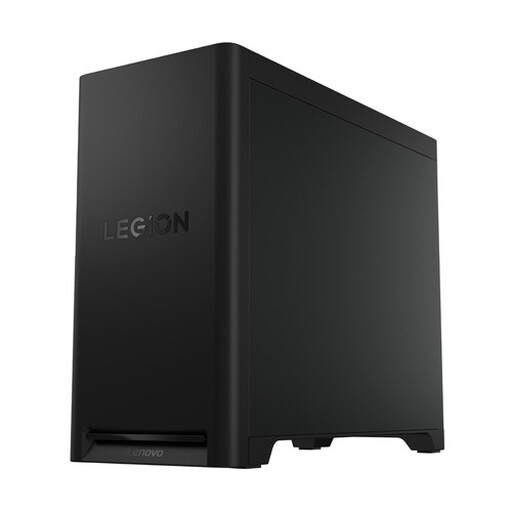
Pro Max Tower T2 for anyone considering a Windows tower with configuration options.
Z2 Tower G1i is a workstation option to consider if your graphics or video setup calls for it.
Veriton N Pro is a compact Windows desktop to compare with other small systems.
Below are compact desktops, towers, mini PCs and an all-in-one to suit different workspace and storage needs. For each configuration, check that the operating system, software, screen and available storage suit your portfolio.
 No image available
A good fit if you’re looking for a compact Mac desktop and can choose a separate screen and input devices.
The product name lists a 12-core CPU, a 12-core GPU, 24 GB of memory and a 512 GB SSD. Check that the software you use runs on macOS.
 No image available
A good fit if you’re looking for a Windows tower with the stated memory and storage configuration.
The product name lists 32 GB DDR5 memory, a 1 TB SSD and an NVIDIA GeForce RTX 5070. The product description mentions the option to upgrade to 64 GB of memory and add multiple M.2 SSDs; check that the exact configuration and connections suit your plans.
 No image available
A good fit if you’re looking for plenty of memory and local SSD storage in this selection. Check first that your software is compatible with DGX OS.
The product name lists an NVIDIA GB10 mini PC with 128 GB RAM and a 4 TB SSD.
 No image available
A good fit if you’re looking for a compact mini PC and want to compare the stated memory and storage configuration with your software requirements.
The product name lists 24 GB LPDDR5 memory, a 512 GB SSD, Radeon 760M graphics and support for output to three screens.
 No image available
A good fit if you’re looking for an all-in-one with an integrated screen. Consider the screen and computer together when planning your workspace.
The product name lists a 27-inch QHD screen with 120 Hz, 16 GB LPDDR5X memory and a 1 TB SSD.
For InDesign, Adobe lists 8 GB as the minimum and 16 GB as the recommended amount. That doesn’t guarantee it’ll be enough for a portfolio with several large files or multiple programmes open at once; compare the requirements of all the applications you use.
Back up your files separately from your working storage and test that you can restore them. Among other things, the Digital Trust Center recommends keeping backups in a physical and a digital location.
Before ordering, check whether a screen, keyboard, mouse and the storage you need are included with your chosen configuration. For example, the Acer Veriton N Pro configuration described here lists the keyboard and mouse as not included.
For a consumer purchase made at a distance, you’ll generally have a cooling-off period of up to 14 days after delivery, according to the ACM. There are legal exceptions: for example, the ACM distinguishes between a computer assembled from options on offer and a product made to an individual consumer’s specifications.
No. According to ACM ConsuWijzer, you’re also entitled to a statutory warranty, in addition to any retailer or manufacturer’s warranty. If a product breaks during normal use sooner than you could reasonably expect, the retailer must put things right free of charge.