Choose a setup that suits the screen you already have, the size of your photo projects and your storage needs. A compact desktop lets you choose a separate screen, an all-in-one combines the computer and screen, while a tower gives you a configurable setup. Check the memory, storage, ports and screen options for the specific model; these features alone don’t tell you how quickly it will merge your HDR photos.
Who is this desktop photography setup for?
Photographers who work with large exposure brackets
If you regularly merge several shots, you can weigh up the processor and memory against the requirements of your software. Adobe explains how to merge exposure brackets in Lightroom Classic and notes that processor and memory can affect performance.
Photographers who review images on screen
If you want to inspect landscapes closely at home, choose between an existing or new separate screen and a computer with an integrated display. Apple lists an integrated 24-inch 4.5K display for the iMac M4.
Photographers with a growing RAW archive
If you keep photos and edits for the long term, consider the storage capacity and how you’ll back up your files separately. Adobe explains how to back up the Lightroom Classic catalogue; make sure your own storage plan also includes the original photos.
What should you consider when choosing?
Compact desktop with a separate screen
Choose this type if: you already have a suitable screen or want to choose one yourself, and you’d like to keep the computer compact on your desk.
Consider: the screen is a separate choice, so also check that the storage you choose will suit your photo library.
All-in-one
Choose this type if: you want to buy your computer and screen as one complete setup.
Consider: the screen and computer are chosen together, so check the exact memory, storage and port configuration.
Configurable tower
Choose this type if: you want to tailor the components and storage to your workflow, or upgrade options are important to you.
Consider: check the configuration of each model and allow space for both the computer and a separate screen.
| Consideration |
What should you check? |
Who should give this more weight? |
| Merging and editing |
Check the requirements of your software version and compare the processor and installed memory of the exact model. |
If I regularly merge exposure brackets, I want the components to suit my editing work. Around 33% of consumers give merging and editing performance top priority. |
| Screen |
Decide whether your existing screen is suitable for judging colour and detail; for an all-in-one, check the screen specification. |
If I want to review landscapes on a suitable screen, the choice between a separate and integrated display matters. Around 27% of consumers give screen quality top priority. |
| Storage and back-up |
Check the SSD capacity and plan separately how you’ll store your original photos and catalogue. |
If my photo library is growing, I want enough space and a plan for separate back-ups. Around 20% of consumers give archiving and back-up top priority. |
| Workspace setup |
Check which screens and peripherals you already have, and which ports the model you choose offers. |
If desk space or the layout of my workspace is a deciding factor, the computer’s form factor matters. Around 20% of consumers give their setup top priority. |
Common buying pitfalls
-
Looking only at memory
Memory and SSD storage meet different needs. For example, one Lenovo ThinkStation P3 Tower Gen 2 configuration combines 32 GB of memory with a 256 GB SSD.
Compare both the memory and SSD for the exact product number, and decide separately where you’ll store your photos and back-ups.
A growing library may need additional storage.
-
Assuming a compact computer is a complete screen setup
The Mac mini is designed to be used with an external screen, while the iMac M4 has an integrated display.
Make a note of which screen you already have and, before buying, check that the ports on the computer you choose are compatible with it.
-
Treating a catalogue back-up as a back-up of your entire photo archive
Adobe’s Lightroom Classic instructions cover backing up the catalogue; this is not the same as having a plan for your original photo files.
Decide how you’ll store both the catalogue and original photos, and check that you can restore your back-ups.
Brands worth comparing
Apple
Apple offers compact desktops designed for use with a separate screen, as well as all-in-ones with integrated displays.
- Apple lists several memory and storage configurations for the Mac mini M6, along with support for external displays.
- According to Apple, the iMac M4 has an integrated 24-inch 4.5K display; check the exact specification of both models. These specifications don’t show how quickly your photo brackets will merge.
Lenovo
The ThinkStation P3 Tower Gen 2 is a tower option for anyone looking for a Windows desktop with a separate screen.
- Lenovo lists configurations with different combinations of memory and SSD storage.
- One listed model has 32 GB of memory and a 256 GB SSD, while another has 8 GB of memory and a 512 GB SSD. Compare the product number and the components you’re ordering.
HP
The Z2 Tower G1i is a workstation tower for buyers who are considering upgrade options and the terms of a specific model.
- HP describes upgrade options for this product range.
- For a model sold through its Dutch store, the official HP Store lists three years of on-site support. This doesn’t automatically apply to every Z2 configuration, nor does it prove a speed advantage for photo editing.
BTO
BTO offers desktops for photo editing that buyers can configure themselves.
- Choosing your own components gives you a way to tailor the configuration to your workflow.
- Suitability depends on the final components and service terms; the product range alone can’t show how a PC that hasn’t yet been configured will perform.
Joybuy products for your photography setup
This Joybuy selection includes compact computers and desktop PCs for a home workspace. Assess each configuration in relation to your screen, software and storage plan.
 Image unavailable
Apple Mac mini M6, 16 GB, 512 GB SSD
Suitable for a workspace where you choose the screen separately; bear in mind that an external screen is part of the setup.
Apple M6 chip with 12-core CPU and 12-core GPU, 16 GB of memory and 512 GB SSD.
Joybuy
Image unavailable
Apple Mac mini M6, 24 GB, 512 GB SSD
Suitable for a workspace where you want to choose the screen separately; check in advance that the configuration you choose suits the way you use your software.
Apple M6 chip with 12-core CPU and 12-core GPU, 24 GB of memory and 512 GB SSD.
Joybuy
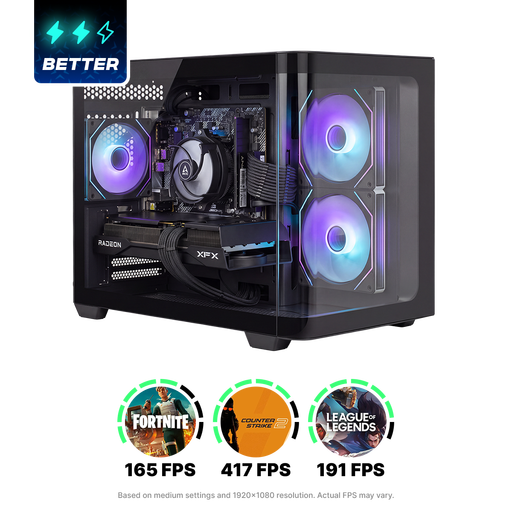 Image unavailable
Shark Bloodlust R700 Gaming PC, 16 GB, 1 TB SSD
A desktop option to compare if you’re looking for a computer with local SSD storage; make sure the configuration suits the requirements of your software.
The product name lists a Ryzen 7 processor, 16 GB of memory and a 1 TB SSD.
Joybuy
 Image unavailable
ASUS ROG G700TF-07265F666W, Core Ultra 7 265F, 32 GB, 1 TB SSD
A desktop option for anyone wanting to compare the listed processor, memory and SSD with their own photo workflow; specifications alone don’t predict HDR merging speed.
Intel Core Ultra 7 265F, 32 GB DDR5, 1 TB SSD and NVIDIA GeForce RTX 5070 12 GB.
Joybuy
 Image unavailable
NVIDIA DGX Spark Founders Edition, 128 GB, 4 TB SSD
This mini PC is worth considering if a compact computer with the listed storage capacity suits your setup and software.
NVIDIA GB10 processor, 128 GB of memory, 4 TB SSD and NVIDIA DGX OS.
Joybuy
Frequently asked questions
Do you need a separate graphics card to merge exposure brackets?
There’s no universal buying rule for this task. First check the requirements of the software version and features you use, then compare them with the full configuration. A graphics card alone doesn’t prove that HDR merging will be faster.
Do you need an HDR screen to create an HDR photo?
Merging shots and viewing or exporting for HDR display are separate steps. Lightroom Classic describes its merge function separately from HDR editing and export; choose a screen based on how you want to review and deliver the result.
What should you do for your photo library after setting up your computer?
Decide where to keep your photos and catalogue, and make a back-up plan. Adobe provides separate instructions for backing up the Lightroom Classic catalogue; remember to include your original photo files in your own back-up plan too.
What are your rights on warranties and returns when buying online in the Netherlands?
When you buy as a consumer, you’re entitled to a product that is fit for purpose; according to the Dutch government, there’s no fixed statutory warranty period in the Netherlands. For eligible online consumer purchases, you’ll often have 14 days to change your mind. Check who the seller is and which terms apply to your purchase; a manufacturer’s warranty doesn’t replace your statutory rights.


