Choose a desktop that can run the development tools and browsers you need for the guide, then check that it works with your screen and input devices. A compact Windows PC suits a small, fixed workspace; a Mac mini is particularly relevant if Safari inspection on macOS is part of your workflow. No computer makes the guide keyboard-accessible by itself: you need to build and test the website’s controls and focus behaviour.
Who is this desktop guide for?
Developer testing keyboard controls
You build interactive features such as filters or alternatives to maps, and want to check focus, navigation order and whether you can exit components. The W3C describes keyboard operability and avoiding keyboard traps as properties of web content.
Creator with a small desk
You’re looking for a compact desktop computer and want to know whether you can keep using your existing screen and input devices.
Creator with a Safari testing workflow
You need to inspect the guide in Safari on macOS and factor this software requirement into your platform choice. Apple documents Web Inspector for Safari.
What should you look for when choosing?
Compact Windows desktop
Best for: a small, fixed workspace running your Windows development and testing software.
Bear in mind: check the exact configuration and whether a screen and keyboard are included or need to be bought separately.
Mac mini
Best for: a workflow that requires Safari inspection on macOS, where you want to put together a compact system with a separate screen.
Bear in mind: compare the memory and storage options you’re considering, and allow for the screen and other workspace essentials.
Larger desktop tower
Best for: a workspace where a compact case isn’t a priority and you want to compare different configurations.
Bear in mind: make room for the tower and check the expansion options for each model; no performance advantage for keyboard testing has been demonstrated.
First compare your software and browser requirements, then check the connections and components you’ll need for your complete workspace.
| What to consider |
What should you check? |
Who is this most important for? |
| Development and testing workflow |
Check that the operating system and chosen configuration support your development tools and test browsers. |
If I want to build and test my guide in specific browsers, the platform needs to suit that workflow. Around 33% of consumers prioritise this testing workflow. |
| Editor, browsers and project files |
Compare the memory and SSD in the exact model with your own software and storage requirements. |
When I’m working with an editor, test browsers and project files at the same time, I want the configuration to suit that combination. Around 27% of consumers prioritise working with several things at once. |
| Complete workspace |
Check the connections, cables and included components, especially if you’re using an existing screen and keyboard. |
If I want to use my current screen and input devices, the connections need to be compatible and it needs to be clear what’s in the box. Around 20% of consumers prioritise their workspace and connections. |
| Total cost and after-sales support |
Work out which workspace components you still need and check the seller’s terms and conditions. |
When comparing complete workspaces, I also want to know which components I still need and what terms apply. Around 20% of consumers prioritise total costs and after-sales support. |
For consumer purchases in the Netherlands, the statutory guarantee is separate from any manufacturer’s warranty. ACM ConsuWijzer explains the difference; what you can expect if something goes wrong depends on the circumstances.
Buying pitfalls
-
Assuming a powerful PC will make the guide accessible by itself
Keyboard control of interactive features is part of the website. The W3C explains that users must be able to operate features with a keyboard and exit a component.
Choose hardware to suit your development software, and test keyboard navigation, focus and the ability to exit interactive features separately.
Allow for the development and testing work involved in interactive features.
-
Comparing a mini PC as though it comes with a complete workspace
The Lenovo configuration reviewed doesn’t list a keyboard, and describes the screen as a separate option.
Check what’s included with the exact model and its connections before comparing workspaces.
You may still need a screen, keyboard or compatible cables.
-
Assuming the same model name means the same configuration
The Dell Pro Micro QCM1250 reviewed has a Core Ultra 5 235T; another model with the same family name lists a Core Ultra 7 265T.
Compare the full model and configuration details rather than assuming that models with similar names are identical.
Brands compared
Lenovo
The ThinkCentre Neo 50q Gen 5 reviewed is a compact Windows PC for a fixed development workspace.
- For configuration 13B9CTO1WWNL2, Lenovo lists Windows 11 Pro, 16 GB of memory and a 512 GB SSD.
- A keyboard isn’t listed for this configuration; the screen and other peripherals are described as separate options. This doesn’t necessarily apply to other ThinkCentre configurations.
Dell
The Dell Pro Micro QCM1250 reviewed offers a compact Windows configuration to compare.
- For the model reviewed, Dell lists a Core Ultra 5 235T, 16 GB DDR5 and a 512 GB SSD.
- Another configuration in the QCM1250 model family has a Core Ultra 7 265T, so compare the full configuration details.
Apple
The Mac mini is an option to compare if Safari inspection on macOS is part of your workflow.
- Apple documents Web Inspector for Safari and lists an M6 chip, 16 GB of memory and a 256 GB SSD for the Mac mini base model reviewed.
- Check that the storage option suits your projects. Needing Safari inspection doesn’t mean you need a Mac for every accessibility test.
HP
The Pro Mini 400 G9 is an example of a compact Windows desktop for a small workspace.
- For model 6D494EA#ABH, HP lists 16 GB of memory and 512 GB of storage.
- The model reviewed was listed as unavailable on the Dutch product page; this doesn’t say anything about the availability of the entire HP range.
Joybuy products for this workspace
This selection includes compact Mac and Windows desktops, as well as all-in-one computers for a fixed workspace. When choosing, check that the configuration, connections and included components suit your development and testing workflow.
 No image available
Mac mini Apple M6, 16 GB, 512 GB SSD
A compact macOS desktop for workflows that require Safari inspection on macOS.
16 GB of memory; 512 GB SSD; connections for external displays, including Thunderbolt, USB-C and HDMI.
Joybuy
No image available
Mac mini Apple M6, 24 GB, 512 GB SSD
A compact macOS desktop to consider if Safari inspection on macOS is part of your testing workflow.
24 GB of memory; 512 GB SSD; connections for external displays, including Thunderbolt, USB-C and HDMI.
Joybuy
 No image available
SOYO M5 Mini PC, AMD Ryzen 4300U, 16 GB, 512 GB SSD
A compact Windows desktop to compare for a small workspace with an external display and input devices.
Windows 11 Pro; 16 GB LPDDR4 memory; 512 GB SSD; dimensions 128 × 128 × 47,6 mm. Listed connections include USB 3.0, Type-C, HDMI and DisplayPort.
Joybuy
 No image available
Lenovo Yoga AIO 27IAH10, Core Ultra 7 255H, 16 GB, 1 TB SSD
An all-in-one to consider if you’re looking for a fixed workspace with an integrated screen and included input devices.
27-inch QHD display with a 120 Hz refresh rate; Core Ultra 7 255H; 16 GB LPDDR5X memory; 1 TB SSD; Windows 11 Home. The description lists an included wireless keyboard and mouse.
Joybuy
 No image available
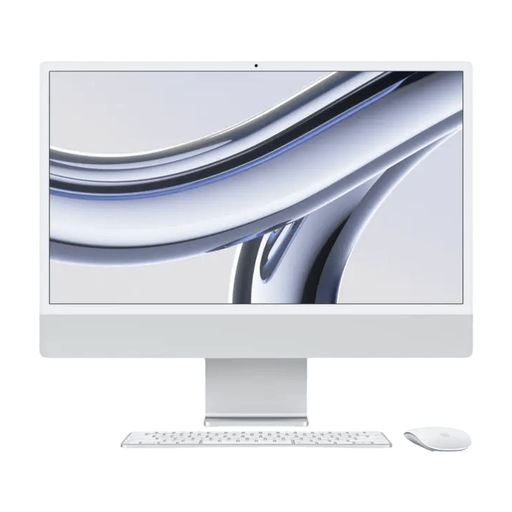
Apple iMac 24-inch M3, 16 GB, 512 GB SSD
A macOS all-in-one to compare if you want an integrated screen and Safari inspection is part of your workflow.
24-inch model; M3 chip; 16 GB of memory; 512 GB SSD. The description lists an integrated 4,5K display and an included QWERTY keyboard.
Joybuy
Frequently asked questions
Will a desktop automatically make my location guide usable with a keyboard alone?
No. The W3C describes keyboard operability and the ability to exit components as properties of web content. You’ll need to implement and test the behaviour, particularly for interactive features you’ve built yourself.
How can I test filters and an interactive map without a mouse?
Use the keyboard to go through the features, follow the focus and check that you can exit each component. Where possible, provide a keyboard-operable alternative for any feature that requires pointer input, and test custom interactive features separately.
What should I check before setting up a compact desktop?
Check that your screen is compatible with a video output, that there are connections for your input devices and what’s included with the configuration you’ve chosen. The Lenovo configuration reviewed doesn’t list a keyboard, and describes the screen and other input devices as optional.
Does the manufacturer’s warranty cover everything for a consumer purchase in the Netherlands?
No. ACM ConsuWijzer distinguishes between the seller’s or manufacturer’s warranty and the statutory guarantee. What you can expect if something goes wrong depends on the circumstances; don’t treat a commercial warranty period as a fixed limit on your statutory rights.
Which accessibility rules apply to my location guide?
That depends on who provides the guide and what service the website offers. DigiToegankelijk outlines requirements for government websites and apps covered by the Decree; Business.gov.nl describes separate rules for certain consumer services. Assess which rules apply based on the specific publishing model, and test the guide’s keyboard controls.


