Who is this choice for?

Building a keyboard-focused portal

You develop and test navigation, forms and other features without a mouse. That makes a suitable operating system and the right testing tools more important than an impressive graphics specification. W3C and Microsoft describe keyboard access and related tools.

Managing historical images

You work with scans and photographs and want to estimate how much local storage you’ll need. Check rights and personal data before publishing material, too. The Dutch Data Protection Authority and Auteursrecht.nl outline considerations for image use.

Setting up a permanent workstation

You want to connect a compact computer to an existing monitor and keyboard. Check the ports and which components are included with the configuration you choose; Lenovo says that the keyboard and monitor are sold separately for the configuration reviewed.

What should you look for?

Windows mini desktop

A good fit if: you use Windows development software and want to set up a compact, permanent workstation.

Bear in mind: the keyboard and monitor are sold separately for the Lenovo configuration reviewed; check the components and ports included with the exact configuration.

Mac mini

A good fit if: your development tools run on macOS or you want to test the portal with VoiceOver.

Bear in mind: Apple says that Tab on Mac does not reach every focusable element in every app, so check that your testing approach works with the app.

Mini PC with room to upgrade

A good fit if: you’re looking for a small Windows PC with a documented free memory slot.

Bear in mind: the MSI configuration mentioned has 8 GB of installed memory. Check whether that suits your work and whether you want to look into an upgrade.

Priority What to look for Who is this important to?
Keyboard access and testing environment Check that your software works with the tools you want to use, and test links, buttons and forms using the keyboard. I want to build and test navigation and forms without a mouse; around 36% of consumers put keyboard testing first when making a purchase.
Storage for scans and work files Estimate the size of your collection and future files, then compare it with the SSD; plan for backups separately. I work with scans and want to match storage to my collection, without assuming that one SSD capacity suits everyone; around 29% of consumers give image storage top priority.
Ports and a complete workstation Compare the ports with your monitor and keyboard, and check which components are included with the exact configuration. I want to connect my existing monitor and keyboard and know in advance what else I’ll need; around 21% of consumers focus first on how a computer fits into their workstation.
Total cost and aftercare Compare the configuration and included components, and check who to contact if something goes wrong. I want to assess the full workstation and know how faults are handled; around 14% of consumers prioritise purchase costs and aftercare.

Common purchasing mistakes

  • Confusing keyboard accessibility with a PC specification

    Tools in the operating system won’t automatically make a mouse-dependent menu or form on your own website keyboard-accessible.

    Choose a suitable testing environment and try out the portal’s features using the keyboard.

  • Comparing mini desktops as if all peripherals are included

    For the Lenovo configuration reviewed, Lenovo says the keyboard and monitor are optional and sold separately.

    Check the ports and included components for the exact configuration, and factor any peripherals you need into your workstation comparison.

    You may also need to source a monitor or keyboard separately before you can use the workstation.

  • Mistaking SSD capacity for a backup or permission to publish

    Local storage won’t automatically protect your files from loss, and it doesn’t in itself give you permission to publish images.

    Make a separate backup plan and check rights and any personal data for each item you publish.

    Arranging a separate backup solution or checking rights may involve extra work.

Brands worth comparing

Lenovo

The ThinkCentre neo 50q Gen 5 is a compact Windows workstation. The Dutch configuration reviewed, 13B9007CEZ, lists 16 GB of memory and a 512 GB SSD.

  • Lenovo specifies several USB and display ports for the product line.
  • Lenovo says the keyboard and monitor are optional and sold separately for the configuration mentioned. Check which ports are available on the configuration you choose.

Dell

The Dell Pro Micro QCM1250 is a compact Windows desktop with a configurable business model.

  • The Dutch configuration reviewed lists Windows 11 Pro, 16 GB of memory and a 512 GB SSD.
  • Dell describes productivity and security features; these descriptions are not a comparative test of building a portal.

Apple

The Mac mini is an option for a macOS workstation and testing with the built-in VoiceOver screen reader.

  • For the M6 base configuration reviewed, Apple lists 16 GB of memory and a 256 GB SSD.
  • Apple says that Tab does not reach every focusable element in every Mac app; check your testing approach with the tools you use.

HP

The Pro Mini 400 G9 is a compact business Windows line. The Dutch configuration reviewed, B6YN1ET#ABH, lists 16 GB of memory and a 512 GB SSD.

  • HP describes flexible ports across the product line.
  • Check the ports for each configuration. HP listed the configuration reviewed as unavailable; that does not in itself say anything about the availability of other configurations.

MSI

The Cubi NUC AI 1UMG-007EU is a small Windows PC worth comparing if a free memory slot matters to you.

  • For this EU configuration, MSI specifies 8 GB of installed memory, a free memory slot and a 512 GB SSD.
  • Check that the exact configuration and sales terms are right for how you plan to use it in the Netherlands.

Joybuy desktops for this use

These models include compact Windows mini PCs and Mac mini configurations for building and testing a local history portal. Compare the operating system, stated storage and the components your workstation needs.

SOYO Y5Pro Mini PC with 8 GB DDR4 and 256 GB SSD

SOYO Y5Pro Mini PC, 8 GB DDR4, 256 GB SATA SSD

A compact Windows mini PC to consider if your development environment runs on Windows 11.

The product name lists an Intel Core i5 8250U/8350U processor, 8 GB DDR4 memory, a 256 GB SATA SSD, BT5.2 and Wi-Fi 5.

Joybuy

Apple Mac mini M6 with 16 GB of memory and a 256 GB SSD

Apple Mac mini M6, 16 GB, 256 GB SSD

A macOS desktop to consider if your software runs on macOS or you want to use VoiceOver in your testing process.

The product name lists an M6 chip with a 12-core CPU and 12-core GPU, 16 GB of memory and a 256 GB SSD. Apple says that Tab does not reach every focusable element in every app.

Joybuy
Apple Mac mini M6 with 16 GB of memory and a 512 GB SSD

Apple Mac mini M6, 16 GB, 512 GB SSD

A macOS desktop to consider if your development environment runs on macOS and the stated storage suits your collection.

The product name lists an M6 chip with a 12-core CPU and 12-core GPU, 16 GB of memory and a 512 GB SSD. Apple says that Tab does not reach every focusable element in every app.

Joybuy
Apple Mac mini M6 with 24 GB of memory and a 512 GB SSD

Apple Mac mini M6, 24 GB, 512 GB SSD

A macOS desktop to consider if your development environment runs on macOS and this memory and storage configuration suits your tasks.

The product name lists an M6 chip with a 12-core CPU and 12-core GPU, 24 GB of memory and a 512 GB SSD. Apple says that Tab does not reach every focusable element in every app.

Joybuy
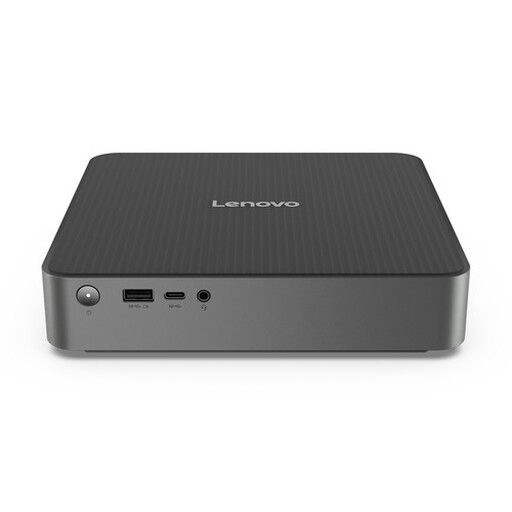
Lenovo IdeaCentre Mini with 16 GB DDR5 and a 512 GB SSD

Lenovo IdeaCentre Mini, 16 GB DDR5, 512 GB SSD

A compact Windows mini PC to consider if your development software runs on Windows 11 Home.

The product description lists 16 GB DDR5 memory and a 512 GB SSD. Check the ports on the configuration you choose to make sure they work with your existing monitor and peripherals.

Joybuy

Frequently asked questions

Will a desktop with keyboard tools automatically make the portal accessible?

No. Tools on the computer won’t automatically make the portal’s features keyboard-accessible. Microsoft and Apple describe tools for the computer; W3C separately explains that links, buttons, forms and other website features should be usable with a keyboard. So make sure you test the portal itself.

What do I need to connect before I can use a mini desktop?

Compare the monitor and keyboard connections with your existing equipment, and check what’s included with the configuration you choose. Lenovo says that the keyboard and monitor are optional and sold separately for the ThinkCentre configuration reviewed.

How much storage do I need for historical scans?

That depends on the size of your collection and how quickly it’s growing. Work this out first, then compare it with the SSD in the configuration you choose. The configurations reviewed range from 256 GB in the Mac mini base configuration to 512 GB in the Lenovo and Dell configurations mentioned. Plan for backups separately from the storage in your computer.

Does a Dutch local history portal have to comply with accessibility rules?

That depends on the organisation running it and the service it provides. DigiToegankelijk explains how the Dutch Digital Accessibility for Government Decree applies to government bodies; Business.gov.nl describes separate EAA rules for certain products and services. The description ‘local history portal’ alone doesn’t tell you which rules apply to the organisation running it. Have the situation assessed in light of the organisation and the portal’s features.

Can I publish historical photographs and documents without checking first?

Not just because the material is historical or already online. The GDPR may apply if people can be identified, and photographs may be protected by copyright. Check rights and any personal data for each item you publish; the Dutch Data Protection Authority also warns that documents can contain personal data hidden from view.
