
Illustrator with a dedicated desk
You create most of your illustrations in one place and want to choose your software, files and a suitable screen as a complete set-up.


First, choose a desktop that works with your illustration software and existing equipment. Then decide whether you want a separate monitor or an all-in-one with a built-in screen. A mini PC leaves you free to choose your monitor, a tower gives you a choice of configurations, and an all-in-one comes with its screen already decided. Before your client presentation, check the exact configuration, connections and screen requirements.
You create most of your illustrations in one place and want to choose your software, files and a suitable screen as a complete set-up.
Your client reviews your illustrations on screen or on paper. That’s why you’ll want to consider your screen and colour management, not just the computer specifications.
Before the meeting, you want to check how your finished file and presentation screen or projector will connect to your desktop.
Start by identifying the software and files you use, then choose the screen set-up and connections that suit your work and presentation. The breakdown below covers consumers considering a desktop for this illustration and presentation work.
A good fit if: you want to choose your own monitor or are looking for a compact desktop set-up.
Consider: you’ll need to choose the monitor and any input devices separately.
A good fit if: you need Windows or want to compare configuration options.
Consider: check the specifications of the exact model and factor the monitor into your choice of set-up.
A good fit if: you want to choose the computer and screen as a single set-up.
Consider: you’re committed to the built-in screen, and resolution alone doesn’t tell you enough about colour reproduction.
| Consideration | What to check before buying | Who pays particular attention? |
|---|---|---|
| Software and files | Check the requirements for your software and version, the operating system, and the memory and storage of the exact model. | I want my drawing software and files to work well with the computer, so I can focus on my illustrations without any surprises. Around 36% of consumers put software and files first. |
| Screen and colour | Compare the exact screen, connections and colour requirements for digital display or print. Don’t judge colour suitability on resolution alone. | When a client is assessing lines and colours, I want to choose my screen carefully and know in advance how the work will be viewed. Screen and colour are the top purchasing priority for around 29% of consumers. |
| Presentation connections | Check the video output, the input on the screen or projector, and the cable or adapter you’ll need. Test your presentation file in the set-up you plan to use. | Before the meeting, I want to know whether I can connect my desktop to the screen or projector at the venue. Around 21% of consumers give presentation connections their top priority. |
| Complete set-up | Check what’s included with each model and what else you’ll need, such as a screen, input devices, cables or enough storage. | If I want to get my entire set-up ready in one go, I factor in the screen, input devices and cables I’ll need. A complete set-up is the main purchasing priority for around 14% of consumers. |
A mini desktop is a separate computer, while some all-in-ones have a built-in screen. As a result, the components that make up a complete set-up can vary between models.
Check what’s included with the exact model, then work out what else you’ll need for working and presenting.
Your set-up may also need a separate screen, input devices, cables or additional storage.
EIZO treats colour reproduction and calibration as separate aspects of a graphics workflow; resolution alone doesn’t determine either.
Choose your screen and agree on colour requirements based on how your client will view the work and whether it will be printed.
A configuration designed for demanding 3D or rendering tasks may be more than you need for creating illustrations.
First, identify the software and file types you use, along with any additional 3D or video work. Then compare the configurations that suit those needs.
Mac mini for a separately chosen screen; iMac for a macOS set-up with a built-in screen.
OmniDesk as a separate Windows desktop and OmniStudio as an all-in-one; the Z range is an option for more demanding workstation tasks.
The Pro Max Tower T2 is a tower with various configurations to compare.
This Joybuy selection includes mini desktops that let you choose your own screen, and all-in-one PCs with a built-in screen, for illustration and preparing client presentations.
 No image available
A mini desktop to pair with a screen of your choice.
The product information lists macOS, HDMI and support for up to three external displays.
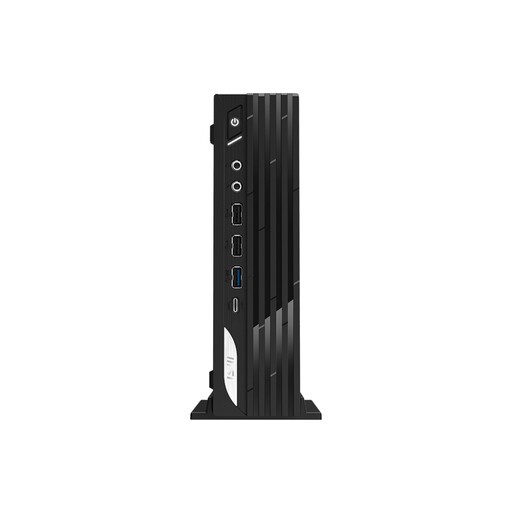 No image available
A mini PC for a compact Windows set-up with a separate screen.
The product information lists Windows 11 Pro, HDMI and DisplayPort.
 No image available
An all-in-one for anyone who wants to choose the computer and built-in screen as a single set-up.
The product information lists a 27-inch QHD IPS screen, Intel Core Ultra 5 125H and Windows 11 Pro.
 No image available
An all-in-one with a built-in screen for anyone who wants the screen choice set as part of the same configuration.
The product information lists a 27-inch QHD IPS screen, Intel Core Ultra 7 155H and Windows 11 Pro.
 No image available
An all-in-one for anyone who wants to choose a computer and built-in screen together.
The product information lists a 27-inch QHD IPS screen with 99% sRGB coverage and a 120 Hz refresh rate.
According to the product information, this model has Windows 11 Home and an Intel Core Ultra 7 255H processor.
Not just because of the type of illustration you create. First, consider whether you mainly do vector work or also take on more demanding 3D, animation or video tasks. Then check the requirements for your software version.
Check in advance which video output your desktop has and which input the screen or projector at the venue uses. Test the cable or adapter and the exported presentation file in the set-up you plan to use.
Choose an SSD capacity that suits the size of your project files, and decide how you’ll back them up. According to Apple, the Mac mini base model reviewed has a 256 GB SSD; HP lists a 1 TB SSD for the OmniDesk model reviewed. Without knowing the size of your files, that difference alone won’t tell you which capacity you need.
For a consumer purchase, the Dutch government says the retailer must offer a solution if a product is faulty; the Netherlands has no fixed statutory guarantee period. Online consumer purchases usually come with a 14-day cooling-off period. For a business purchase, don’t assume the same consumer rules apply: the KVK explains that businesses start from a different position, with consumer protections potentially applying by analogy only in certain circumstances.