
Creator working with a photo sequence
You want to organise a sequence of harbour photos and edit them into a time-lapse. Pay particular attention to the import process and the space available for source files and cache.


Start with your source material and editing software: a photo sequence calls for a different storage setup from demanding video clips, and a fast SSD and suitable memory configuration matter more than a general promise about video performance. Choose a compact Mac if you already have a suitable monitor, an all-in-one if you need a screen too, or a configurable Windows tower if you want to choose components such as the graphics card yourself. Always check the exact configuration.
You want to organise a sequence of harbour photos and edit them into a time-lapse. Pay particular attention to the import process and the space available for source files and cache.
You want to work with high-quality video footage and apply effects during an evening editing session. Match the memory, graphics card and any proxy workflow to your editing software.
You’ll also need to decide on your screen setup: a compact computer alongside an existing monitor, or an all-in-one with a built-in screen.
Best for: anyone who wants to use macOS, already has a suitable monitor and is looking for a compact workstation.
Bear in mind: you’ll need to provide a monitor and peripherals separately. Also check that the storage capacity suits your projects.
Best for: anyone looking for a desktop with a built-in screen. Apple lists a built-in 24-inch screen for the iMac reviewed.
Bear in mind: you’re choosing the computer and main screen as one setup, so check the memory and storage configuration.
Best for: anyone using Windows software or wanting to choose the memory and GPU configuration to suit their needs.
Bear in mind: a workstation’s name doesn’t tell you which graphics card comes with the configuration you choose. You may also need to buy a monitor and input devices separately.
When choosing a desktop for this harbour time-lapse, the main trade-offs depend on your source material, editing workload and workspace.
| Consideration | What should you look for? | Who is this most relevant to? |
|---|---|---|
| Photo sequence and storage | Check whether your editing software can import numbered photo sequences as an image sequence, and how much space your originals, projects and cache will use. Adobe describes this import option for Premiere and recommends fast SSD or NVMe storage for video production. | If my project mainly consists of individual photos, I want to plan the import process and space for originals and cache carefully. Around 36% of consumers prioritise photo sequences and project storage. |
| Editing and processing power | Compare your resolution, codec, effects and editing software with the software’s recommendations. Adobe recommends 32 GB of RAM or more for Windows and Intel-based Mac systems; proxies can help when editing 4K or higher-resolution footage on less powerful hardware. | When working with demanding clips or effects, I want editing to feel smooth. Around 29% of consumers prioritise smooth playback and suitable processing power. |
| Screen and workspace | Check whether you can connect your current monitor, how much desk space you have and what’s included with the configuration you choose. | When setting up my workspace, I want to know whether my existing monitor will do or if I need a built-in screen. Around 21% of consumers prioritise the screen and workspace. |
| Configuration and flexibility | Check the full product number, memory, storage and graphics card. Choose a dedicated GPU only if your editing software and workflow call for one. | I want to match the components to my software and setup without choosing unnecessary specifications. Around 14% of consumers prioritise this kind of customisation. |
The HP and Lenovo product ranges reviewed include configurations with different graphics options. The product range name alone won’t tell you which GPU is in the computer you choose.
Check the full product number, memory and graphics card for the configuration you want to order.
An all-in-one has a built-in screen; with the Lenovo tower reviewed, the monitor, keyboard and mouse are optional. So the complete setup you’ll need varies by model.
Before you buy, work out which components you already have and what else you’ll need for your workspace.
If you don’t already have a suitable monitor or input devices, you may need to buy them separately with some configurations.
Source files, projects and cache all need storage space. A capacity that suits your current workflow may not be enough once you start working on larger projects.
Allow for your existing and expected files, and decide where you want to keep active projects and cache.
Mac mini for use with an existing monitor; iMac for a desktop with a built-in screen.
The Dutch Z2 range includes mini and tower workstations with different configurations.
The ThinkStation P3 Tower Gen 2 is a Windows tower with configurable components.
The Dell Pro Max Tower T2 is a configurable Windows tower for anyone who wants to choose their own components.
This Joybuy selection includes compact Macs, all-in-one desktops and Windows desktops with a dedicated graphics card.
 Image unavailable
A compact desktop for anyone who already has an external monitor.
12-core CPU and 12-core GPU; 24 GB of memory and a 512 GB SSD. You’ll need a separate monitor.
 Image unavailable
An all-in-one for anyone who wants a computer and built-in screen in one.
Intel Core Ultra 7 155H, Intel Arc Graphics, 32 GB DDR5 and a 1 TB SSD. The screen is 27-inch, QHD and IPS.
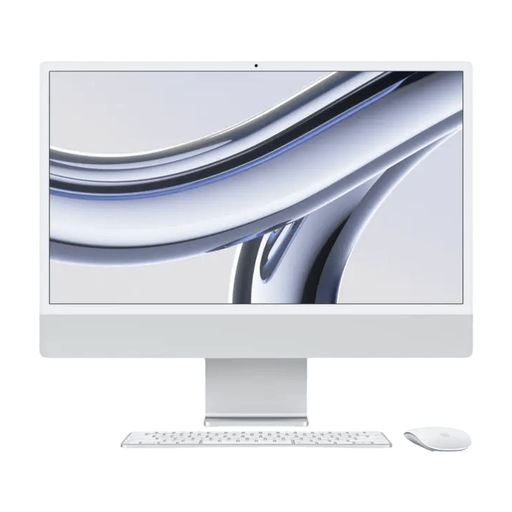 Image unavailable
An all-in-one option for a permanent workspace with a built-in screen.
M3 chip with 8-core CPU and 10-core GPU, 16 GB of memory and a 512 GB SSD. The screen is 24-inch and 4.5K.
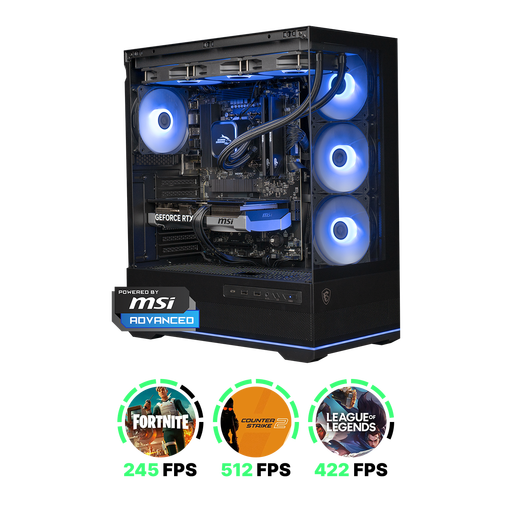 Image unavailable
A Windows desktop with a dedicated graphics card for anyone who feels this configuration suits their editing software and effects.
RTX 5070 with 12 GB of graphics memory, 16 GB DDR5 and a 1 TB NVMe SSD. Adobe recommends 32 GB of RAM or more for Windows systems; check how much you need for your software and projects.
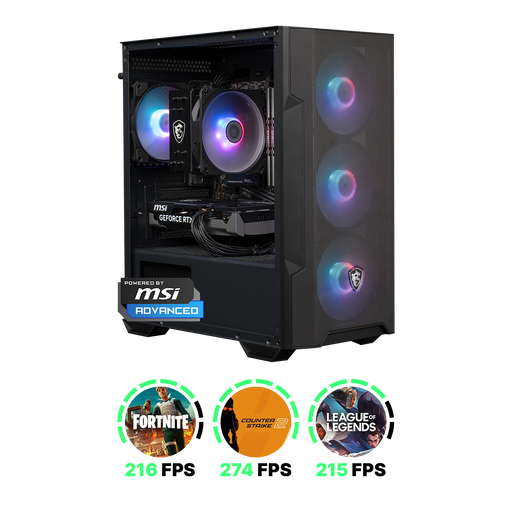 Image unavailable
A Windows desktop with a dedicated graphics card; check that the configuration suits your editing software and effects.
RTX 5060 with 8 GB of graphics memory, 16 GB DDR4 and a 1 TB NVMe SSD. Adobe recommends 32 GB of RAM or more for Windows systems. The product title states that Windows 11 Home is pre-installed but not activated.
In Premiere, you can import a correctly numbered sequence of still images as an image sequence. Adobe also explains where to set the frame rate; check beforehand that your files are numbered consecutively.
Not just because it’s labelled 4K. Adobe describes proxies as lighter editing copies that can make 4K or higher-resolution footage play more smoothly on less powerful hardware; you can switch back to the originals for the final export. Also consider your editing software and effects.
Adobe recommends fast SSD or NVMe storage for video production and describes using a local media cache with shared storage. Plan your setup around the drives you actually have, and keep your source material separately as well.
For online purchases by consumers, ACM ConsuWijzer says you generally have 14 days from delivery to change your mind, although exceptions may apply. If the desktop is faulty, the Dutch government says to contact the seller to arrange a solution, such as a repair or replacement.
When you buy a new, similar device, the Dutch government says the free take-back scheme for household equipment also applies to online purchases. Arrange how the old device will be collected when your new one is delivered.