Who is this choice for?

Handbook designer using specific software

You want your layout software and files to work on your desktop. Check the requirements for the specific software version before choosing between Windows and macOS. Adobe lists the system requirements for InDesign 21.3 and later.

Designer at a sit-stand desk

You change your working position and want to position the screen and input devices appropriately at both desk heights. Arboportaal outlines points to consider when working with screens and standing.

Association handbook creator working with photos

You combine text and photos, and want to consider how clearly details are displayed, how much space you have for project files and which components you still need. Adobe and Lenovo Nederland outline points to consider for layout and graphic design work.

What should you look for when choosing?

What to consider What should you check? Who is this important for?
Software and RAM Check the software version, operating system and memory of the exact configuration. For InDesign 21.3 and later, Adobe specifies a minimum of 8 GB RAM and recommends 16 GB. If you use a specific version of your layout software, you’ll want to know whether it runs on your chosen desktop. Around 36% of consumers prioritise software compatibility and RAM.
Screen position when sitting and standing Check how you can position the screen, keyboard and mouse at both working heights. With an all-in-one, the built-in screen is part of the decision. If you switch between sitting and standing while designing, you’ll want to position the screen and input devices comfortably in both positions. Around 29% of consumers prioritise their workstation setup.
Display and project files Compare the screen resolution and SSD capacity of the configuration you’re considering. Adobe recommends a screen resolution of 1920 × 1080 and an SSD for InDesign. If you work with photos in your association handbook, you’ll want to assess text and images clearly and have space for your project files. Around 21% of consumers prioritise display quality and file storage.
Components and warranty Check what’s included with the exact configuration and what additional cover any warranty product offers. If you don’t already have a suitable screen or input devices, you’ll want to know which components you need to complete your workstation. Around 14% of consumers prioritise a complete setup and warranty cover.

Things to consider before buying

  • Focusing only on the computer

    A mini PC and an all-in-one don’t give you the same complete workstation: with one, you choose the screen separately; with the other, it’s built in.

    Make a list of the components you already have and check what’s included with the exact configuration.

    If a screen, keyboard, mouse or required software is missing, you’ll need to arrange those components before you can get started.

  • Assuming a large built-in screen will be easy to adjust

    Screen size alone doesn’t tell you whether you can position the screen comfortably when alternating between sitting and standing.

    Check the adjustment options for the specific screen and the height adjustment of your desk.

    If the screen can’t be positioned comfortably, you may need to adjust your setup or get a separately adjustable screen.

  • Assuming a manufacturer’s or seller’s warranty is the same as your statutory rights

    When you buy as a consumer, you have statutory rights as well as any manufacturer’s or seller’s warranty. The Dutch government says there is no fixed statutory warranty period in the Netherlands.

    Check exactly what additional cover a paid warranty product offers on top of your existing rights.

    An additional warranty may cover things you’re already entitled to, so first check the terms and what extra cover applies.

Brands to consider

Apple

The Mac mini is a compact macOS desktop that lets you choose the screen separately. Apple Nederland lists 16 GB of memory for the M6 configuration.

  • Apple Nederland’s specifications list support for external screens.
  • Check separately which components you need and whether your specific layout software version works with the macOS version you’ve chosen.

HP

The OmniStudio range includes all-in-one configurations with different screen, memory and storage options.

  • The HP OmniStudio 27-cy0673nd is listed with 32 GB RAM, a 1 TB SSD and a 27-inch QHD screen.
  • These specifications apply to that configuration, not the entire range. Also check whether the built-in screen can be adjusted to suit you.

Dell

The Pro Micro is a compact, standalone Windows desktop for anyone who wants to choose their own screen.

  • The Dell QCM1250 configuration is listed with Windows 11 Pro, 16 GB RAM and a 512 GB SSD.
  • Configurations may vary. Check the connections, included components and exact model.

Joybuy desktops for designing a handbook

This selection from Joybuy includes compact desktops with a screen you choose separately, as well as gaming desktops with Windows configurations. Check whether each model is compatible with your software and existing workstation.
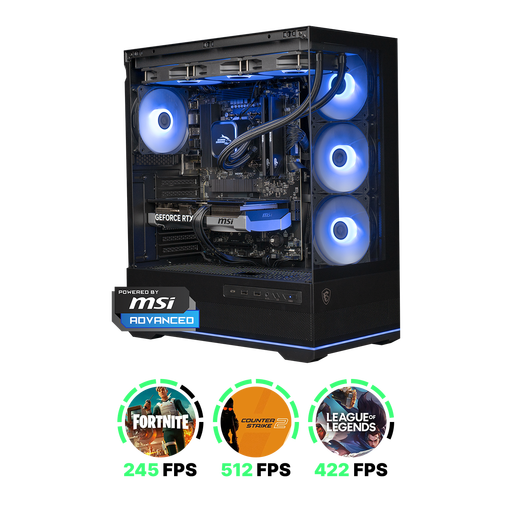
Shark Ultimator R700 gaming desktop PC

Shark Ultimator R700 gaming desktop PC, RTX 5070, Ryzen 7, 16 GB, 1 TB SSD, Powered by MSI

A Windows 11 Home configuration for anyone who uses Windows; check that your layout software is compatible with this operating system.

Ryzen 7 7800X3D processor, GeForce RTX 5070, 16 GB DDR5 memory and 1 TB NVMe SSD.

View at Joybuy

Apple Mac mini M6 with 16 GB memory and 256 GB SSD

Apple Mac mini M6, 16 GB, 256 GB SSD

A compact macOS desktop for anyone with a suitable external screen, or who wants to choose one separately. Check that your specific software version is compatible.

M6 chip with 12-core CPU and 12-core GPU, 16 GB memory and 256 GB SSD. Apple lists support for up to three external screens.

View at Joybuy
Apple Mac mini M6 with 16 GB memory and 512 GB SSD

Apple Mac mini M6, 16 GB, 512 GB SSD

A compact macOS desktop for anyone with a suitable external screen, or who wants to choose one separately. Check that your specific software version is compatible.

M6 chip with 12-core CPU and 12-core GPU, 16 GB memory and 512 GB SSD. Apple lists support for up to three external screens.

View at Joybuy
Apple Mac mini M6 with 24 GB memory and 512 GB SSD

Apple Mac mini M6, 24 GB, 512 GB SSD

A compact macOS desktop for anyone with a suitable external screen, or who wants to choose one separately. Check that your specific software version is compatible.

M6 chip with 12-core CPU and 12-core GPU, 24 GB memory and 512 GB SSD. Apple lists support for up to three external screens.

View at Joybuy
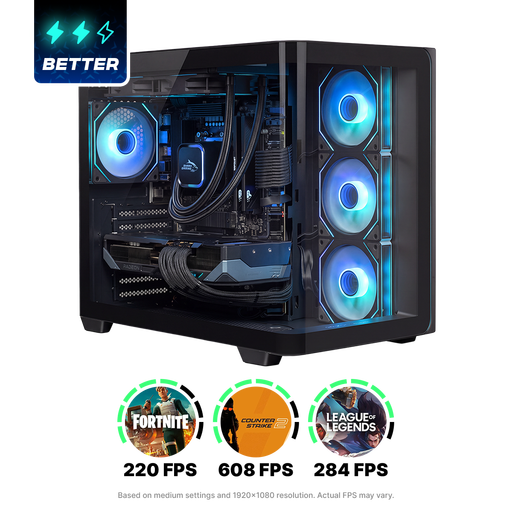
Shak RGBeast R700 gaming desktop PC

Shak RGBeast R700 gaming desktop PC, Radeon RX 9070 XT, Ryzen 7, 16 GB, 1 TB SSD

A Windows 11 Home configuration for anyone who uses Windows; check that your layout software is compatible with this operating system.

Radeon RX 9070 XT, Ryzen 7, 16 GB memory and 1 TB SSD.

View at Joybuy

Frequently asked questions

How can you check whether your layout software will work on a desktop?

Compare the system requirements for your specific software version with the desktop’s operating system and configuration. For InDesign 21.3 and later, Adobe specifies a minimum of 8 GB RAM and recommends 16 GB. If you’re using a newer version of macOS, also check that your version of InDesign supports it.

Do you need to stay standing throughout a design session at a sit-stand desk?

No. Standing still for long periods isn’t necessarily a suitable way to work. Arboportaal outlines points to consider when standing for extended periods; alternate between positions and adjust the screen and input devices to suit you.

Do you need an extended warranty in addition to your statutory rights?

An extended warranty is separate from your statutory rights when buying as a consumer in the Netherlands. According to the Dutch government, there is no fixed statutory warranty period; check exactly what additional cover a warranty product offers.

What rules apply to an employee’s workstation when working with a screen?

According to Arboportaal, employers have obligations relating to safe screen work. If an employee spends more than two hours a day working with a screen, rules include requirements for a screen that can be positioned separately from the keyboard and an adjustable workstation. Don’t automatically apply these workplace rules to a volunteer creating a handbook at home.

Can you always return a desktop bought online within 14 days?

No, there are exceptions. When you buy from a business at a distance, you can often change your mind within 14 days, but exceptions apply. Check who the seller is and which terms apply to your specific purchase.
