Start with the operating system that works with the screen reader you want to use: NVDA is for Windows, while macOS includes VoiceOver. Then test whether your chosen editor supports the full publishing process using your own keyboard and screen reader, and check the connections and included accessories. More computing power won’t make an inaccessible editor accessible.
Who is this for?
NVDA user building a website
You want to write gardening advice on a Windows desktop and continue using your familiar screen reader. NV Access describes NVDA as a screen reader for Windows; you’ll also need to test how your chosen editor works for you.
VoiceOver user with a dedicated workspace
You want to publish gardening articles and images on a Mac. Check that your website editor and the peripherals you already use suit your workflow; Apple documents VoiceOver as macOS’s built-in screen reader.
Writer using braille or audio equipment
You want to use your own assistive equipment with your desktop. Check the ports on the exact configuration and which accessories are included with your order.
What should you look for?
Windows with NVDA
Choose this option if: you want to keep using NVDA or work on Windows.
Bear in mind: configurations and included accessories vary by model; test your own editor with NVDA.
Mac with VoiceOver
Choose this option if: you want to use VoiceOver or already work with macOS.
Bear in mind: NVDA is a Windows screen reader; check that your editor and existing peripherals work with the Mac configuration.
If you’re considering a desktop for building a gardening advice website with a screen reader, it helps to decide first which requirement matters most to you.
| Consideration |
What should you check? |
Who is this important for? |
| Screen reader |
The operating system on the exact configuration and support for your own screen reader. |
I want to keep using my familiar screen reader rather than switch to another system for work. Around 36% of consumers give priority to compatibility with their own screen reader. |
| Publishing independently |
Use your chosen editor to go through logging in, writing, saving and publishing with a keyboard and screen reader. |
I want to be able to create and publish an article with garden photos in my own editor without a mouse. Around 29% of consumers prioritise publishing independently; WordPress.org documents keyboard shortcuts for the block editor, but this doesn’t prove that every editor or plugin works. |
| Connections for assistive equipment |
Check the ports on the exact desktop and the connections for your braille display, audio equipment and keyboard. |
I want to keep using my own braille, audio or input equipment and need to know whether it will connect to the desktop I choose. Around 21% of consumers make connections for assistive equipment their top priority. |
| Complete setup |
Check which monitor and input devices are included and what you already own. |
I want to know in advance whether I’ll need a screen or keyboard as well as the computer. Around 14% of consumers prioritise having a complete setup. |
Buying pitfalls
-
Assuming a powerful PC means an accessible publishing setup
An editor having keyboard shortcuts doesn’t prove that every task on your chosen website, theme or plugin will work with your screen reader.
Test the entire writing and publishing process with your own screen reader before prioritising performance over usability.
Adapting your editor or workflow may take extra time.
-
Assuming a mini PC is a complete setup
According to Lenovo, the monitor and keyboard are sold separately with the Lenovo ThinkCentre Neo 50q Gen 4, item number 12LM006LEZ.
Compare the contents of the exact order with the equipment you already have.
You may need to buy a screen, keyboard or other essential item separately.
-
Adding a plant photo without useful text
Visitors who can’t see the photo may miss information that appears only in the image. The W3C Web Accessibility Initiative recommends text alternatives that describe an image’s information or purpose.
Describe the role of an informative photo in your advice. For a complex diagram, also include the essential details in text.
-
Treating Windows 10 as a new option with ongoing standard support
Standard support for Windows 10 ended on 14 October 2025. Microsoft Support says that computers running Windows 10 no longer receive security updates.
If you’re looking at an older offer, check which operating system is installed and whether there’s a suitable route to a supported version.
You may need to upgrade to use a supported operating system.
Brands to compare
HP
HP’s Pro range includes compact Pro Mini desktops and Pro Towers to compare if you want to use Windows with NVDA.
- For specific Pro Mini 400 G9 configurations, HP lists Windows 11 Pro, 16 GB RAM and a 512 GB SSD.
- These details apply to the configurations listed; the processor and other components may vary. They are HP specifications, not the result of an independent screen reader test.
Lenovo
The ThinkCentre Neo 50q Tiny and M70q Tiny are compact Windows desktops to compare if desk space and the arrangement of your peripherals matter.
- For the ThinkCentre Neo 50q Gen 4, item number 12LM006LEZ, Lenovo lists Windows 11 Pro, 16 GB RAM and a 512 GB SSD.
- According to Lenovo, the monitor and keyboard are sold separately with this configuration. Don’t assume that details for other ThinkCentre configurations also apply to this item number.
Dell
The Dell Pro Micro is a compact Windows option with different configurations to compare.
- For the QCM1250 configuration, Dell lists Windows 11 Pro, 16 GB DDR5 and a 512 GB SSD.
- These are Dell’s details for that configuration; they don’t prove that the computer will work better with your screen reader or editor.
Apple
Mac mini is a compact macOS option to compare if you want to use the built-in VoiceOver screen reader.
- Apple documents VoiceOver controls and a range of memory and storage configurations for Mac mini.
- Check the exact configuration, the peripherals you need and whether your chosen editor works with it; Apple’s product specifications aren’t an independent test of that editor.
Joybuy desktops for this setup
This selection from Joybuy includes compact desktops and an all-in-one desktop, so you can compare options if you want to include the essential parts of your setup.
 No image available
NVIDIA DGX Spark Founders Edition, NVIDIA GB10, 128 GB RAM, 4 TB SSD
If you’re looking for a compact desktop, check in advance that the listed NVIDIA DGX OS works with your screen reader and chosen editor.
The product name lists NVIDIA GB10, 128 GB RAM, a 4 TB SSD and NVIDIA DGX OS.
View on Joybuy
 No image available
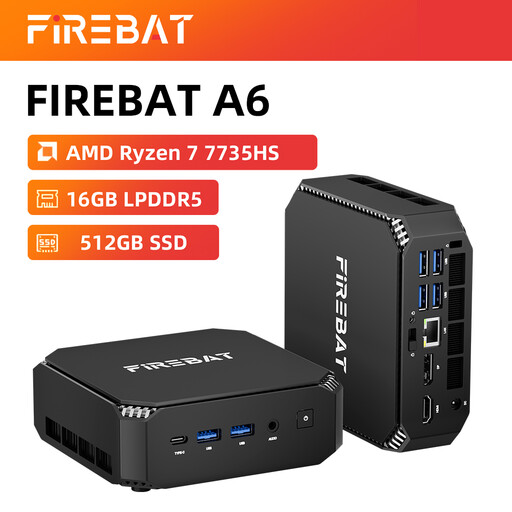
FIREBAT Mini PC A6, AMD Ryzen 7 7735HS, 16 GB RAM, 512 GB SSD
This mini PC is worth considering if a compact desktop or support for multiple screens suits your setup.
The product name lists Radeon 680M, two M.2 slots, support for three displays and Wi-Fi 6.
View on Joybuy
 No image available
FIREBAT F1 Mini PC, AMD Ryzen 5 7640HS, 24 GB LPDDR5 RAM, 512 GB SSD
This compact desktop could suit you if you’re looking for a small case; check that its connections work with your own displays and peripherals.
The product name lists USB 4.0, HDMI 2.1 and output for three displays.
View on Joybuy
 No image available
Lenovo Yoga AIO 27IAH10 F0J2001DNY, 27-inch QHD
This all-in-one desktop could suit you if you’re looking for a setup with a built-in screen. NV Access describes NVDA as a screen reader for Windows; test your chosen editor with NVDA on this configuration.
The product name lists a 120 Hz screen, Intel Core Ultra 7 255H, 16 GB LPDDR5X, a 1 TB SSD and Windows 11 Home. The product description mentions a wireless keyboard and mouse.
View on Joybuy
Frequently asked questions
Should I choose a Mac or a Windows PC for NVDA?
Choose a Windows PC if you want to use NVDA: NV Access describes NVDA as a screen reader for Windows. VoiceOver is the built-in screen reader on a Mac; also check that your editor works with the setup you choose.
How can I test whether I can publish gardening articles without a mouse?
Using your own editor, screen reader and keyboard, go through the steps from logging in to saving and publishing. WordPress.org documents keyboard shortcuts for the block editor, but this doesn’t guarantee that a specific theme or plugin is accessible.
What should I do with photos and diagrams of plants?
Add a text alternative to informative images that describes the information or purpose they convey on the page. A complex diagram may need additional explanation in text; WordPress.org provides an alternative text field in the image block.
What warranty applies if I buy a desktop in the Netherlands?
The statutory warranty applies in addition to any manufacturer’s or seller’s warranty. According to ACM ConsuWijzer, the seller must resolve the issue at no cost if a product develops a fault sooner than you could reasonably expect under normal use; there isn’t a set number of years that applies to every computer.
Does a gardening advice website have to comply with accessibility rules for online shops?
Not simply because it’s a gardening advice website. The Netherlands Authority for Consumers and Markets describes rules for e-commerce services, including websites where consumers can buy, sign up for or book products or services. If you add these features, assess whether the rules apply to your service and business; the available information doesn’t establish that they apply to a purely informational website.


