
Illustrator with lots of projects open
While drawing, you switch between layered dune illustrations and reference files. So pay attention to RAM and the available space for projects and temporary files.


First, choose a desktop that works with your drawing software and peripherals. Then compare the RAM and available SSD space of the exact configuration. A compact computer may suit 2D illustrations, while a more powerful workstation is mainly worth considering if you work on larger projects or additional graphics tasks. For colour-critical work, remember that you’ll also need a suitable, properly profiled monitor.
While drawing, you switch between layered dune illustrations and reference files. So pay attention to RAM and the available space for projects and temporary files.
If subtle colour differences matter to the finished result, don’t just look at the desktop. The connected monitor and its colour profile also play a part.
Your drawing software, graphics tablet and work files may determine whether a macOS or Windows setup is right for you. Check compatibility before comparing configurations.
Start with the software and peripherals you already use, then compare memory, storage and display connections for your projects. Adobe recommends 16 GB or more of RAM for Photoshop 27.x. It also explains that the software can use disk space as temporary storage when there isn’t enough memory.
| What to consider | What to look for | Who this matters to |
|---|---|---|
| Switching between projects | Check the RAM in the exact configuration and consider how many documents and layers you’ll have open. Adobe recommends 16 GB or more for Photoshop 27.x; this isn’t a general requirement for every drawing programme. | If I keep several layered files open while drawing, I want to know how much memory my programmes need. Around 36% of consumers who prioritise switching smoothly between projects pay particular attention to this. |
| Projects and temporary storage | Compare the SSD capacity with the space left for programmes, project versions and temporary files. Adobe recommends 100 GB of available disk space and a fast internal SSD for Photoshop 27.x; this isn’t the same as a prescribed total SSD capacity. | When I have lots of sketches, versions and references, I want to leave enough room for the work I’m doing. Around 29% of consumers who prioritise storage for projects and temporary files look most closely at this. |
| Colour on screen | Check that you can connect the monitor you have in mind and profile it appropriately for your work and output. | When I’m assessing subtle colours, I don’t want to judge the computer alone; I also want to consider my screen. Around 21% of consumers who prioritise reliable colour assessment pay particular attention to the monitor and colour profile. |
| Software and complete setup | Check the operating system, the connections you need and which components are included with the specific configuration. | If my existing software or graphics tablet requires a particular setup, I want to know in advance whether everything will connect and work. Around 14% of consumers who prioritise compatibility and a complete setup look at this first. |
A workstation label alone doesn’t tell you how much RAM the chosen configuration has. Lenovo lists 8 GB of RAM for the ThinkStation P3 Tiny Gen 2 configuration reviewed; Adobe recommends 16 GB or more for Photoshop 27.x.
Compare the full specifications of the configuration with your programmes and the number of documents you keep open at once. Don’t treat Adobe’s Photoshop recommendation as a requirement for every drawing programme.
The listed SSD capacity won’t all be available for your projects: software, files and temporary edits also take up space. Adobe explains that Photoshop uses a scratch disk when there isn’t enough RAM.
When comparing options, allow for the space you’ll need for programmes, project versions and temporary files. Don’t just look at the figure on the product card.
For colour-critical work, you assess colours on the connected monitor. Adobe warns that an inaccurate monitor profile can lead to unnecessary adjustments.
If subtle colour differences matter to your illustrations, check the screen, the connection you need and the colour profile.
The Mac mini may suit you if macOS works with your existing drawing software and peripherals, and you want to choose your own external display.
The Pro Max Slim is a compact Windows option available in a range of configurations.
The Z2 Mini G1i is a compact Windows workstation option for anyone considering a configuration with more memory and storage.
The ThinkStation P3 Tiny Gen 2 is a compact Windows workstation option for anyone who needs to make the most of limited desk space.
These desktops are worth comparing for their RAM, storage and listed Windows configuration for an illustration workstation.
 No image available
The listed 16 GB of RAM is worth considering if you keep several Photoshop documents open; Adobe notes that open documents increase memory requirements.
AMD Ryzen 5 5500 processor and NVIDIA GeForce RTX 5060 graphics card.
16 GB DDR4 RAM and a 500 GB SSD.
Windows 11 Home.
 No image available
The listed 16 GB of RAM and SSD capacity are worth weighing against the number of projects you keep open and the space your files need.
AMD Ryzen 5 5500 processor and GeForce RTX 5060 graphics card with 8 GB of memory.
16 GB DDR4 RAM and a 480 GB SSD.
Windows 11 is listed as not activated.
 No image available
The listed 16 GB of RAM and storage are useful points of comparison if you manage several documents and local project files.
AMD Ryzen 7 5700X processor and GeForce RTX 5060 Ti graphics card with 8 GB of memory.
16 GB DDR4 RAM and a 480 GB NVMe SSD.
Windows 11 Home is pre-installed but not activated.
 No image available
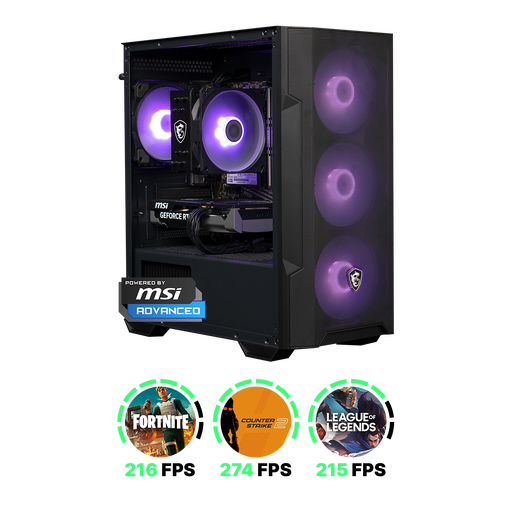
The listed 32 GB of RAM and 1 TB SSD are worth comparing if you keep lots of documents open at once or need space for local projects.
AMD Ryzen 7 7800X3D processor and NVIDIA GeForce RTX 5080 graphics card with 16 GB of memory.
32 GB DDR5 RAM and a 1 TB NVMe SSD.
Windows 11 Trial.
 No image available
The listed 32 GB of RAM and 1 TB of storage are useful points of comparison for projects involving lots of open documents and local files.
Intel Core Ultra 7 265F processor and NVIDIA GeForce RTX 5070 graphics card with 12 GB of memory.
32 GB DDR5 RAM and a 1 TB SSD.
Windows 11 Home.
Not necessarily. First, consider whether you mainly work on 2D raster images, vector illustrations or other graphics-intensive tasks. Adobe lists GPU requirements for Photoshop; check these for the software version you use and the exact desktop configuration. A workstation label alone doesn’t prove that you need a dedicated graphics card.
Check how many documents and layers are open, and how much free space is available on the selected scratch disk. Adobe explains that Photoshop uses disk space as temporary storage when there isn’t enough memory; insufficient free scratch-disk space can cause problems.
Check what’s included with the exact configuration and which connections you need. For example, Lenovo states that a display, keyboard and mouse are sold separately with the ThinkStation P3 Tiny Gen 2 configuration reviewed. For colour-critical work, Adobe also recommends using a correctly profiled monitor.
According to the Dutch government, there is no fixed statutory warranty period in the Netherlands; you’re entitled to a product that does what you can reasonably expect it to do. If a product is faulty, the seller must provide a solution. A manufacturer’s or additional warranty is on top of your statutory rights; different terms may apply to business purchases.
An electrical desktop placed on the market in the EU must comply with the applicable product regulations. CE marking is only required when the relevant EU rules specify it for that product; it is a declaration by the manufacturer, not an independent product approval.