
Editing a simple HD film
You want to put together footage from your visit to the mill without buying more capacity than your project needs. Adobe recommends 16 GB RAM for HD media in Premiere.


Match your desktop to the resolution of your mill film and your editing software. Adobe recommends 16 GB RAM for HD media and 32 GB or more for 4K in Premiere. A compact Mac mini could suit you if you already have a monitor and peripherals, and the storage in your chosen configuration meets your project’s needs. For Premiere on Windows, compare a tower’s recommended RAM and GPU memory with its exact configuration. None of these specifications alone guarantees a particular editing performance.
You want to put together footage from your visit to the mill without buying more capacity than your project needs. Adobe recommends 16 GB RAM for HD media in Premiere.
You’re working with 4K recordings or a more complex timeline and want to match the RAM, graphics and media storage to your editing software. Adobe recommends 32 GB RAM or more for 4K in Premiere.
You’re keeping source files and project versions for your association and want to work out in advance how much storage and how many connections your setup needs. Adobe recommends a separate fast drive for media in Premiere.
Start with the resolution and editing software, then check the storage and connections for your existing equipment. Adobe’s recommendations for Premiere differ between HD and 4K. Its Windows recommendation for GPU memory does not directly apply as a specification requirement for Apple Silicon.
| What to consider | What to check before buying | Who is this most important for? |
|---|---|---|
| Editing capacity | Check the resolution, editing software, and RAM and GPU specifications of the exact configuration. Adobe recommends 16 GB RAM for HD and 32 GB or more for 4K in Premiere; for Windows, Adobe specifies 8 GB GPU memory. | I want to edit the mill film at the resolution I use, without choosing a more powerful desktop than my project needs. Around 40% of consumers prioritise suitable editing capacity. |
| Project storage | Check the SSD capacity and plan where to store your media and backups. Adobe recommends a fast internal SSD for the programme and cache in Premiere, plus a separate fast drive for media. | I want to keep source files and project versions for the association and know in advance where they’ll fit. Around 30% of consumers give project storage top priority. |
| Workspace and connections | Check whether you already have a suitable monitor and whether the ports on your chosen desktop connect to your monitor and storage devices. Apple lists HDMI and Thunderbolt connections among the Mac mini’s ports. | I have limited desk space and want to use my existing equipment. Around 20% of consumers prioritise a compact setup. |
| Future upgrades | Compare the exact RAM, graphics and storage configuration; don’t judge upgrade options by the product line name alone. | I want to be able to adapt the computer for a different project later, so I’ll check the exact configuration. Around 10% of consumers give future upgradability top priority. |
For Premiere, Adobe’s recommendations cover RAM, GPU memory and storage as well as the processor. The processor name alone won’t tell you whether the full configuration is right for your project.
Compare the specifications of the exact configuration with your project’s resolution and software.
The Lenovo ThinkStation P3 Tower Gen 2 configurations shown in the Netherlands vary; one listed configuration has 8 GB RAM and integrated graphics.
Check the full product number and the RAM, graphics and SSD specifications of the configuration you want to buy.
The Mac mini base configuration reviewed has a 256 GB SSD. For Premiere, Adobe recommends a separate fast drive for media, alongside fast internal storage for the programme and cache.
Work out in advance how much source footage and how many project versions you’ll keep, and where you’ll store your backups.
The Mac mini is a compact desktop for a setup with a separate monitor and peripherals.
The Tower Plus EBT2250 is a Windows tower with a documented configuration featuring a dedicated graphics card.
The ThinkStation P3 Tower Gen 2 is a workstation range with a variety of configurations available in the Netherlands.
The OmniDesk range includes desktop models for everyday use.
These Joybuy products include compact Mac mini desktops and towers with dedicated graphics cards. Compare each configuration with your resolution, storage needs and existing workspace.
 No image available
A compact desktop for a workspace with a separate monitor and peripherals. Check that the storage is sufficient for your source footage and project files.
The product name lists 16 GB memory and a 512 GB SSD. Adobe recommends 16 GB RAM for HD media in Premiere; this doesn’t guarantee a particular editing performance.
No image available
A compact desktop for a workspace with a separate monitor and peripherals. Check that the storage and other specifications suit your project.
The product name lists 24 GB memory and a 512 GB SSD. Check the full configuration against your editing software’s requirements and the resolution of your footage.
 No image available
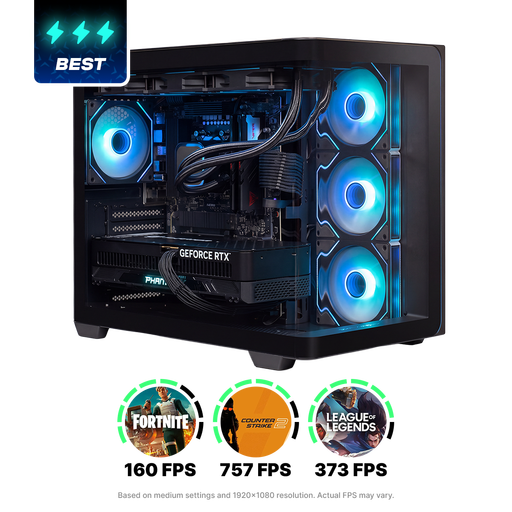
A tower to compare if you want to take Premiere’s RAM and GPU memory recommendations for 4K on Windows into account. Check the storage setup for your media too.
The product information lists 32 GB RAM, an RTX 5080 with 16 GB graphics memory and a 1 TB NVMe SSD. For Premiere, Adobe recommends 32 GB RAM or more for 4K and 8 GB GPU memory for Windows; these figures don’t predict editing speed.
 No image available
A tower to consider if your project needs plenty of local storage and you want to match the configuration to your editing software.
The product information lists 32 GB RAM, an RTX 5090 with 24 GB graphics memory and a 2 TB NVMe SSD. Check where you’ll store your media and backups; Adobe’s Premiere recommendations aren’t a performance test of this configuration.
 No image available
A Windows tower to compare if you want to take Premiere’s recommendations for 4K into account and are looking for a dedicated graphics card.
The product information lists 32 GB RAM, an RTX 5070 with 12 GB graphics memory and a 1 TB SSD. Adobe recommends 32 GB RAM or more for 4K in Premiere and specifies 8 GB GPU memory for Windows; also check how much space you have for separate media storage.
It depends on your editing software and footage. Adobe recommends 16 GB RAM for HD media and 32 GB or more for 4K in Premiere; these recommendations don’t guarantee a particular playback speed.
Check that your monitor and storage devices connect to the ports on your chosen desktop. For Premiere, Adobe recommends a fast internal SSD for the programme and cache, and a separate fast drive for media.
No. Your statutory guarantee applies alongside any seller’s or manufacturer’s guarantee. ACM ConsuWijzer explains that the seller is responsible for providing an appropriate free solution if a product doesn’t meet reasonable expectations under normal use. There is no fixed two-year term for the statutory guarantee.
When you buy remotely from a business, you usually have a 14-day cooling-off period. The Dutch government lists some exceptions and distinguishes between purchases from a business and purchases from a private individual. Check the terms that apply to your purchase.
Buying a desktop doesn’t give you the right to use people or other people’s material in your film. According to the Dutch Data Protection Authority, an organisation needs a lawful basis under the GDPR to film or publish footage of identifiable people. The Dutch government says that you generally need the creator’s permission to use other people’s copyright-protected music or images. Consider the footage, rights and how it will be shown separately.