Start by choosing your layout software and checking whether you already have a suitable screen. Then compare the complete computer setup and any components you still need. A mini PC suits a workspace with a separate screen, while an all-in-one combines the computer and screen. A Windows desktop is an option if your course requires that software environment. Also check the requirements of your chosen printer: a suitable screen won’t automatically make a file print-ready.
Who is this desktop choice relevant for?
Student laying out pages
You’re working with pages containing text and images, and want to know whether your chosen desktop, operating system and screen are suitable for the layout software you use. Adobe publishes separate system requirements for InDesign.
Student working with heritage images
You’re working with photos or scans, so you need to consider not only the computer but also how images are displayed and what your printer requires. Drukcase sets out its own specifications for print files.
Exhibition team sharing a workspace
You share a desk or a purchasing budget and want to compare which components are already available and what you still need. Lenovo and Apple, for example, describe computer configurations where the screen or other components can be chosen separately.
What should you look for when buying?
Mini PC with a separate screen
Choose this option: if you already have a suitable screen or want to choose one yourself. Apple lists Mac mini M6 configurations starting with 16 GB of memory and a 256 GB SSD.
Bear in mind: you’ll need to include the screen and the necessary input devices when budgeting for the complete workspace.
All-in-one
Choose this option: if you want to buy the computer and screen as a single setup. Apple specifies a built-in 4.5K screen for the 24-inch iMac M4.
Bear in mind: you choose the screen at the same time as the computer, so consider whether its specifications are right for viewing text and images.
Configurable Windows desktop
Choose this option: if your course requires Windows software or you want to compare configurations by memory and storage. Lenovo and HP list Dutch configurations with Windows 11 Pro.
Bear in mind: screens and peripherals vary by offer, and the specifications listed don’t necessarily apply to every configuration.
Start with the software you’ll actually use, then check the complete workspace, including the screen and the requirements for submitting files to print.
| What to consider |
What to look for |
Who this is for |
| Layout software |
Check which software and operating system are required. For InDesign 21.3 and later on Windows, Adobe lists 8 GB RAM as the minimum and 16 GB as the recommendation. |
If my course requires a specific programme, I want to check first that the desktop can run it; about 33% of consumers prioritise software compatibility. |
| Screen and print file |
Compare screen setups and ask your printer in advance about requirements for PDFs, bleed, resolution and colour profiles. Drukcase requires a minimum 3 mm bleed and images of at least 300 dpi for the inside pages. |
If I’m using photos and scans in the booklet, I want to assess both the screen setup and the final print file; about 27% of consumers give screen and print checks top priority. |
| Sharing a workspace |
Make a note of which components are already available, then check the connections and what’s included with each configuration. Lenovo states that the screen, keyboard and mouse are optional for the ThinkCentre neo 50q configuration reviewed. |
If our exhibition team is sharing one workspace, I want to know what’s already available and what still needs to be connected; about 20% of consumers prioritise a shared workspace. |
| Complete configuration |
Compare offers on a like-for-like basis: memory, storage, operating system and the components you need. Also check exactly what any additional service plan includes. |
If I need to spread the available budget across the entire workspace, I want to know in advance which components I still need; about 20% of consumers put the total purchase cost first. |
Pitfalls when buying a computer for design
-
Comparing only the computer itself
For the ThinkCentre neo 50q configuration reviewed, Lenovo lists the screen, keyboard and mouse as optional and sold separately. So the computer itself isn’t automatically a complete workspace.
Make the same list for every option, noting which components you already have and which you still need to buy.
-
Mistaking an ASUS NUC 14 Pro Kit for a complete PC
ASUS distinguishes between a Mini PC and a Kit. According to ASUS, the Kit doesn’t include memory, storage or a pre-installed operating system.
Check whether the offer is for a Kit or a Mini PC, and read what’s included in the exact configuration before ordering.
-
Assuming a good-looking screen image is print-ready
Your chosen printer may have its own requirements for the PDF file, images and bleed. For inside pages, Drukcase requires, among other things, a minimum 3 mm bleed and images of at least 300 dpi.
Ask your printer for its current submission specifications and check a proof file before production.
A file that doesn’t meet your chosen printer’s requirements may need corrections or reprinting.
-
Assuming the manufacturer’s warranty covers all your legal rights
A manufacturer’s warranty is in addition to the rights you have against the seller. According to the Dutch government, there is no fixed statutory warranty period in the Netherlands.
Compare paid service options based on the specific additional terms that matter for your purchase.
Brands to compare
These brands offer different types of desktop setups. Check the specifications and included components for the exact configuration.
Apple
The Mac mini is an option if you want to choose your screen separately; the iMac is an all-in-one alternative.
- Apple specifies Mac mini M6 configurations starting with 16 GB of memory and a 256 GB SSD, with support for external screens.
- The officially specified 24-inch iMac M4 has a built-in 4.5K screen.
- Check your chosen configuration and which components you still need; these specifications aren’t an independent performance test.
Lenovo
The ThinkCentre neo 50q Gen 5 is a compact Windows desktop. The Dutch configuration reviewed has article number 13B9009EEZ.
- Lenovo lists Windows 11 Pro, 16 GB RAM and a 512 GB SSD for this configuration.
- According to Lenovo, the screen, keyboard and mouse are optional and sold separately; this configuration doesn’t necessarily apply to every neo 50q model.
HP
The ProDesk 4 Mini G1i is a compact Windows desktop to compare if you also want to assess a business service option.
- The Dutch configuration with article number E59BWEA#ABH is listed with Windows 11 Pro, Core Ultra 5 235T, 24 GB RAM and a 512 GB SSD.
- HP lists three years of on-site support for this configuration. Check the terms, and don’t take this to mean it will perform better for booklet layout.
Dell
The Pro Micro QCM1250 is a configurable Windows desktop for a workspace with a separate screen.
- For the configuration shown, Dell lists a Core Ultra 5 235T, Windows 11 Pro, 16 GB DDR5 and a 512 GB SSD.
- Check the final configuration and service option; details of the configuration shown don’t necessarily apply to every base model.
ASUS
The NUC 14 Pro is available as a Mini PC or a Kit, with different items included in each configuration.
- ASUS distinguishes between a Mini PC with stated memory and storage, and a Kit supplied without memory, storage or a pre-installed operating system.
- The product name alone doesn’t tell you which components are included in your chosen configuration; check what’s included before deciding.
Joybuy products for your booklet
This selection includes compact mini PCs, a Windows desktop and an all-in-one for different workspaces. Check whether the screen and any other components you need are included with each configuration.
 No image available
Mac mini with Apple M6 chip, 12-core CPU and 12-core GPU, 24 GB, 512 GB SSD
Suitable for a workspace with a screen chosen separately; check whether you already have a monitor and input devices.
The product name lists 24 GB of memory and a 512 GB SSD.
Joybuy
 No image available
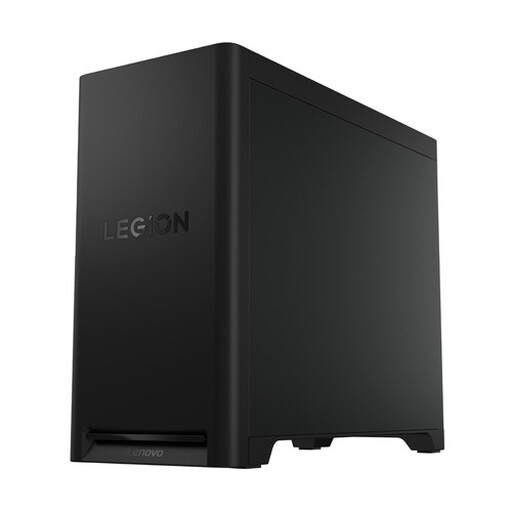
Lenovo Legion T5 30IAX10, Core Ultra 7, 32 GB DDR5, 1 TB SSD, GeForce RTX 5070, Windows 11 Home
A Windows desktop to compare if your course requires a Windows environment; check that this configuration is suitable for the software you use.
The product name lists 32 GB DDR5, a 1 TB SSD and Windows 11 Home.
Joybuy
 No image available
FIREBAT F1 mini PC, Ryzen 5 7640HS, 24 GB LPDDR5, 512 GB PCIe 4.0 SSD
Suitable for a compact setup with a separate screen; check that the connections work with your monitor and other devices.
The product name lists USB 4.0, HDMI 2.1 and support for output to three 4K screens.
Joybuy
 No image available
MSI CUBI NUC AI 1UMG-005EU, Core Ultra 7 155H, 16 GB DDR5, 1 TB SSD, Windows 11 Pro
Suitable for a compact Windows workspace with a separate screen; the monitor needs to be connected separately.
The product name lists 16 GB DDR5, a 1 TB SSD and Windows 11 Pro.
Joybuy
 No image available
HP 24-cr0050nd all-in-one, 895R0EA#ABH
Suitable for a workspace where you also need an integrated screen. Check whether the stated 8 GB of memory will be enough: it can’t be upgraded. For InDesign 21.3 and later on Windows, Adobe lists 8 GB as the minimum and 16 GB as the recommendation.
Also check the power supply: for this configuration, the power adapter must be bought separately.
Joybuy
Frequently asked questions
Is 8 GB of RAM enough for InDesign?
For InDesign 21.3 and later on Windows, Adobe lists 8 GB as the minimum and 16 GB as the recommendation. Check the system requirements for the version you’ll be using; meeting the minimum doesn’t guarantee how quickly your booklet project will run.
What do you need to install and connect before you can get started?
First check which layout software your course uses and what’s included with the desktop. With a standalone mini PC, you’ll need a suitable screen and the necessary input devices. Adobe also states that an internet connection is required to activate InDesign and validate a subscription.
How can you avoid problems when getting your booklet printed?
Ask your chosen printer for its current submission specifications before you start designing. For the inside pages of books and magazines, Drukcase requires, among other things, a minimum 3 mm bleed and images of at least 300 dpi. These are Drukcase’s requirements and don’t automatically apply to every printer.
Should you buy an extended warranty for your desktop?
No, not to obtain your legal rights: according to the Dutch government, there is no fixed statutory warranty period in the Netherlands. Compare additional service options based on exactly what they add; if a product is faulty, the seller is your point of contact.
Can you use found photos of canals in an exhibition booklet?
Not simply because the photos are online or because it’s a student project. According to the Dutch government, you may only use copyright-protected photos with the creator’s permission. Check the applicable permission or licence for each image before distributing or publishing it.


