
Comparing notes and sources
You want to read field notes, reports and other documents on one screen at the same time. Microsoft Support explains features in Windows and Word that let you display windows or documents side by side.


To compare coastal ecology notes and source material on one screen, first choose a display that keeps both documents readable at your preferred text size. Then decide whether you want an all-in-one or a separate monitor with a mini PC or tower. An all-in-one combines the computer and screen, while a separate set-up lets you choose the screen independently. Before buying, check the resolution of the exact model, adjustability, connections and required software. Microsoft Support explains how to display windows side by side, while HP UK, Dell UK and Lenovo UK show that screen specifications vary between models.
You want to read field notes, reports and other documents on one screen at the same time. Microsoft Support explains features in Windows and Word that let you display windows or documents side by side.
You read and annotate for extended periods, so the screen position and text size matter. The Health and Safety Executive (HSE) sets out additional workstation requirements for employees who use display screen equipment.
You want to choose between an integrated computer and screen, or a separate computer with a standalone display. Lenovo describes its Tiny-in-One set-up as having a separately replaceable PC.
First, check that your own notes and sources remain readable side by side. Then consider your posture and decide between an integrated screen and a separate monitor.
Choose this set-up if: you want to buy the computer and screen together as one desk set-up.
Bear in mind: the built-in screen is part of the set-up you’re choosing. According to HP UK, the HP OmniStudio 27-cw0672nd model reviewed has a 27-inch QHD screen; the Dell EC27260 configuration reviewed has a 27-inch FHD screen, according to Dell UK.
Choose this set-up if: you want to choose the screen separately or replace it independently later.
Bear in mind: the monitor and any peripherals are not automatically included with the computer. Also check that the video connections are compatible.
Choose this set-up if: you deliberately want to put together a separate desktop computer and monitor.
Bear in mind: you’ll need to assess the monitor, connections and any peripherals separately. A tower alone won’t make documents any easier to read on one screen.
When choosing a desktop to compare notes and source material on one screen, there are four distinct buying priorities to consider:
| What to consider | What to check before buying | Who this is for |
|---|---|---|
| Reading two sources at once | Compare the diagonal size and resolution of the exact model, then try viewing two documents side by side at your preferred text size. | If I want to refer to field notes and source material at the same time, the text in both windows needs to stay readable. Around 36% of consumers prioritise comparing sources on one screen. |
| Comfortable reading over long periods | Check the screen height, reflections and text size. A larger screen alone doesn’t tell you enough about your posture. | When I read and annotate for long periods, I want to position the screen appropriately and adjust the text to a comfortable size. Around 29% of consumers say comfortable reading over long periods is their main buying concern. |
| Building your workstation | For a separate set-up, check what’s included and whether the video connections match. For an all-in-one, assess the built-in screen. | If I want to choose or replace the screen separately later, I look for a standalone monitor and compatible connections. Around 21% of consumers prioritise building their own workstation. |
| Existing software and files | Check which programmes and file formats you need for each operating system. The availability of one programme doesn’t prove that all your software will work. | If I want to keep using my research software and files, I first check that my entire workflow is compatible. Around 14% of consumers prioritise software and file compatibility. |
Two models with the same diagonal screen size don’t necessarily have the same resolution. Text size also affects how much of each document remains visible and usable.
Compare the resolution of the exact model and try your preferred window layout with the text at a readable size.
A separate monitor isn’t automatically included with a mini PC or tower. An all-in-one, by contrast, combines the computer and screen in one set-up.
Check what’s included in the package and whether the video connections on the computer and monitor match before putting your set-up together.
Apple UK gives 6 November 2026 as the release date for the M6 iMac; an M4 listing refers to a different generation.
Before buying, check the full generation and configuration of the specific product listing.
HP UK lists all-in-ones in a range of screen sizes and resolutions, including 27-inch QHD and 31.5-inch 4K UHD models.
Dell offers the 27-inch all-in-one EC27260 in several configurable versions.
Lenovo UK describes integrated IdeaCentre and ThinkCentre systems, as well as a Tiny-in-One set-up with a separately replaceable PC.
Apple UK describes the iMac as a macOS all-in-one with an integrated 24-inch 4.5K screen.
These product picks are all-in-one desktops with an integrated screen, designed for a one-screen desk set-up.
 Image unavailable
Ideal if you want to compare two documents on one integrated screen and prefer a Windows set-up.
27-inch screen with 2560 × 1440 pixels; Intel Core Ultra 5 125H; 16 GB DDR5; 1 TB SSD; Windows 11 Pro.
 Image unavailable
Ideal if you want to compare two documents on one integrated screen and prefer a Windows set-up.
27-inch screen with 2560 × 1440 pixels; Intel Core Ultra 7 155H; 32 GB DDR5; 1 TB SSD; Windows 11 Pro; Wi-Fi 6E.
 Image unavailable
Ideal if you want to view sources on an integrated 27-inch screen and prefer a Windows set-up.
QHD screen with 2560 × 1440 pixels and 120 Hz; Intel Core Ultra 7 255H; 16 GB LPDDR5X; 1 TB SSD; HDMI 2.1 input; Windows 11 Home; Wi-Fi 7.
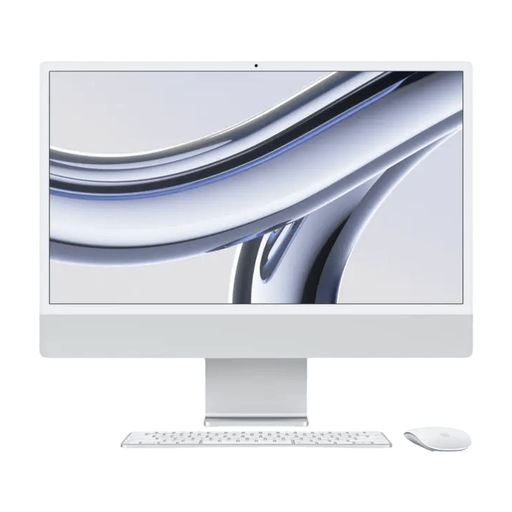 Image unavailable
Ideal if you’re looking for an integrated macOS desktop. First check that your research software and files will work with it.
24-inch 4.5K screen with 4480 × 2520 pixels; M3 chip; 16 GB memory; 512 GB SSD; macOS Sonoma.
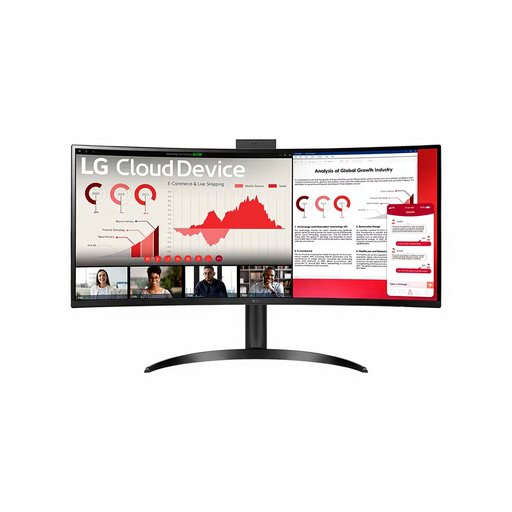 Image unavailable
Ideal if you want to view documents side by side on a wide screen and use a cloud or VDI set-up.
34-inch screen with 3440 × 1440 pixels and a 21:9 aspect ratio. No operating system is installed; check that the cloud or VDI environment you plan to use is right for your needs.
In Windows, you can snap one window to the left and another to the right. Microsoft Support also explains the ‘View Side by Side’ feature for two Word documents. Then check that the text remains readable with your screen and scaling settings.
No. Screen size alone doesn’t determine how much usable space your documents will have. According to HP UK, the 27-inch HP model reviewed has QHD resolution, while the Dell EC27260 configuration reviewed has FHD resolution, according to Dell UK. Also check the text size and readability of your own documents.
Yes, for this desk set-up you’ll need one monitor as well as the mini PC. Check what’s included in the specific offer and whether the connections on the computer and monitor match. An all-in-one has an integrated screen.
Not without checking your complete software and file workflow. According to the QGIS installation guide, the programme is available for Windows and macOS, but that doesn’t confirm that all the other programmes, plug-ins and file formats you use are compatible.
The Health and Safety Executive’s guidance places the responsibility on the employer. For employees who use display screen equipment for more than two hours a day, it includes requirements such as a screen and keyboard that aren’t attached to each other, and a screen that is height-adjustable and non-reflective. These are workplace requirements for employees, not general product specifications for every individual buyer.