If you already have a suitable monitor, start by looking at a mini PC or micro desktop, and check the connections and what’s included. If you still need to set up the whole workspace, consider an all-in-one too; a tower is mainly worth considering when having room to upgrade matters. Whichever format you choose, make sure the computer suits your marking software, how pupil data is managed and the layout of your display screen workstation.
Who is this guide for?
Administrator of a shared marking PC
You’re setting up a workstation for several markers to use, and need to organise access to pupil data and individual accounts. The Dutch Data Protection Authority outlines schools’ responsibility to ensure appropriate protection of personal data.
Teacher who marks for long periods
You read and mark a lot of work on screen, and want to be able to adapt the workstation to the people using it. Arboportaal outlines requirements for display screen work, including conditions that apply when working at a screen for more than two hours a day.
Team that uses screens and documents side by side
You want to be able to open assignments, marking criteria and administrative windows without clutter. So check which screens and connections your software and existing monitors require.
What should you consider when choosing?
| Consideration |
What should you check? |
Who should pay particular attention? |
| Access on a shared PC |
Ask your IT administrator which sign-in method, operating system edition and local storage rules are compatible with your school’s IT management. Microsoft describes setup options for shared Windows devices; the Dutch Data Protection Authority outlines schools’ responsibility to protect pupil data. |
If several markers use the same computer, I want to know in advance how accounts and access will be managed. Around 33% of consumers consider access and management their top priority. |
| Working at a screen for long periods |
Consider the screen position and the workstation as a whole. Arboportaal outlines requirements for employees who work at a screen for more than two hours a day, including the requirement for the screen and keyboard not to be attached to each other. |
If I mark work for long stretches, I want to be able to adapt the workstation to the user. Around 27% of consumers give prolonged screen work top priority. |
| Assignments alongside marking information |
List the applications and monitors you use, then compare the connections required with those available on the model you’re considering. Apple and HP list support for multiple external displays on specific models; check the ports and configuration of the model you’re considering. |
If I want to view submissions and marking information side by side, I focus on the screen layout I need. Around 27% of consumers prioritise an overview of windows and screens. |
| Space and a complete setup |
Check what’s included with the model and which peripherals you already have. Lenovo states that a monitor and keyboard are sold separately for the ThinkCentre neo 50q Gen 4 12LM006LEZ. |
If I want to put together a complete workstation in a limited space, I want to know in advance which other components I’ll need. Around 13% of consumers make space and workstation setup their top priority. |
Common mistakes
-
Assuming a compact PC is a complete workstation
A mini PC may need a separate monitor or keyboard. Lenovo states that these are sold separately for the ThinkCentre neo 50q Gen 4 12LM006LEZ.
Compare the complete setup with an all-in-one, and check what’s included with the exact model.
Allow for the practical cost of a separate monitor, keyboard or connection equipment if you don’t already have them.
-
Assuming a security feature makes shared use safe
A product specification won’t automatically set up accounts, access rights or a storage policy. The Dutch Data Protection Authority outlines schools’ responsibility to take appropriate technical and organisational measures.
Ask your administrator to configure the computer in line with your policies for sign-in, access and data storage.
-
Choosing the computer and forgetting about the display screen workstation
Choosing a desktop doesn’t automatically mean the screen setup will suit everyone who uses it. Arboportaal outlines requirements for display screen work, so assess the workstation as a whole.
Check the screen position and adjustment options for the people who will use the workstation.
Brands to consider
Lenovo
Lenovo offers compact desktops for use with a separate monitor, as well as all-in-ones with an integrated screen.
- Lenovo lists Windows 11 Pro, 16 GB of memory and a 512 GB SSD for the ThinkCentre neo 50q Gen 4 12LM006LEZ.
- The monitor and keyboard are sold separately with this model. Lenovo lists an integrated matte 23.8-inch screen for the M70a Gen 6 13AY004EEZ; check the stand and connections on the model you choose.
HP
The HP product ranges reviewed include compact Pro Mini desktops, a ProOne all-in-one and a larger Pro Tower.
- HP lists Windows 11 Pro, 16 GB RAM and a 512 GB SSD for the models reviewed. The ProOne has an integrated 23.8-inch screen; HP lists support for up to three screens for the Pro Tower.
- Check the screen connections and what’s included with each model before choosing your setup.
Dell
The Pro Micro QCM1255 is a configurable business micro desktop designed for use with a separate monitor.
- Dell shows a configuration with Windows 11 Pro, 16 GB RAM and a 512 GB SSD.
- The configuration may change when you select components. Check the final model and the peripherals you’ll need.
Apple
Mac mini is a compact macOS option for organisations whose marking software and IT management work with macOS.
- Apple lists support for external displays for the Mac mini M6 models reviewed.
- General hardware specifications don’t confirm that a specific school application or IT management environment is compatible. Check first.
Joybuy products
These mini PCs are for a shared marking workstation with a separate monitor. Before choosing, check that the model suits your IT management, marking software and preferred monitor setup.
 No image available
Lenovo Yoga Mini 01IPH11 Copilot+ PC
A mini desktop for a workstation where you want a compact computer and a separate monitor; check whether Windows 11 Home is suitable for your organisation’s IT management.
Intel Core Ultra 5 325, 16 GB LPDDR5X memory, 512 GB SSD and Windows 11 Home.
View at Joybuy
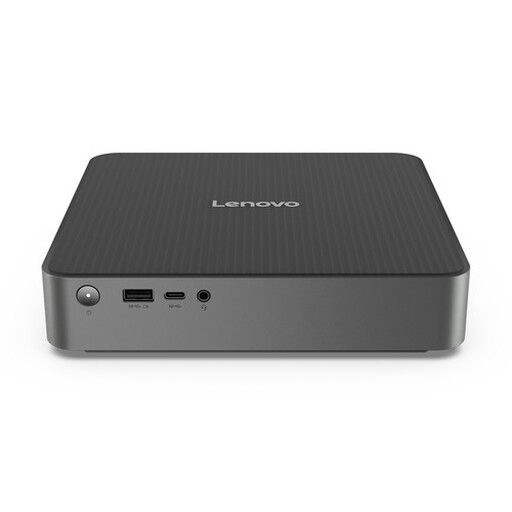 No image available
Lenovo IdeaCentre Mini
A mini PC to consider if you want to use a compact desktop with a separate monitor. Check the exact configuration and the connections you’ll need.
View at Joybuy
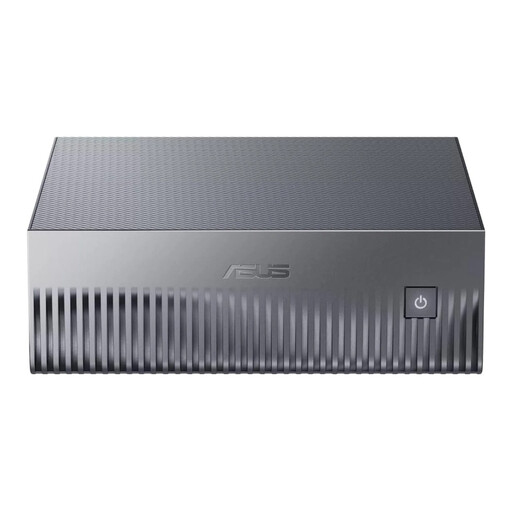 No image available
ASUS Ascent GX10 GX10-GG0003BN GB10
A mini PC for a workstation where you want a compact desktop. Check that the configuration you choose works with your marking software and IT management.
128 GB LPDDR5x memory and a 1 TB SSD.
View at Joybuy
 No image available
FIREBAT R3 Mini PC
Consider this mini PC if you’re thinking of a compact workstation with multiple screens. Check that the connections match your monitors.
AMD Ryzen 5 7430U, 16 GB RAM, 512 GB SSD and support for output to three 4K screens, according to the product name.
View at Joybuy
 No image available
FIREBAT F1 Mini PC
Consider this mini PC if you want to arrange documents and marking windows across multiple screens. Check the connections and software required for your chosen setup.
AMD Ryzen 5 7640HS, 24 GB LPDDR5 memory, 512 GB SSD and support for output to three 4K screens, according to the product name.
View at Joybuy
Frequently asked questions
Does a shared marking computer need Windows 11 Pro?
Not as a general rule; choose the edition that suits your organisation’s IT policy and marking software. Microsoft states that BitLocker Drive Encryption is available in Windows Pro, Enterprise and Education, but not Windows Home. Microsoft also describes setup options for shared Windows devices.
How do you set up a PC for several markers?
Ask your administrator to decide how users sign in and what access and local storage are permitted. Microsoft describes setup options for shared Windows devices; the Dutch Data Protection Authority highlights schools’ responsibility to ensure appropriate protection of pupil data.
What should you consider when marking digitally for long periods?
Assess the whole display screen workstation, not just the computer. Arboportaal states that when working at a screen for more than two hours a day, the screen and keyboard must not be attached to each other. So also check how the screen and keyboard will be used in your chosen setup.
Does a mini PC include a monitor and keyboard?
It depends on the model. Lenovo states that the monitor and keyboard are sold separately for the ThinkCentre neo 50q Gen 4 12LM006LEZ. Check what’s included with the exact model and which peripherals you already have.
Is a Mac mini suitable for marking software?
That depends on the software you use and your organisation’s IT management. Before buying, check that your marking applications, accounts and required peripherals work with macOS; support for external displays alone doesn’t confirm compatibility.


