A desktop suitable for word processing may be enough for a craft booklet with text and reference images. Choose software with more advanced layout tools if you need greater control over images or print output. Then check that the software works with the operating system, and consider memory, storage, display connections and the peripherals included. The specifications listed apply to specific configurations, not every computer in the same range.
Who is this desktop guide for?
Writer of an illustrated booklet
If you mainly write instructions and add reference images, first check whether your word-processing software supports the image layout you need. Microsoft Support explains how to insert images in Word and set text wrapping.
Creator of a print-ready publication
If your project includes lots of images or you’re sending files to a printer, check your layout software’s requirements and ask the printer what output they need. Adobe explains, among other things, the output settings for commercial print workflows.
Creator with limited desk space
If you want a compact computer or an integrated setup, compare a standalone compact desktop with an all-in-one. Also check the screen and connections on the configuration you’re considering.
What should you consider when buying?
Desktop with a separate monitor
Choose this if: you want to choose your computer and monitor separately, and your software works with the operating system you select.
Bear in mind: the computer and monitor each take up space; check which peripherals are included with the configuration.
Compact desktop
Choose this if: a small computer case is important and you want to use a suitable monitor separately.
Bear in mind: the monitor, connections and any peripherals you need must be compatible with the computer you choose.
All-in-one
Choose this if: you want to buy your computer and screen as a single setup.
Bear in mind: you choose the built-in screen along with the computer, so check the screen specifications for the exact configuration.
| What to consider |
What to look for |
Who is this most important to? |
| Software and layout |
Decide whether inserting images is enough or whether you need linked images and specific print output. Adobe lists 8 GB as the minimum and 16 GB as the recommended RAM for InDesign; check the requirements for your version of the software. |
If I mainly want to lay out text with images, I need to know whether my programme gives me enough control. Around 40% of consumers say software and layout are their main concern when buying. |
| Images and storage |
Choose an SSD capacity that suits your image files and workflow. Remember to keep backups of your booklet and source images too. |
If I have lots of reference images, I want to be able to store and find my files. Around 30% of consumers prioritise storage and image files. |
| Screen and workspace |
Compare the desk space required, screen resolution, video connections and included peripherals. Adobe recommends a screen resolution of 1920 × 1080 for InDesign. |
If my workspace is small or I need a particular screen, the combination of computer and display matters. Around 20% of consumers prioritise their workspace setup. |
| Complete setup |
For the exact configuration, check whether the screen, keyboard, mouse and software you want are included or need to be purchased separately. |
If I want to get started straight away, I’ll check what else I need besides the computer. Around 10% of consumers focus mainly on the complete purchase and how it will be used. |
Pitfalls to avoid
-
Comparing the computer alone
A standalone desktop doesn’t automatically give you a complete workspace. For example, a keyboard and mouse aren’t selected for the Dell Tower configuration shown; software may also be offered as a subscription.
For the exact configuration, make a list of the computer, screen, input devices and software you want to use.
-
Treating an all-in-one, compact desktop and tower as equivalent packages
An all-in-one includes the screen as part of the computer setup, whereas a standalone compact desktop or tower needs a separate screen.
Compare the complete workspace and check the connections and included components for the configuration you choose.
-
Assuming specifications for a product range apply to every configuration
Configurations within the same range can vary. For example, Apple lists different storage options for the Mac mini, and the Dell Tower is also available in different configurations.
Make a note of the full model name and the configuration you’ve chosen, then check the product specifications again before ordering.
Brands to compare
HP
HP offers compact desktops and all-in-ones, among other options, for different workspace setups.
- For the OmniDesk Slim S03-0606nd, HP lists 16 GB RAM, a 512 GB SSD and connections for two monitors.
- The OmniStudio combines the computer and screen; compare the screen specifications and configuration of the exact model.
Dell
The Tower ECT1250 is a desktop for which you can select the configuration.
- The configuration shown lists 16 GB RAM and a 512 GB SSD.
- Dell notes that changes to the configuration may affect the specifications. A keyboard and mouse aren’t selected in the option shown.
Lenovo
Lenovo describes the ThinkCentre Neo range as including all-in-ones, towers and compact desktops.
- The range includes different form factors for a variety of workspace setups.
- Check the memory, screen and storage configuration for each full model.
Apple
The Mac mini is a compact macOS option if you use software that runs on that platform.
- Apple lists 16 GB of unified memory and a 256 GB SSD as standard for the Mac mini with M6, with other storage options available.
- Check software compatibility and which external screen and peripherals you’ll need.
Joybuy desktops for a separate workspace
The Joybuy options shown are desktop computers for a workspace with a separate screen. For each model, check that the operating system, exact configuration and required peripherals are suitable for your booklet software.
 No image available
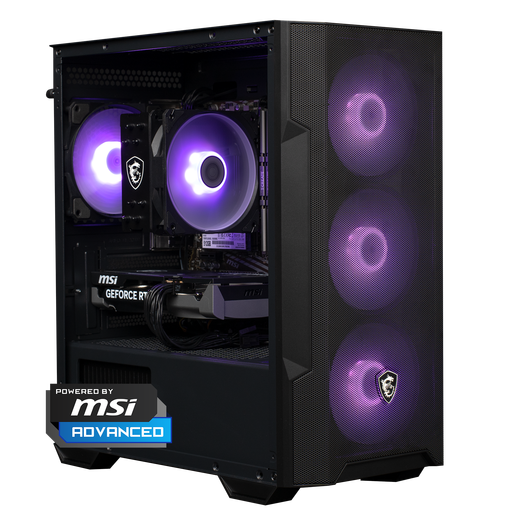
Shark Max Bite R500 Gaming PC, RTX 5060, Ryzen 5, 16 GB, 500 GB
An option for a separate workspace if your booklet software is compatible with the configuration you choose.
The product description lists Windows 11 Home, 16 GB DDR4 and a 500 GB NVMe SSD.
View at Joybuy
 No image available
RGB Gaming PC, RTX 5060, Ryzen 5, 16 GB, 480 GB SSD, Wi-Fi
A desktop option for a separate computer setup; check that the operating system supports your software.
The product description lists 16 GB DDR4 memory and a 480 GB SSD.
View at Joybuy
 No image available
Panoramic Gaming PC, AMD Ryzen 7 5700X, RTX 5060 Ti 8GB, 16 GB, 480 GB
Consider this configuration as a desktop for a separate workspace, and check that the software is compatible with the system supplied.
The description lists 16 GB DDR4, a 480 GB NVMe SSD and Windows 11 as an evaluation version.
View at Joybuy
 No image available
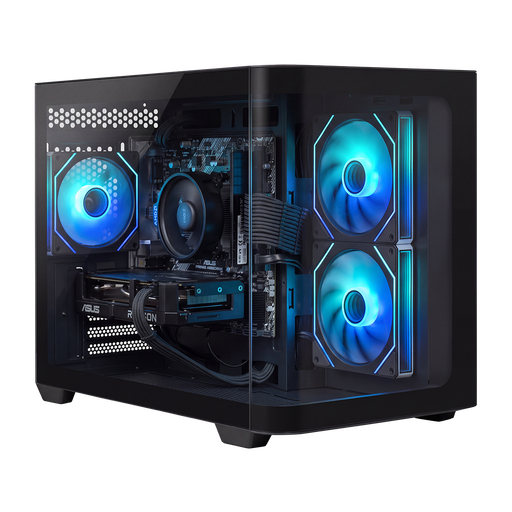
SHARK Max Bite R502, Ryzen 5 5500, Radeon RX 9060 8GB, 16 GB, 500 GB
An option for a separate desktop workspace if your software works with the Windows version supplied.
The product description lists Windows 11 Home, 16 GB DDR4 and a 500 GB NVMe SSD.
View at Joybuy
 No image available
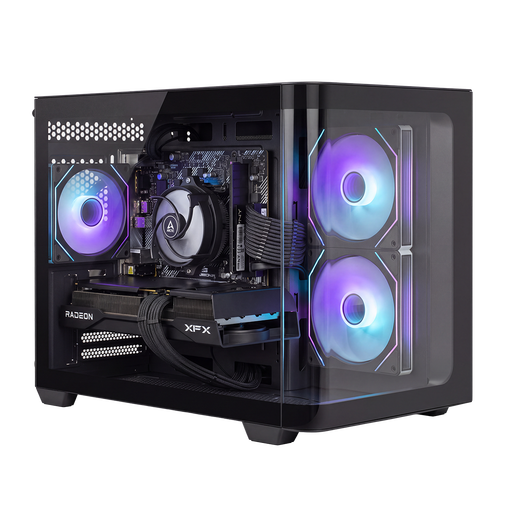
Shark Bloodlust R700 Gaming PC, RX9070, R7, 16 GB, 1 TB
A desktop for a separate workspace; check that the software you want to use works with the configuration you choose.
The product description lists 16 GB DDR4, a 1 TB NVMe SSD and Windows 11.
View at Joybuy
Frequently asked questions
Do I need a powerful graphics card for this booklet?
Not just for writing and inserting reference images. Choose based on your software: Adobe lists GPU requirements for optimal GPU performance in InDesign, not as a general requirement for every text-based booklet.
How can I stop images disappearing from my layout?
If you use linked images in InDesign, check their status in the Links panel before exporting and keep the necessary source files. Make backups of your booklet and images too.
Can I simply send a file to a printer?
First ask the printer what output they need. Adobe explains bleed and printer’s marks for commercial print workflows, but doesn’t recommend using those marks by default for digital or office printing.
What rights do I have when I buy a desktop online in the Netherlands?
When you buy online as a consumer, you generally have a statutory cooling-off period of up to 14 days after delivery. Exceptions may apply, including to products made to the consumer’s specifications. The statutory guarantee is separate from any additional commercial warranty, and there is no single fixed guarantee period in the Netherlands. ACM ConsuWijzer explains the cooling-off period; the Netherlands Authority for Consumers and Markets provides information about the statutory guarantee.
Must electronic devices sold in the EU carry a CE marking?
According to the Dutch government, electronic devices covered by the applicable EU product safety requirements must carry a CE marking. The marking alone does not prove that a specific desktop on offer has been assessed.


