
Designer working beside a bright window
Creates catalogue pages at a fixed, well-lit workstation and wants to consider window light and reflections first. Arboportaal advises positioning your viewing direction parallel to the window.


First, choose a screen setup that minimises the amount of daylight falling on the display. Then decide whether you want a separate monitor or an all-in-one. A compact desktop gives you more freedom to choose a monitor, while an all-in-one combines the computer and screen. Also check the requirements of your layout and image-editing software, and make sure your colour management matches your print workflow.
Creates catalogue pages at a fixed, well-lit workstation and wants to consider window light and reflections first. Arboportaal advises positioning your viewing direction parallel to the window.
Assesses reproductions of artworks and wants to factor colour management and print matching into the choice of computer and monitor. EIZO describes calibration as part of a colour workflow.
As well as laying out the catalogue, works with images and compares memory and storage configurations with the requirements of their software.
A good fit if: you want to choose a monitor yourself for your bright workspace and preferred colour workflow.
Trade-off: the monitor and any required input devices may need to be bought separately; check the memory and storage configuration too.
A good fit if: you want a workspace with a built-in screen and are happy to have less choice over the monitor itself.
Trade-off: check the screen where you work. The stated resolution and brightness won’t tell you how it will handle reflections in that space.
A good fit if: you need Windows, want to upgrade the memory or storage later, or use other demanding applications alongside catalogue layout software.
Trade-off: assess the specific configuration and software requirements. Expandability alone doesn’t prove that you need extra capacity.
| What to consider | What should you check? | Who is this most relevant to? |
|---|---|---|
| Readability beside a window | Check the viewing direction, window position, blinds and screen adjustability at your workstation. Don’t judge suitability on brightness figures alone. | If I want to assess text and images in daylight, I focus on positioning and reflections. Around 33% of consumers prioritise usability beside a window. |
| Colour and print proofs | Ask which profiles, colour space and proofing process the print shop uses, and whether your chosen monitor is suitable and can be calibrated. EIZO notes that calibration can’t extend a limited colour gamut. | For art reproductions, I want to match what I see on screen to the printed result. Around 27% of consumers give colour assessment and print proofs top priority. |
| Memory, storage and software | Check the requirements for your software versions and the exact configuration, including the operating system, memory, SSD and any upgrade options. | If I work with large image files, I want to match the configuration to my software and files. Around 20% of consumers focus mainly on memory, storage and software compatibility. |
| Complete workspace | Check what’s included with the specific model and whether you’ll also need a monitor or input devices. | I want to know in advance what I’ll need for a complete workspace, not just which computer to choose. Around 20% of consumers focus mainly on the make-up of the complete workspace. |
A compact computer won’t solve problems with reflections or colour reproduction. For the ThinkStation P3 Tiny Gen 2, Lenovo states that the monitor, keyboard and mouse are optional and sold separately.
Make a list of the components you need, and assess the monitor in the actual lighting conditions where you’ll work.
A separate monitor and, if needed, input devices may be part of the cost of a complete workspace.
Resolution and stated brightness alone don’t tell you enough about reflections, colour gamut or how well the screen can be matched to print.
Check the specific monitor and discuss colour profiles and proofs with your print shop.
Software requirements and the features of workstation ranges answer different questions. Extra graphics power isn’t automatically necessary for catalogue layout.
Start with your software and files. Only choose extra capacity if a specific additional task calls for it.
The Mac mini M6 is a compact desktop for use with a separately chosen monitor, while the iMac M4 combines the computer with a built-in 24-inch screen.
The ThinkStation range includes the compact P3 Tiny Gen 2 and the P3 Tower Gen 2, both Windows desktop options to pair with a separately chosen monitor.
The Z2 SFF G1i is a compact Windows workstation option to pair with a separately chosen monitor.
ColorEdge is a separate monitor option for anyone assessing catalogue images where colour accuracy is critical.
PhotoVue and Creative Pro monitors are options to compare alongside a separate desktop.
This Joybuy selection includes compact desktops, Windows towers and all-in-ones for a catalogue workspace. Compare the screen setup and configuration with the lighting in your workspace and the requirements of your workflow.
 No image available
A compact desktop for anyone who wants to choose a separate monitor for their window-side workspace.
12-core CPU and 12-core GPU; 16 GB memory; 256 GB SSD.
No image available
A compact desktop for anyone who wants to pair a separate monitor with this memory and storage configuration.
12-core CPU and 12-core GPU; 24 GB memory; 512 GB SSD.
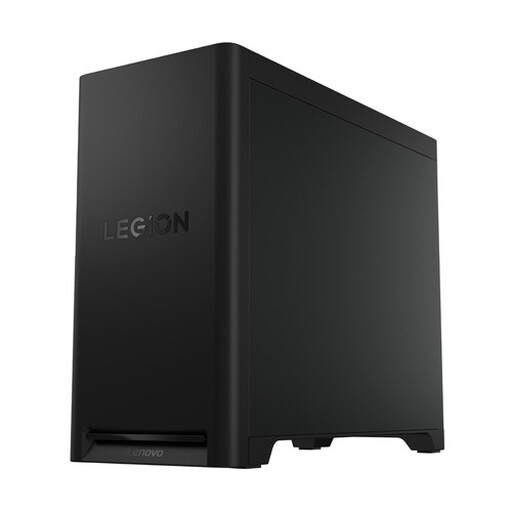 No image available
A Windows tower for anyone who wants to choose a separate monitor and needs the stated memory and storage configuration.
Intel Core Ultra 7; NVIDIA GeForce RTX 5070; 32 GB DDR5 memory; 1 TB PCIe 4.0 SSD; Windows 11 Home. The product description states that memory can be upgraded to 64 GB and extra storage added.
 No image available
An all-in-one for anyone who wants to combine a computer and screen. Assess the built-in screen where you work.
27-inch QHD screen; 120 Hz; 99% sRGB coverage; Intel Core Ultra 7 255H; 16 GB LPDDR5X memory; 1 TB SSD; Windows 11 Home.
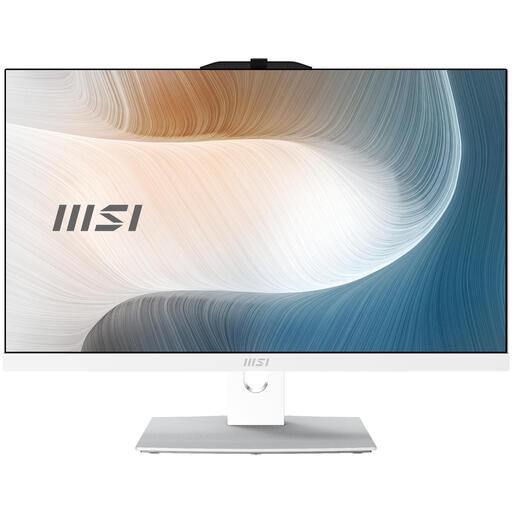 No image available
An all-in-one with a built-in screen described as anti-glare. Check how it handles reflections in your workspace.
23.8-inch IPS screen; 1920 × 1080 pixels; Intel Core 5 120U; 8 GB DDR5 memory; 512 GB SSD; Windows 11 Pro. The product description states that memory can be upgraded to 64 GB.
For InDesign 21.3 and later, Adobe recommends 16 GB RAM; this model has 8 GB. The power adapter must be purchased separately.
Not on its own. For screen-based work, Arboportaal advises positioning your viewing direction parallel to the window. Then assess the screen in its actual location and consider whether you need to adjust the window position or blinds.
If you’re assessing colour-critical art reproductions for print, monitor calibration can be part of your colour workflow. Also discuss colour profiles and proofs with your print shop. EIZO notes that calibration can’t correct a limited colour gamut or uneven panel display.
For InDesign version 21.3 and later, Adobe lists 8 GB RAM as the minimum and recommends 16 GB. For Photoshop version 27.x and later, Adobe recommends at least 16 GB for the Windows configuration described, with 8 GB as the minimum. Check the requirements for your software versions, operating system and other applications.
That depends in part on how the built-in screen performs in your workspace. Check for reflections with the window in its usual position, and make sure the screen suits your colour workflow. The stated resolution or brightness won’t answer those questions on its own.