Start with the software and screen you’ll use to assess near-identical photos. Then choose memory, storage and connections to suit your photo series and workspace. Adobe lists an SSD for your catalogue, images and previews as one possible way to improve performance in Lightroom Classic, but this isn’t a measure of how quickly you can select photos. A compact desktop can save space, while a larger case may offer different expansion options that you’ll need to check for each configuration.
Who is this choice relevant to?
Photographers with large photo series
You often browse through sequences of shots and want to open and compare previews quickly. In Lightroom Classic, Adobe describes views for assessing photos side by side or in a group, and lists an SSD for your catalogue, images and previews as one possible way to improve performance.
Photographers with a small home workspace
You want to place the computer next to a screen of your choice, and compare compact Mac and Windows desktops based on the configuration and connections of the specific model you’re considering.
Photographers who also edit their photos
You look at more than sharpness: screen quality and calibration matter too when you edit your photos further. Calibration is a separate screen feature and doesn’t replace comparing details.
What should you look for when buying?
Compact Mac desktop
A good fit if: you want to work on macOS and choose or already have a separate screen.
Bear in mind: the Mac mini has no built-in screen. Choose an SSD capacity that suits your storage plan.
Compact Windows desktop
A good fit if: you use Windows and have limited desk space.
Bear in mind: check the processor, memory, SSD and available connections for each configuration.
Larger Windows desktop
A good fit if: you have room for a less compact case and want to compare configurations.
Bear in mind: a higher-spec processor alone doesn’t prove that you’ll be able to select photos more quickly.
| What to consider |
What should you check? |
Who is this important for? |
| Browsing photo series |
Check your software’s system requirements, available memory and SSD space for your catalogue and previews. |
When I compare lots of consecutive shots, I want my software and storage to suit the way I work. Around 31% of consumers put smooth browsing and comparison at the top of their buying priorities. |
| Assessing sharpness on screen |
Zoom in on details in your selection software and check that the screen connection is compatible with your desktop and monitor. Look into calibration separately if you also work with colour-critical images. |
When near-identical shots are hard to tell apart, I want to be able to view them clearly on a suitable screen. Around 31% of consumers prioritise assessing fine details of sharpness. |
| Workspace and connections |
Check the display outputs and available ports on the exact configuration. Allow enough room for the computer and, if needed, a separate screen. |
On a small desk, I want a computer and screen that fit the space I have. Around 19% of consumers prioritise a compact workspace. |
| Storage and complete workspace |
Compare the SSD capacity with your files, and factor in a screen and any additional storage you need. Check expansion options for each configuration. |
If I want to keep my catalogue, photos and previews, I consider the storage I need as well as what else I’ll need alongside the computer. For around 19% of consumers, storage and the total cost of their workspace are their main concern. |
Adobe lists SSD storage for Lightroom Classic as one possible way to improve performance. The right desktop for you will still depend on your software, photo files, screen and workspace.
Common buying mistakes
-
Comparing processors and nothing else
Your workflow speed doesn’t depend on the processor alone. Adobe also mentions where your catalogue and previews are stored. And a desktop without a built-in screen isn’t a complete setup for assessing photos.
Compare your complete workspace and storage plan before paying extra for a different processor configuration.
You may still need a separate screen or extra storage.
-
Assuming every configuration is the same
Configurations in the same desktop range can differ in processor, memory, SSD and connections. So don’t rely on the series name alone.
Make a note of the full model or product number and compare the specifications of the exact configuration.
-
Mistaking a catalogue backup for a full photo backup
A catalogue backup doesn’t automatically include your original photo files.
Include both your catalogue and your original photos in your backup plan.
You may need separate storage for your photo files and their backup.
Brands to compare
Apple
The Mac mini is a compact macOS option if you use or choose a separate screen.
- For the M6 configurations listed, Apple specifies 16 GB of unified memory and options with a 256 or 512 GB SSD.
- Choose a storage capacity that suits your photo files, and check which connections your screen requires.
Lenovo
The ThinkCentre M75q Gen 5 Tiny is a compact Windows desktop.
- Lenovo lists, among other options, configurations for the Netherlands with 16 GB of memory and a 512 GB SSD.
- Configurations can vary. Check the product number, processor and connections on the model you choose.
HP
The Elite Mini 800 G9 is a compact business Windows desktop.
- Its small form factor may be useful if you need to keep desk space to a minimum.
- Components vary by configuration, so check each model individually.
Dell
The Pro Slim QCS1250 is a larger, yet space-saving, Windows desktop.
- Dell lists configurations with, among other things, 16 GB of DDR5 memory and a 512 GB SSD.
- The processor varies by configuration. A higher-spec processor doesn’t automatically mean you can assess burst shots more quickly.
Desktops at Joybuy
This selection includes desktops and mini PCs for a home workspace where you can choose photos from a series. Check that the configuration and connections suit your screen and storage plan.
 No image available
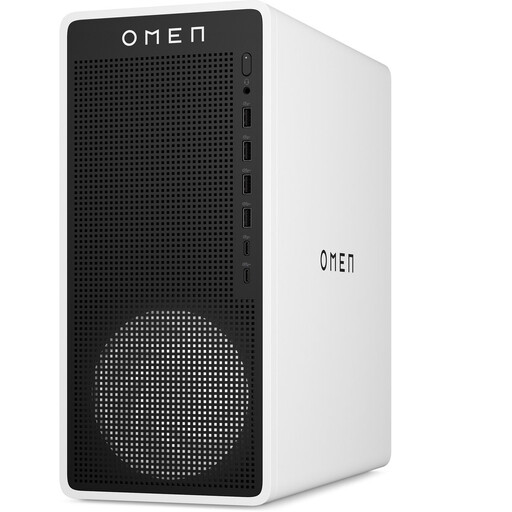
OMEN 16L Gaming Desktop TG03-0057nd
The listed storage and display outputs may be useful with a separate monitor and a photo library, but they don’t prove how quickly you can select photos.
16 GB DDR5 memory; 1 TB PCIe SSD; HDMI 2.1 and DisplayPort 2.1 outputs; 16L case.
The product description says that the charger must be purchased separately.
Joybuy
 No image available
SOYO Y5Pro Mini PC, Intel Core i5 8250U/8350U
This mini PC is a compact option to use with a separate screen. Check which processor version and connections are included in the setup you’re considering.
8 GB DDR4 memory; 256 GB SATA SSD; HDMI and Type-C video outputs.
Joybuy
 No image available
Apple Mac mini M6, 16 GB, 256 GB SSD
A compact Mac desktop for anyone who wants to work on macOS with a separately chosen screen.
Apple M6 chip; 12-core CPU; 12-core GPU; 16 GB memory; 256 GB SSD.
Joybuy
No image available
Apple Mac mini M6, 16 GB, 512 GB SSD
A compact Mac desktop for anyone who wants to work on macOS with a separately chosen screen.
Apple M6 chip; 12-core CPU; 12-core GPU; 16 GB memory; 512 GB SSD.
Joybuy
 No image available
Gaming Desktop PC Ryzen 7 7800X3D
The generous storage may suit a photo library. The listed graphics card alone doesn’t prove that selecting burst shots will be quicker.
Ryzen 7 7800X3D; GeForce RTX 5080; 32 GB DDR5 memory; 1 TB NVMe SSD; Windows 11 Trial.
Joybuy
Frequently asked questions
Do I need a separate graphics card for selecting burst shots?
The workflow described doesn’t automatically require a separate graphics card. Start with the system requirements for your software and the desktop’s configuration. Don’t buy an extra graphics card based solely on the assumption that it will help you choose sharp photos more quickly.
How should I set up storage for Lightroom Classic?
Adobe lists an SSD for your catalogue, image files and previews as one way to improve performance. Compare the capacity with your own files, and include backups of both your catalogue and your original photos in your storage plan.
Do I need a calibrated screen to assess sharpness?
Calibration concerns the screen’s colour reproduction; it doesn’t replace zooming in to compare details. If you also do colour-critical editing as well as selecting photos, look into the calibration options for the screen you use.
What are my rights when I buy a desktop online?
According to ACM ConsuWijzer, online purchases generally come with a cooling-off period of up to 14 days after delivery, subject to legal exceptions. Your statutory guarantee is separate from any manufacturer’s guarantee: if a product doesn’t perform as you could reasonably expect during normal use, contact the seller.


