Who is this choice relevant to?

Video callers with a busy background

You want to blur or hide the objects behind you during calls. Check that your meeting app’s background feature works on the PC you choose. Zoom Support and Microsoft Support explain the features and points to consider for Zoom and Teams respectively.

Home workers sitting next to a bright window

You want your face to remain clearly visible as the daylight changes. Zoom Support recommends even lighting, while Logitech explains camera settings such as exposure and white balance. The settings available vary by camera.

Streamers using several visual effects

You may want to replace your background while using other effects. Assess the requirements of your specific software and hardware as a combination: NVIDIA says that using multiple Broadcast effects increases the load on your system.

What should you look for?

Mini PC with a separate screen

Best if: you already have a suitable screen and want to choose your own camera.

Bear in mind: the screen and camera aren’t necessarily included; Lenovo says the screen is sold separately for the M70q Gen 5 model reviewed.

All-in-one with a camera

Best if: you also need a screen and would prefer to choose the PC and camera as one setup.

Bear in mind: check that the screen position and camera angle suit your workspace. Dell lists an FHD HDR camera for the Pro 24 model reviewed, but that doesn’t guarantee a good frame in every room.

Desktop PC with RTX for NVIDIA Broadcast

Best if: you specifically want to use Broadcast effects across multiple applications.

Bear in mind: NVIDIA Broadcast uses RTX hardware; check the requirements for the complete configuration before spending extra on this hardware.

What to consider What should you check? Who is this important for?
Background removal without a green screen Check the feature and system requirements for your own meeting app; Zoom Support publishes requirements for different types of background effect. If I want to hide a busy background, getting a usable frame is my priority. Around 36% of consumers rank background masking as their top priority.
Camera and lighting by the window Check how you look on camera at your usual call time and whether your camera can adjust the exposure. Zoom Support recommends even lighting. If I sit next to a bright window, I want my face to remain clearly visible as the daylight changes. Around 29% of consumers prioritise staying clearly visible in backlit conditions.
Using effects at the same time Check the requirements for each application you want to use and for the combination of effects; NVIDIA notes that using multiple Broadcast effects puts extra load on the system. If I want to combine effects during a call or stream, I want to know whether my chosen applications can handle it. Around 21% of consumers rank using effects simultaneously as their top priority.
Complete workspace setup Check what’s included with each model and which connections are available. Lenovo says the screen is sold separately for the M70q Gen 5 model reviewed. If I need a complete video-calling setup, I want to know whether I still need to choose a screen or camera. Around 14% of consumers prioritise a suitable, complete setup.

Avoiding common buying mistakes

  • Assuming a faster PC will solve every backlighting problem

    A processor specification won’t tell you how a camera will show your face next to a bright window. Zoom lists a suitable camera and even lighting as points to consider when using virtual backgrounds.

    Assess the PC, camera and lighting as one setup, and check a sample image before choosing a PC based on its processor alone.

    If you don’t already have a suitable camera, you may need to choose one separately. You may also need to adjust the lighting.

  • Expecting Windows Studio Effects to work on every Windows desktop

    Microsoft sets specific NPU requirements for Windows Studio Effects and notes that features can vary by device. So seeing Windows 11 in a product name doesn’t mean the feature you want will be available.

    Check that the exact model supports the feature you want before buying.

  • Treating a mini PC as a complete video-calling kit

    A mini PC and an all-in-one don’t necessarily include the same components. Lenovo says the screen is sold separately for the ThinkCentre M70q Gen 5 model reviewed.

    Check which components are included with each model and which screen and camera connections you need.

    If you don’t already have a screen or camera, remember that you’ll need to choose those components separately.

Brands to consider

Dell

The Dell Pro range reviewed includes both compact desktops and all-in-ones. An FHD HDR camera is listed for the Pro 24 model reviewed.

  • The camera specification for the Pro 24 model mentioned gives you a specific feature to assess when choosing a configuration.
  • A camera specification isn’t an independent test of background masking or backlighting in your room.

Lenovo

The ThinkCentre M70q Gen 5 Tiny is a compact Windows desktop designed to be used with a screen of your choice.

  • The model reviewed, 12TD0017MH, lists 16 GB of memory and a 512 GB SSD.
  • Lenovo says the screen is sold separately; these specifications don’t tell you anything about the quality of a webcam you choose separately.

HP

The Pro Mini 400 G9 is a compact Windows desktop option for office and video-calling software.

  • For model 6D494EA#ABH, HP lists a Core i5-12500T, 16 GB of RAM and a 512 GB SSD.
  • These specifications don’t provide information about the quality of a camera you choose separately or background masking in your setup.

Desktop PCs at Joybuy

These Joybuy products include desktop PCs with RTX hardware, compact mini PCs and an all-in-one, offering different ways to put together your video-calling setup. Check the requirements for the app and exact configuration before choosing a background feature.
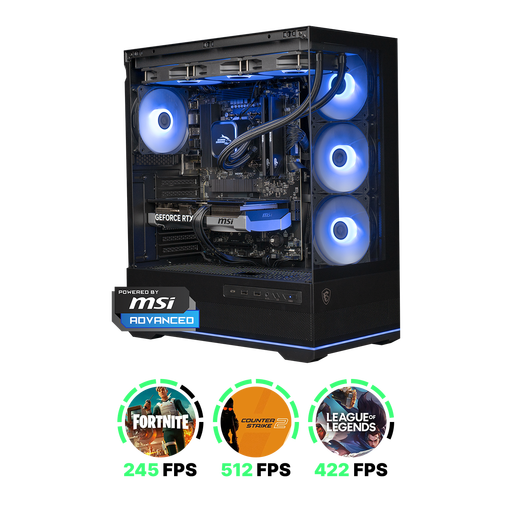
Shark Ultimator R700 gaming desktop PC with RTX 5070

Shark Ultimator R700 Gaming PC, RTX 5070, R7, 16GB/1TB

Worth considering if you want to use NVIDIA Broadcast: the product name lists a GeForce RTX 5070, and NVIDIA describes RTX hardware as the basis for Broadcast effects.

The product name lists 16 GB of memory and 1 TB of storage.

Joybuy

Lenovo Yoga Mini 01IPH11 Copilot+ PC mini desktop

Lenovo Yoga Mini 01IPH11 Copilot+ PC

A mini PC worth considering if you want a compact system with a screen of your choice and specifically want to use Windows Studio Effects. Microsoft specifies a Copilot+ PC with an NPU above 40 TOPS for Studio Effects; the product information lists an NPU of up to 47 TOPS.

The product name lists an Intel Core Ultra 5 325, 16 GB LPDDR5X and a 512 GB SSD.

Joybuy

FIREBAT F1 mini PC with AMD Ryzen 5 7640HS

FIREBAT F1 Mini PC, Ryzen 5 7640HS

A compact PC to consider if you already have a screen and want to put together the rest of your video-calling setup yourself.

The product name lists 24 GB LPDDR5, a 512 GB SSD, Radeon 760M graphics and support for up to three screens.

Joybuy
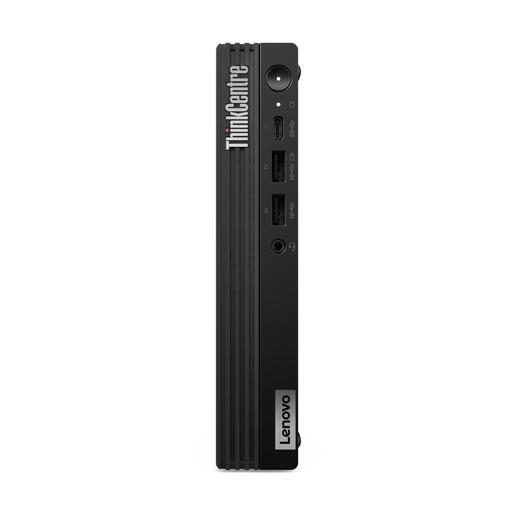
Lenovo ThinkCentre M70q Gen 5 mini PC with Intel Core i7-14700T

Lenovo ThinkCentre M70q Gen 5, Core i7-14700T

A compact desktop to consider if you want to use your own screen and choose a camera separately.

The product name lists 16 GB DDR5, a 512 GB SSD and Windows 11 Pro. No screen is included; the product description also says that the power adapter must be purchased separately.

Joybuy

Lenovo Yoga AIO 27IAH10 all-in-one with 27-inch screen and 5MP camera

Lenovo Yoga AIO 27IAH10 F0J2001DNY, 27-inch

An all-in-one to consider if you’d prefer to choose the screen and camera in one setup; the product information lists an integrated 5MP camera.

The product name lists a 27-inch QHD screen, Intel Core Ultra 7 255H, 16 GB LPDDR5X and a 1 TB SSD.

Joybuy

Frequently asked questions

Do I always need a separate graphics card for a virtual background?

No, not automatically. Zoom publishes requirements for different types of background effect; NVIDIA Broadcast is a separate option that uses RTX hardware. Check the requirements for the feature you actually want to use on the exact PC you’re considering.

What can I try first if I sit next to a bright window?

Check your camera image at your usual call time and, where possible, make the lighting more even. Zoom recommends even lighting; adjust the exposure if your camera model supports that setting.

Does background blur guarantee that confidential information stays hidden?

No. Microsoft warns that blurring or replacing your background doesn’t always prevent sensitive information from being seen. For work calls, the Dutch Data Protection Authority advises using secure video-calling options provided by your organisation.

What are my rights around cooling-off periods and warranties for online purchases in the Netherlands?

For eligible online consumer purchases, the Dutch government generally provides a 14-day cooling-off period. Your statutory guarantee is separate from a commercial or manufacturer’s warranty: if a product breaks during normal use sooner than you could reasonably expect, the seller must offer an appropriate solution, according to ACM ConsuWijzer.

Are there any specific rules for a home-working setup?

For employees, the Dutch government describes an employer’s duty of care to provide a good and safe home-working setup. This doesn’t determine which processor an individual buyer needs.
