
Audio interview editor
If you mainly edit conversations, you’ll benefit from suitable software, local storage and useful connections. Audacity highlights the need for fast, uninterrupted access to storage for active projects.


If you mainly edit audio, choose a desktop that suits your editing software, local storage needs and required connections. Audacity’s requirements don’t mean you need a powerful graphics card for audio work. If you’re editing video too, match the configuration to your software and resolution: Adobe recommends 16 GB RAM for Premiere in HD, and 32 GB or more for 4K and above. Keep the editable project separate from the exhibition-ready file, and check which peripherals you already have.
If you mainly edit conversations, you’ll benefit from suitable software, local storage and useful connections. Audacity highlights the need for fast, uninterrupted access to storage for active projects.
If you’re editing video too, check your software’s requirements for the resolution you’ve chosen. Adobe recommends 16 GB RAM for Premiere in HD, and 32 GB or more for 4K and above.
If space is limited, make sure the connections and included components are compatible with the monitor and input devices already available.
Best if: you mainly cut and listen back to interviews, for example in Audacity.
Bear in mind: don’t assume you need a powerful graphics card. Do check the storage and connections your workspace requires.
Best if: the exhibition also includes edited interview footage and your software requirements match your needs.
Bear in mind: Adobe recommends 16 GB RAM for Premiere 26.x in HD and at least 32 GB for 4K and above. These recommendations don’t automatically apply to audio work.
Best if: you want to use macOS and compatible editing software, and already have a suitable display and accessories.
Bear in mind: check the exact memory and SSD configuration, as well as the connections on the version you’re considering.
| What to consider | What to look for | Who it matters most to |
|---|---|---|
| Storing and editing audio | Check the local SSD storage, operating system support and connections for your equipment. Keep the project separate from the export. | If I mainly edit conversations, I want to be able to work on active projects locally and find them again later; around 40% of consumers make audio editing their top purchasing priority. |
| Editing interview video | First decide on the software and output resolution, then check the configuration against the requirements of that specific software version. | If the exhibition also includes interview footage, I want to match the memory and other components to the software and resolution; around 30% of consumers prioritise video editing. |
| Workspace and connections | Compare the ports with your monitor and other equipment, and check what’s included with the version you choose. | With limited space and equipment I already own, I want to know whether everything will connect to the desktop; around 20% of consumers start with the workspace and connections. |
| Project management and purchase | Make an inventory of your source files, project, export and existing equipment. Also check what service the seller provides. | If I want to edit projects again later and avoid missing any components, I look at storage and a complete workspace; around 10% of consumers make project management and purchase their top priority. |
Audacity recommends fast, uninterrupted access to storage for active projects. Adobe’s recommendations for Premiere depend on the resolution and aren’t general minimum requirements for every editing task.
Requirements vary by task: Audacity doesn’t specify a CPU or GPU requirement, while Premiere has different requirements for video editing.
First decide whether you’re editing audio, HD video or 4K video, then check the requirements for the software version you’ll be using.
Choosing a more powerful configuration than your video work requires could mean spending more than you need to.
Audacity warns that active projects need fast, uninterrupted access to storage.
Work on active projects using local storage, and keep a suitable backup too.
The peripherals and connections you need depend on the version you choose and what you already own.
Make a list of your monitor, input devices and cables in advance, then compare it with the desktop’s connections and what’s included.
You may still need a display, input devices or cables to complete your workspace.
The ThinkCentre neo 50q Gen 5 is a compact range of Windows desktops. For version 13B9009EEZ, Lenovo lists 16 GB DDR5-5600 memory and a 512 GB SSD.
The HP Pro Mini 400 G9 version reviewed, 9H6Z2ET#ABH, is described as a compact Windows 11 Pro desktop with 16 GB RAM and a 512 GB SSD.
The Mac mini range includes macOS desktops with different combinations of chip, memory and SSD. Apple lists connections and media features for each configuration.
This selection includes a compact PC suited mainly to audio work, as well as desktops for editing interview video. Check that each model’s configuration suits your software, resolution and existing peripherals.
 Image unavailable
Its compact size could suit a limited workspace; check that the version meets the requirements of your audio software.
The product title lists Windows 11, Bluetooth 5.2 and Wi-Fi 5. Check in advance that the connections are suitable for your monitor and other equipment.
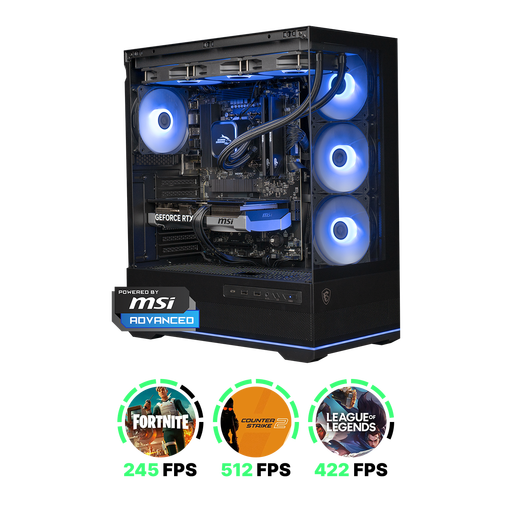 Image unavailable
This desktop is described as suitable for video editing too; check the configuration against the software and resolution you’ll use for your exhibition.
The product information lists an RTX 5070, 16 GB DDR5, 1 TB NVMe storage and Windows 11 Home. For Premiere 26.x, Adobe recommends 32 GB RAM or more for 4K and above.
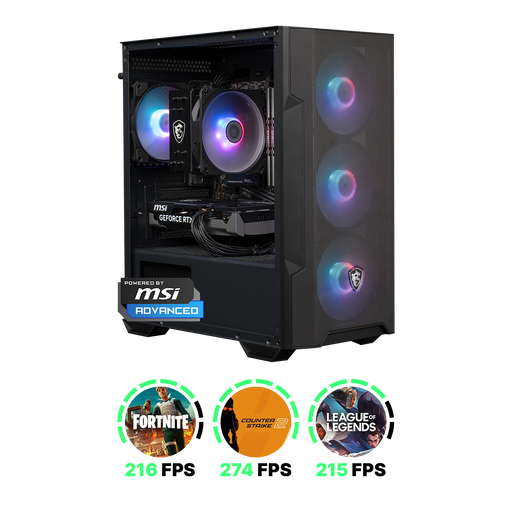 Image unavailable
If you’re editing interview video too, it’s worth checking the listed configuration against the requirements of your chosen software and resolution.
The product information lists an RTX 5060, 16 GB DDR4, 1 TB NVMe storage and Windows 11 Home. The description says the charger must be purchased separately.
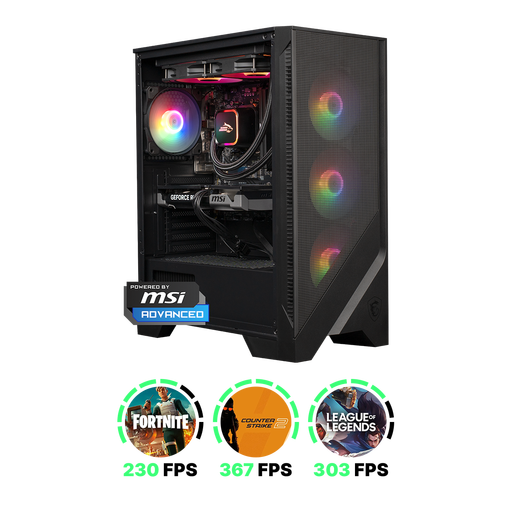 Image unavailable
This desktop is described as suitable for video and photo editing; check that the memory and other components meet the requirements of your editing software.
The product information lists an RTX 5060 Ti, 16 GB DDR5, 1 TB NVMe storage and Windows 11 Home.
 Image unavailable
The product information mentions creative applications; compare the configuration with the requirements of your chosen video editing software and output resolution.
According to the product title, Windows 11 Home is pre-installed but not activated.
Not according to Audacity’s published Windows requirements, which don’t specify a CPU or GPU requirement. If you use video editing software, check the requirements for that specific software and your resolution; Adobe lists separate requirements for video work in Premiere.
Keep the editable project and export a separate file that can be played back. Audacity 4 uses .aup4 for projects; the Audacity 3.x documentation warns against working directly from USB sticks, external drives or network storage because projects need uninterrupted disk access. Make sure any sharing or storage of identifiable interviews complies with the privacy rules of the organising institution.
Check whether you already have a suitable monitor, keyboard, mouse, cables and enough storage. Also ask what service the seller provides: your statutory rights and any additional manufacturer’s or seller’s warranty are not the same thing.
Don’t assume that you can. According to the Dutch Data Protection Authority, an identifiable audio recording can be personal data, and processing it requires a lawful basis under the GDPR. The appropriate basis depends on the organiser and intended use. For copyright-protected music, photos or films created by others, the Dutch government says you need the creator’s permission to use them.