
Writer working with editorial notes
You receive text corrections and comments, and want to review changes without losing track of your work. Microsoft Support and LibreOffice Help explain the revision features in Word and Writer respectively.


Start with a desktop that can handle revisions and comments in your preferred word-processing software. Then work out how much screen space and local storage you need. A compact Windows PC or Mac mini could suit these writing tasks, but check the exact configuration, the peripherals you’ll need and the connections for your monitors.
You receive text corrections and comments, and want to review changes without losing track of your work. Microsoft Support and LibreOffice Help explain the revision features in Word and Writer respectively.
You want to refer to your script, notes and sources side by side. Check that your desktop’s video outputs are compatible with your monitors; Apple lists support for multiple external displays for the Mac mini M6 configuration reviewed here.
You want to listen to audio clips or do some simple editing alongside your writing. If you plan to edit audio, your choice of storage becomes more important: Audacity specifies fast, uninterrupted access to local storage as a requirement.
First, choose an operating system that works with your word-processing software. Then consider your screen setup, file recovery and any audio work in light of the way you work.
| What to consider | What should you look for? | Who is this important for? |
|---|---|---|
| Revisions and comments | Check that your word-processing software works on the desktop’s operating system, then test a file with tracked changes and comments. | If I want to review other people’s corrections without losing track of my script among separate versions, revision tools come first; around 31% of consumers say this is their top priority. |
| Script and notes on screen at the same time | Compare the video outputs on the exact configuration with the inputs on your monitors. | I want to refer to material alongside my script while I write, so I need to know whether my screens can connect. Around 25% of consumers give having screen space for multiple things at once their highest priority. |
| Restoring earlier script versions | For the version history in Microsoft 365 described by Microsoft, files must be stored in OneDrive or SharePoint; test restoring a version too. | If I want to retrieve an earlier version after an editing round, I pay attention to where my files are stored. For around 19% of consumers, version recovery is their top priority. |
| A complete writing setup | Check what’s included with the exact configuration and whether you still need monitors, input devices or adapters. | I want to know in advance what’s missing before I can use my writing setup, rather than finding out when I connect everything. Around 13% of consumers give having a complete workstation their highest priority. |
| Additional audio work | Decide whether you’ll only be listening to clips or also recording and editing them. If you’ll be editing, check the connections and local storage you’ll need. | If I want to edit audio alongside my script, I also consider the storage where my active project files will be kept. Around 12% of consumers say additional audio work is their top priority. |
Revisions and comments are features of your chosen word-processing software. A more powerful desktop won’t replace a clear way to receive and review changes.
Choose your word-processing software first, then test how to receive, review and save changes in it.
Microsoft describes version history in Microsoft 365 for files stored in OneDrive or SharePoint; this doesn’t automatically apply to files stored locally.
Check where your script is saved and test restoring a version. Also decide how you’ll store files outside those services.
Your desktop’s video connections need to work with your monitors. What’s included in the box and whether you need adapters also determine if you can connect your existing setup.
Before you buy, check the connections on the exact configuration, the inputs on your screens and which peripherals you already have.
Audacity specifies fast, uninterrupted access to the drive or SSD as a requirement for it to work. So where your storage is located can also matter when you edit audio.
If you plan to edit audio, check where your active project files are stored and whether that storage suits the way you work. It doesn’t need to be a deciding factor if you’re only writing scripts.
The Mac mini is a compact macOS desktop, allowing you to choose a screen and other peripherals to suit your setup.
The HP Pro Mini 400 G9 is a compact Windows desktop; the configuration reviewed here has model number 6D494EA#ABH.
The ThinkCentre Neo 50s Gen 6 SFF is a desktop range to compare if you’re looking for a compact case rather than a mini PC.
This selection includes compact mini PCs and Mac mini desktops, as well as a Windows desktop. Compare the exact configuration, connections and compatibility with your word-processing software; the product titles and configurations listed vary.
 Image unavailable
A mini PC to consider for a compact writing setup; check that your word-processing software works on Windows.
The product description lists 8 GB DDR4, 256 GB storage and two HDMI video outputs. Check the connections on the exact configuration to make sure they suit your screens.
 Image unavailable
A compact macOS desktop to consider if your chosen word-processing software works on macOS.
For the M6 configuration reviewed here, Apple lists support for multiple external displays via Thunderbolt and HDMI. The SSD is 256 GB, so consider your storage needs if you’ll also be keeping audio files.
Image unavailable
Check that macOS works with your word-processing software and that this configuration suits your screen setup.
The product title lists 16 GB of memory and a 512 GB SSD. Choose the right storage capacity for your files and any audio projects.
Image unavailable
An macOS configuration to compare if your word-processing software works with this operating system.
The product title lists 24 GB of memory and a 512 GB SSD. Before buying, check that it connects to your screens and peripherals.
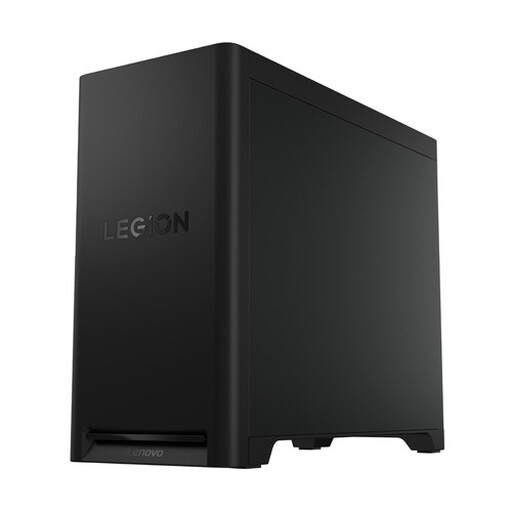 Image unavailable
A Windows desktop to compare if your word-processing software works on Windows; check that it fits your setup first.
The product title lists 32 GB DDR5, a 1 TB SSD and an NVIDIA GeForce RTX 5070. Consider which features matter for the tasks you’ll be using it for.
No, not for text changes and comments: these are features of your chosen word-processing software. If you also edit audio, check that the storage and connections suit the way you work.
For the version history in Microsoft 365 described by Microsoft, save the file in OneDrive or SharePoint. Test with a file to make sure you can view and restore earlier versions; a file saved only locally doesn’t meet this specific requirement.
For the exact desktop configuration, compare the supported displays and video outputs with the inputs on both monitors. The official Mac mini M6 specifications list support for multiple external displays via Thunderbolt and HDMI; check the connections on other desktops separately.
According to the Dutch Government, you’re entitled to a product that works properly, and there’s no fixed period for the statutory warranty in the Netherlands. If a product is faulty, the seller must provide a solution; a manufacturer’s warranty is in addition to your statutory rights.
No, not always. According to the Dutch Government, when you buy remotely from a business, you can often change your mind within 14 days, but there are exceptions. Check the terms that apply to your specific purchase.