Who is this guide for?

Writers with lots of reference material open

While writing, you switch between an editor, browsers and reference material. MDN Web Docs lists a code editor, modern browsers and a local testing server as components of a development environment. Check that your setup and existing monitor arrangement are suitable.

Home workers who spend long days at a screen

You want to arrange your monitor, keyboard and working posture to suit your workspace. The TNO factsheet on display screen work, published via Arboportaal, highlights the setup of a home workspace as something to consider alongside your computer choice.

Documentation writers who test locally

You check examples or applications on your own computer. Choose an operating system that supports the editor, browsers and testing tools you actually use. MDN Web Docs lists these software categories as part of a development environment.

What should you look for when choosing?

Compact Windows desktop

Suitable for: Windows software, an existing monitor or a small desk.

Check: the display outputs, any adapters you may need, and whether the small case allows the upgrades you might want later.

Mac mini with a separate monitor

Suitable for: work tools that run on macOS and a monitor you want to choose yourself.

Bear in mind: the cost and connections for the monitor and peripherals, and whether the storage configuration suits your projects.

Larger Windows desktop

Suitable for: anyone who values physical upgrade options more than having the smallest possible case.

Check: the actual expansion slots, power supply and included components for the specific configuration.

All-in-one desktop

Suitable for: anyone who wants to combine the computer and monitor in one setup.

Check: whether the built-in monitor and connections meet your needs, and what repair or replacement arrangements apply to the exact configuration.

Point to consider What to look for Who should consider this?
Writing and switching between tools Check the requirements for your editor, browsers and any local testing tools, then compare them with the operating system and full configuration. If you often switch between your editor, reference material and tests, you’ll want those tools to work on the configuration you choose. Around 31% of consumers put a setup for writing and switching between tools first.
Workspace for long sessions Check the display outputs and connections, the desk space available and which input devices you already have. If you spend a long time at a screen, you’ll want to position your monitor and input devices appropriately. Around 25% of consumers give the screen-work setup top priority.
Platform and local testing List the programmes and testing steps you need, then check they work on Windows or macOS before choosing a configuration. If you check examples or applications locally, you’ll want your regular tools to run on the platform you choose. Around 25% of consumers give platform and local testing requirements the most weight.
What’s included and future upgrades Compare the included components and upgrade options with your current equipment, and consider a separate backup too. If you still need to arrange a monitor, input devices or room for upgrades, you’ll want to know in advance what’s included and what you can change later. Around 19% of consumers prioritise what’s included and future upgrades.

Common buying mistakes

  • Comparing just the computer, not the whole workstation

    A compact computer with a separate monitor and a desktop supplied with input devices don’t necessarily include the same things. You may still need to buy a monitor, keyboard, mouse or adapter after placing your order.

    Before ordering, compare what’s included with the exact configuration against the equipment you already own.

    A separate monitor, input devices or a suitable adapter may be additional purchases.

  • Assuming every configuration has the specifications listed for a product family

    Lenovo lists configurations with different amounts of memory within the ThinkCentre neo 50q Gen 5 range. So the features of one configuration don’t automatically apply to another.

    Compare the full model code and check the operating system, memory, storage and connections for the configuration you choose.

  • Confusing storage with a backup

    An SSD inside your computer is not the same as a separate copy of your documents. Microsoft describes File History as storing files on an external drive or network location.

    Check where your project folders are stored, make separate copies and try restoring a file.

    A separate backup may require an external drive, network location or another solution.

Brands to consider

Apple

The Mac mini is a compact option if you use macOS and want to choose your own external monitor.

  • For the Mac mini M6 base configuration reviewed, Apple lists 16 GB of unified memory and a 256 GB SSD.
  • Check that your work software runs on macOS and that the storage and peripherals you choose suit your needs.

Lenovo

The ThinkCentre neo 50q Gen 5 is a compact Windows option for a workspace with a separate monitor.

  • For item number 13B9009EEZ, Lenovo lists Windows 11 Pro, 16 GB of memory and a 512 GB SSD.
  • The same product range includes other configurations. Check the item number and specifications for the configuration you choose.

Dell

The Dell Pro Micro is a compact business Windows desktop worth comparing if you’re looking for a configurable micro desktop.

  • For the QCM1250 configuration shown, Dell lists Windows 11 Pro, 16 GB DDR5 and a 512 GB SSD.
  • Check the configuration and any service options for the model you order. The listed details won’t necessarily apply to every order.

HP

The Pro Mini 400 G9 and Pro Tower 400 G9 are Windows desktop ranges with different case designs.

  • HP describes the Mini as compact and the Tower as designed for scalability.
  • These are the manufacturer’s descriptions, not independently verified performance or security benefits for every configuration. Check the exact configuration.

Acer

The Aspire XC-1760 is a tower desktop to consider if physical upgrade options matter to you.

  • For configuration DT.BHWEH.00Y, Acer lists 16 GB of memory, a 1 TB SSD, two expansion slots, and a keyboard and mouse in the box.
  • These specifications apply to the model code listed. For other configurations, check the upgrade options and what’s included separately.

Desktop options on Joybuy

These Joybuy products are desktop options to consider for a home workspace used for documentation, browsing and, if needed, local testing. For each configuration, check that the operating system and included components suit the way you work.

SOYO Y5Pro Mini PC with Intel Core i5 8250U/8350U, 8 GB DDR4 and 256 GB SATA SSD

SOYO Y5Pro Mini PC, Intel Core i5 8250U/8350U, 8 GB DDR4, 256 GB SATA SSD

The mini PC format may suit a compact workspace. Check that the listed configuration works with your software and meets your needs.

The product name lists 8 GB DDR4, a 256 GB SATA SSD and Windows 11. The product description mentions two HDMI outputs and a Type-C video output.

View on Joybuy
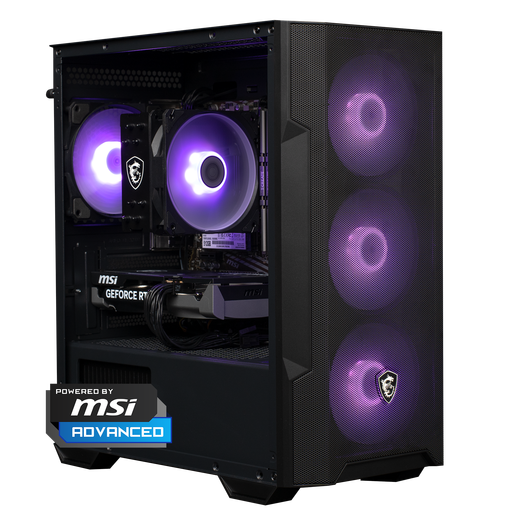
Shark Max Bite R500 Gaming PC with AMD Ryzen 5 5500, 16 GB DDR4 and 500 GB NVMe SSD

Shark Max Bite R500 Gaming PC, AMD Ryzen 5 5500, 16 GB DDR4, 500 GB NVMe SSD

Consider this desktop only if the listed configuration suits your documentation work; the product name presents it as a gaming PC.

The product description lists an MSI GeForce RTX 5060, 16 GB DDR4 memory, a 500 GB NVMe SSD and Windows 11 Home.

View on Joybuy

RGB Gaming PC with RTX 5060, Ryzen 5, 16 GB DDR4, 480 GB SSD and Wi-Fi adapter

RGB Gaming PC, RTX 5060, Ryzen 5, 16 GB DDR4, 480 GB SSD, Wi-Fi

Consider this gaming desktop if you need the listed components and Windows, and check that the configuration suits your work.

The product description lists 16 GB DDR4 memory, a 480 GB SSD, Windows and a USB Wi-Fi adapter in the box.

View on Joybuy

Panoramic Gaming PC with AMD Ryzen 7 5700X, GeForce RTX 5060 Ti 8 GB, 16 GB DDR4 and 480 GB NVMe SSD

Panoramic Gaming PC, AMD Ryzen 7 5700X, GeForce RTX 5060 Ti 8 GB, 16 GB DDR4, 480 GB NVMe PCIe SSD

Consider this desktop only if the listed configuration suits your needs and you’ve checked the installation requirements in advance.

The product name lists Windows 11 Home, pre-installed but not activated. It also lists 16 GB DDR4 and a 480 GB NVMe PCIe SSD.

View on Joybuy

Apple Mac mini with M6 chip, 16 GB memory and 256 GB SSD

Apple Mac mini M6, 16 GB, 256 GB SSD

This compact Mac mini may suit you if your work tools run on macOS and you want to choose your own external monitor.

The product name lists an Apple M6 chip with a 12-core CPU and 12-core GPU, 16 GB of memory and a 256 GB SSD. Check your monitor’s connection and that your software is compatible.

View on Joybuy

Frequently asked questions

Do I need a separate graphics card for API documentation?

Not just for writing API documentation. First, check the requirements for your editor, browsers and any local testing tools. These software categories alone don’t generally require a separate graphics card.

How should I set up a desktop for longer writing sessions?

Consider your monitor, keyboard and the layout of your whole workspace, not just the computer case. According to Arboportaal, employers also have a duty of care to ensure healthy and safe working conditions for employees working from home. Discuss what’s needed in your situation.

How can I protect drafts and source files on a Windows PC?

Microsoft describes File History as a way to keep copies on an external drive or network location. Check that your document and project folders are included, then try restoring a file.

Do I always get exactly two years of statutory guarantee on a desktop in the Netherlands?

No. According to ACM ConsuWijzer, your statutory guarantee depends on what you could reasonably expect from the product under normal use. If a product is faulty, the seller is responsible for providing an appropriate solution; a manufacturer’s guarantee does not replace this right.

Can I always return a desktop bought online within 14 days?

Not for every transaction. The Dutch government states that consumers generally have a 14-day cooling-off period for distance purchases, but check the applicable terms and exceptions. Don’t assume this consumer rule applies to a business purchase.
