
Studio with simultaneous streams
You use several screens at once and want to check whether your internet connection and the connection at each screen are up to the job.


Start by considering the number of simultaneous streams, your internet connection and where the screens are located; then choose a router. A single router may suit a compact studio with good coverage, while workspaces spread across different areas may call for mesh nodes. Fixed equipment may benefit from a wired connection. Check the ports, compatibility with your existing modem and the CE marking on the specific model.
You use several screens at once and want to check whether your internet connection and the connection at each screen are up to the job.
You have screens in different rooms and are mainly concerned with coverage, placement and the connection between Wi-Fi points.
You can connect screens or workstations by cable and want to know which ports, access points and management features you’ll need.
A good fit when: the studio is compact and a sufficiently strong Wi-Fi signal is available at the workspaces.
Keep in mind: placement and congestion on Wi-Fi channels still have an impact; a faster router won’t fix a weak internet connection.
A good fit when: workspaces are in separate rooms and you may need several Wi-Fi points.
Keep in mind: nodes need suitable locations and power; wired backhaul is only possible if you can connect the points via Ethernet.
A good fit when: you can install cables in the studio and need features such as network segmentation or more advanced management.
Keep in mind: an access point isn’t a complete router setup; check the gateway, connections and power supply too.
| Consideration | What should you check? | Who is this important for? |
|---|---|---|
| Simultaneous streams | Count streams and other active applications. Netflix recommends at least 15 Mbps on a stable connection for a single 4K stream on its service; this advice applies to that use case. | If several screens are streaming at once, I want to know whether my internet connection can handle it. Consumers whose main priority is simultaneous streaming account for around 36%. |
| Coverage at each workspace | Check the signal at the screens and potential locations for the router or nodes. The RDI notes that 5 GHz has a shorter range than 2.4 GHz. | If screens are in different rooms, I want a usable connection at every workspace. Consumers who prioritise coverage account for around 29%. |
| Wired connections | Count the Ethernet ports you need, including those for connecting to the modem or access point, and check the number and speed of ports on the specific model. | If fixed screens or workstations need a wired connection, I want to know how many devices can be connected directly. Consumers whose main priority is wired connectivity account for around 21%. |
| Management and updates | Check which management features are available and how updates are installed. | If several people use the network, I want to check whether guest access or separate network segments are needed. Consumers who prioritise network management account for around 14%. |
Combined, theoretical speeds across several Wi-Fi bands don’t tell you how much speed each screen will get in its location. Your internet connection also plays a part.
First count the simultaneous streams and check the connection at the screens. Then compare router specifications.
The number of nodes included determines how many areas you can equip straight away. A Joybuy listing for the Deco X50 included three nodes, while the ranking examined referred to a 2-pack.
Check the exact model and number of nodes before treating packages as the same product.
You may need an extra node or additional cabling to achieve your preferred setup.
An access point provides Wi-Fi, but it doesn’t automatically replace the gateway or router in your network setup.
Map out the complete connection, from your internet service to the gateway, cable, power supply and access point.
You may also need a suitable gateway or router and a PoE+ power supply.
The Deco range includes mesh systems. TP-Link Netherlands lists tri-band Wi-Fi 7, wired backhaul and four 2.5 Gbps ports for the Deco BE65 (EU) V1.
ASUS describes the ZenWiFi BT8 as an expandable tri-band mesh system with 6 GHz and support for wired backhaul.
FRITZ! says the FRITZ!Box 5690 Pro is designed for DSL or fibre and features tri-band Wi-Fi 7 with mesh expansion.
Ubiquiti offers a modular setup in which the Cloud Gateway Ultra can handle network management, while the separate U7 Pro can act as a Wi-Fi access point.
This selection includes Wi-Fi routers and mesh systems for a design studio with several screens, including options for workspaces in different areas and wired equipment. Check the connection, ports required and CE marking for the specific model.
 No image available
A mesh set with two units for workspaces in different rooms.
The listed bands are 2.4, 5 and 6 GHz; the product specifications list 1 and 2.5 Gbps Ethernet ports.
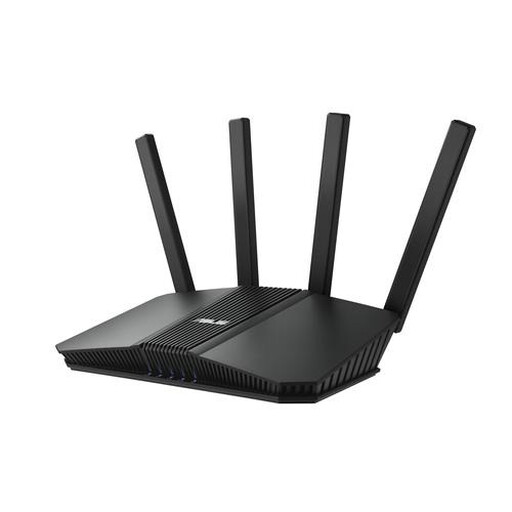 No image available
A standalone router for a compact studio where one well-placed Wi-Fi source may be enough.
The product specifications list four Ethernet ports, including a 2.5-gigabit port, and Wi-Fi 7.
 No image available
A mesh set with three units for workspaces spread across different areas.
The product specifications list Wi-Fi on 2.4, 5 and 6 GHz and three gigabit Ethernet ports per unit.
 No image available
A mesh set with two units for workspaces that aren’t all close to a single router.
The product specifications list three gigabit Ethernet ports per unit. Ethernet backhaul is optional and requires an Ethernet connection between the units.
First count the streams that will actually run at the same time and check the picture quality you want. Netflix recommends at least 15 Mbps on a stable connection for one 4K stream on its service; use that advice for that application only, then check the connection at the screens.
Check the connection at the workspaces themselves and avoid placing the router behind a TV or in a screened-off area among pipes. The RDI warns that an incorrect country setting can result in transmit power that is too high and cause interference.
Check how your chosen model receives updates and enable automatic updates if possible. VeiligInternetten recommends keeping router software up to date and changing the default login details.
A setup with separate access points may also require a gateway, cabling and a suitable PoE+ power supply. Check the warranty terms for the exact model too; an access point on its own isn’t a complete router setup.
The Dutch Authority for Digital Infrastructure (RDI) states that only equipment meeting the applicable requirements and bearing a CE marking may be sold in Europe. Check the marking and the specific model; a listing in an online shop alone doesn’t prove that a device complies.