
Student with a print portfolio
You edit photos or designs that will also be printed. A monitor with a suitable colour gamut may be relevant; Adobe describes soft proofing as a way to assess colours on screen using profiles for the intended output.


Choose a monitor to suit how your portfolio will be assessed. For print, a suitable colour space, calibration and soft proofing are important; for digital reviews, a suitable sRGB mode and enough room for pages and tools may matter more. Also check the resolution for the screen size and whether your laptop supports the required display and charging features through the connection. A wide colour gamut alone does not guarantee accurate colours: Adobe describes colour profiles and soft proofing as parts of colour management.
You edit photos or designs that will also be printed. A monitor with a suitable colour gamut may be relevant; Adobe describes soft proofing as a way to assess colours on screen using profiles for the intended output.
You mainly present your work on screen and want to assess pages, typography and design software clearly. Look at the resolution, screen size and a colour mode suited to how your work will be viewed.
You want an external workstation with fewer separate cables. Before buying, check whether your laptop can output a display through the connection you have chosen and what charging power you need.
Start by considering how your portfolio will be assessed: on paper, on screen or both. Then compare resolution and screen size, and check that the connections and adjustability suit your workspace.
| What to consider | What should you check? | Who is this more important for? |
|---|---|---|
| Colour checking for print | Compare the stated Adobe RGB coverage and calibration options for each exact model. BenQ lists 99% Adobe RGB and hardware calibration for the SW242Q; EIZO lists the same coverage and calibration capability for the CS2400S. These are manufacturer specifications, not a guarantee that a print will match. | If your work will also be printed, you’ll want your on-screen assessment to reflect the profile and output conditions. Around 40% of consumers put print colour accuracy first. |
| Digital workspace | Consider screen size and pixel resolution together. ASUS specifies a 27-inch screen and 3840 × 2160 pixels for the PA279CRV; LG lists the same dimensions for the 27UP850K-W. EIZO specifies a 24-inch screen and 1920 × 1200 pixels for the CS2400S. | If you want to view your portfolio, details and software windows side by side, the available workspace matters. Around 30% of consumers prioritise digital workspace. |
| Connecting and powering your laptop | Check your laptop’s video output, the cable and the charging power you need. ASUS lists up to 96 W Power Delivery for the PA279CRV, BenQ lists 90 W for the SW242Q and EIZO lists 70 W for the CS2400S; these figures alone do not tell you whether your laptop is compatible. | If you work from a laptop, you’ll want to know whether a single connection can provide both the display signal and the power you need. Around 20% of consumers prioritise a straightforward laptop connection. |
| Screen position and usage | Check which adjustments are available on the exact model and compare the EU energy labels for the models you’re considering. The European Commission uses a scale from A to G for electronic displays. | If you spend long periods working on your portfolio, you’ll want to adjust the screen position to suit your desk and how you work. Around 10% of consumers prioritise their workspace and running costs. |
A stated colour gamut alone does not guarantee that the screen will show how the final print looks. Adobe describes colour profiles and soft proofing as parts of a colour-managed workflow.
Check the active screen mode and its associated profile. Where relevant, use soft proofing with the profile for your intended output.
A larger screen does not, by itself, tell you how much image detail you can see. The models listed differ in both screen size and resolution.
Compare screen size and pixel resolution together, and consider how much space you have on your desk.
A USB-C connection does not guarantee that your laptop will receive a display signal and charge through a single cable. The stated charging power varies by model. The Dutch government explains that statutory guarantees apply alongside manufacturer’s warranties.
Check your laptop, connection and cable against the model you’ve chosen, and review the applicable warranty and returns terms before buying.
The PhotoVue SW242Q is a compact option to compare for a print-focused workflow, with a 16:10 screen.
The ColorEdge CS2400S is a 24-inch model to consider for a calibratable print workflow.
According to ASUS, the ProArt PA279CRV combines a 27-inch 4K screen with stated coverage of several colour spaces.
The UltraFine 27UP850K-W is a 27-inch 4K option with an adjustable stand.
The UltraSharp U2723QE is a 27-inch 4K model with a USB-C hub for a workstation with peripherals.
This Joybuy selection features 4K monitors for viewing and editing digital portfolios. Compare each model’s size, stated resolution and colour management information against your own workflow.
 No image available
An option to compare if you want to view your digital portfolios on a 27-inch 4K screen.
27 inches, 4K resolution and an IPS panel.
 No image available
An option to compare if you want a larger 4K screen for digital portfolio and detail work.
32 inches, 4K UHD and QD-OLED, as stated in the product name.
 No image available
An option to compare if you want to assess portfolio details on a 27-inch 4K screen.
27 inches, 3840 × 2160 pixels, IPS, 60 Hz and 4 ms. The product name lists HDMI, DisplayPort and a height-adjustable stand.
 No image available
An option to compare for digital portfolios where screen size and resolution matter.
27 inches and 4K resolution, as stated in the product name.
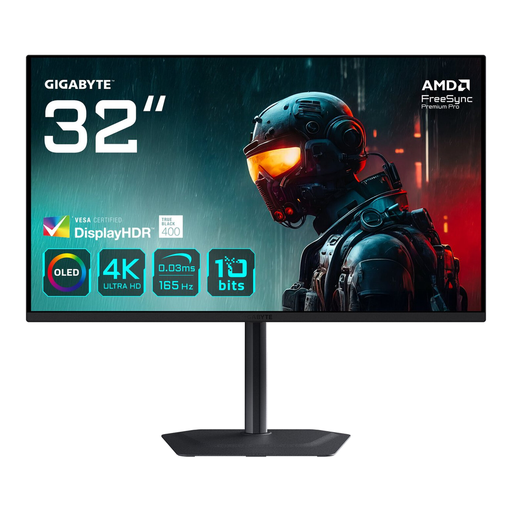 No image available
An option to compare if you want a larger screen for viewing digital portfolios and details.
31.5 inches, 3840 × 2160 pixels and OLED, as stated in the product name.
No, it depends on the output you’re working towards. For print, suitable colour management and soft proofing may be relevant; for a portfolio that will mainly be viewed digitally, check which colour mode suits the intended display. Adobe describes colour profiles as part of soft proofing; a wide colour gamut alone does not prove that a print will be accurate.
Choose a screen mode suited to your output and check that the colour profile matches the active monitor setting. Adobe warns that simply connecting a calibrated screen does not guarantee accurate colour reproduction.
No, a USB-C connection alone does not confirm that your laptop will receive a display signal and charge through a single cable. Check your laptop’s video output, the charging power you need and the cable; the stated Power Delivery varies by model.
For distance purchases, you’ll often have a 14-day cooling-off period; check whether these rules apply to your transaction. The Dutch government also states that statutory guarantees apply and that the seller must provide a solution if there is a problem with the product.
The EU energy label can help you compare electronic displays. The European Commission uses a scale from A to G; check the information for the exact model you’re considering.