Start by measuring the usable width and depth of your desk. Then decide whether colour accuracy, QHD detail or a simple laptop connection matters most to you. A compact QHD screen gives you more pixels for images and tool panels, while a 16:10 screen offers more vertical space. USB-C video and charging are only useful if your laptop and cable support those features too. Manufacturers’ colour coverage figures don’t replace a suitable colour management workflow for digital and printed work.
Who is this guide for?
Student with a colour-critical portfolio
You edit illustrations or photos and want to weigh colour coverage against screen size and colour management for the final result. Adobe explains that colour management matters when images are used both on screen and in print.
Student with a small desk and lots of panels
You’re short on physical space, but want to see images, text and tool panels all at once. Compare the screen and stand dimensions, QHD resolution and any 16:10 aspect ratio.
Student who works on a laptop
You may want fewer separate cables, so check that your laptop, monitor and cable all support video and enough power delivery. BenQ explains that USB-C refers to the connector; supported features depend on the devices.
What should you look for?
Colour-focused QHD option
Choose this option if: you assess illustrations and photos in a limited space and want to consider the stated colour coverage.
Bear in mind: colour figures and calibration details are manufacturer specifications for specific models; also check that the stand will fit on your desk.
Around 24-inch QHD
Choose this option if: you want a compact screen size with room for portfolio images and tool panels.
Bear in mind: Lenovo’s ThinkVision P24q-30 and Dell’s P2425DE are both QHD models, but their manufacturers list different connectivity features.
16:10 for extra vertical space
Choose this option if: you value extra screen height for page layouts or vertical tool panels.
Bear in mind: the ASUS PA248QV and Dell P2425E have a resolution of 1920 × 1200 pixels, lower than the QHD models mentioned; ASUS does not list a USB-C video input.
| What to consider |
What should you check? |
Who will care most? |
| Colour for your portfolio |
Check the colour coverage and any calibration claims for the exact model. Match colour management to digital use, print or both; Adobe explains why this matters for work that moves between screen and print. |
If I want to print my portfolio too, I don’t want to mistake colour coverage for a predictable print result. Around 33% of consumers prioritise useful colour reproduction. |
| Detail and physical fit |
Measure the usable width and depth, then compare the dimensions including the stand. BenQ lists the PD2506Q as 570.0 mm wide and 256.9 mm deep including the stand. |
On a small desk, I want enough room for images and tool panels without the screen or stand being squeezed in. Around 27% of consumers prioritise physical fit and space for detail. |
| Laptop connection |
Check video output, cable and power requirements separately. BenQ lists 65 W for the PD2506Q; Dell lists power delivery of up to 90 W for the P2425E. |
If I work on a laptop and want to reduce cable clutter, my laptop, monitor and cable all need to support video and power. Around 20% of consumers prioritise a suitable laptop connection. |
| Features for your workflow |
Decide which screen layout and connections you’ll actually use, then check the ports and specifications of the exact model. |
I want to choose features that suit my portfolio and way of working, without paying for extras I don’t need. Around 20% of consumers prioritise this practical approach. |
Avoid common buying mistakes
-
Measuring only the screen diagonal
The diagonal doesn’t tell you how much width and depth the screen and stand will take up on your desk. These dimensions vary by model.
Measure the available width and depth, and check the dimensions of the exact model including its stand.
-
Assuming every USB-C port supports video and charging
USB-C refers to the connector; video and power features depend on the monitor, laptop and cable.
Check video support, the right cable and the power delivery you need separately. You may need a different cable, an adapter or a separate charger.
-
Treating factory specifications as a guarantee of an identical print
A stated colour gamut describes one characteristic of a monitor, but by itself it doesn’t mean a print will look the same. Adobe explains colour management for work that moves between screen and print.
First decide how your portfolio will be viewed, then use colour profiles that suit the intended output.
Matching profiles or producing proof prints may take extra work.
Brands to compare
BenQ
The PD2506Q is a compact QHD option for designers who want to consider the stated colour coverage.
- BenQ lists USB-C video and data, 65 W power delivery and a calibration report for the PD2506Q; its stated colour figures are manufacturer specifications.
- Check that it will fit your desk and that 65 W is enough for your laptop. The colour data isn’t an independent measurement of your individual unit.
Lenovo
Lenovo lists the ThinkVision P24q-30 as a 23.8-inch QHD monitor.
- For this model, Lenovo lists 99% sRGB and an average Delta E < 2 after calibration.
- These are manufacturer figures for this model; they don’t independently confirm the colour accuracy of every unit or a match with printed output.
Dell
The P2425DE and P2425E offer different options: QHD with a USB-C hub, or a 16:10 screen with a USB-C hub.
- Dell lists the P2425DE as a QHD monitor with a USB-C hub. The separate P2425E offers 1920 × 1200 resolution and power delivery of up to 90 W.
- Don’t mix up the model numbers: the P2425E has fewer pixels than the QHD models mentioned.
ASUS
The ProArt PA248QV is a 24.1-inch, 16:10 option for anyone who values vertical space and the stated sRGB coverage.
- ASUS lists a 1920 × 1200 resolution, 100% sRGB and an adjustable stand for this model.
- The listed video inputs are HDMI, DisplayPort and VGA. Don’t assume this model supports video or laptop charging via USB-C.
Joybuy monitors for portfolio and design work
These monitors are suited to portfolio and design work, including QHD models around 24 inches and options with other screen sizes or resolutions. For each model, check that the dimensions, connections and screen layout suit your desk and laptop.
 No image available
Dell Pro Plus P2425DE 23.8-inch QHD monitor
Ideal if you’re looking for QHD detail and an integrated laptop connection on a screen around 24 inches.
The product description lists a 23.8-inch screen, 2560 × 1440 pixels, a USB-C hub and 90 W Power Delivery. Check that your laptop and cable support the video and power features you need.
Joybuy
 No image available
Dell Pro Plus P2425D 24-inch QHD monitor
Ideal if you want QHD workspace on a 24-inch screen and an adjustable setup.
The product name lists a resolution of 2560 × 1440 pixels. The description mentions height adjustment, tilt, swivel and pivot.
Joybuy
 No image available
ASUS ProArt Display PA24ACRV 23.8-inch QHD monitor
Ideal if you want QHD detail on a compact screen alongside the stated colour features.
The product description lists a 23.8-inch screen, QHD, 95% DCI-P3, Calman certification and USB-C with 90 W power delivery. Check your laptop’s connection and power requirements.
Joybuy
 No image available
MSI MAG 272QP QD-OLED X24 26.5-inch QHD monitor
Ideal if you want QHD for portfolio and image editing, and have room for the larger screen on your desk.
The product name lists a 26.5-inch screen, QD-OLED, 2560 × 1440 pixels and 240 Hz. Measure your available space before choosing this size.
Joybuy
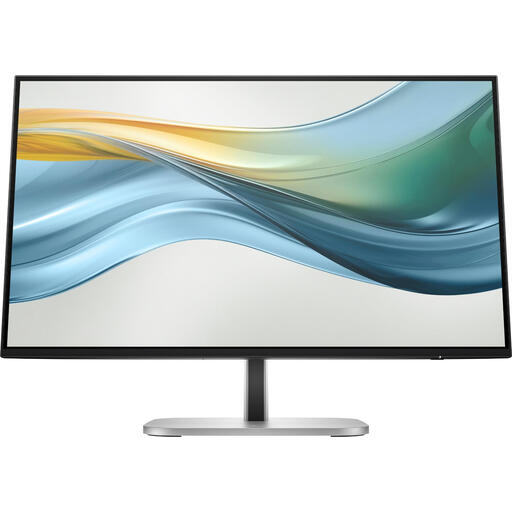 No image available
HP Series 5 Pro 524pu 23.8-inch FHD USB-C monitor
Ideal if you’re looking for a 23.8-inch monitor with USB-C and find FHD suitable for your portfolio workflow.
The product description lists 100% sRGB and USB-C with up to 100 W Power Delivery. According to the product information, the power adapter isn’t included as standard and must be purchased separately.
Joybuy
Frequently asked questions
Is 100% sRGB enough to predict exactly how my printed portfolio will look?
No. That specification alone doesn’t guarantee a match with a print. Adobe explains colour management and suitable profiles for work that moves between screen and print; judge your work against its intended output.
Can I connect and charge my laptop with a single USB-C cable?
Only if the monitor provides video and enough power through that connection, and your laptop and cable support the required features. BenQ lists DisplayPort Alt Mode and 65 W for the PD2506Q; Dell lists power delivery of up to 90 W for the P2425E. Check your own laptop’s specifications too.
How should I position and clean a monitor on a small desk?
First measure the available space, including the stand. Arboportaal advises placing the screen directly in front of you, with the top just below eye level. For Dell monitors, Dell recommends using a soft cloth lightly dampened with water and warns against spraying directly onto the screen. For other models, follow their own care instructions.
What are my return and warranty rights when buying online in the Netherlands?
The Government of the Netherlands says that for distance purchases, you generally have a 14-day cooling-off period in many cases. Check whether it applies to your purchase and what conditions apply. You’re also entitled to a product that meets legal requirements under the statutory warranty. The Netherlands has no fixed statutory warranty period, and the seller is your point of contact if something goes wrong.


