For image editing, illustration and portfolio layout, a compact desktop could be a good fit, provided its operating system and configuration work with your software and files. For Photoshop, for example, don’t just look at the minimum requirements: Adobe recommends 16 GB RAM or more for Photoshop 27.x, while demanding 3D and video projects may have their own graphics hardware requirements. A compact computer also requires you to choose a separate monitor, and you may need other workstation components too.
Who is this buying guide for?
Portfolio editor with lots of revisions
If you switch between image editing, illustration, layout and exports while finishing your work, look for enough memory, practical storage capacity and a configuration that meets the requirements of the software you use at the same time. Adobe recommends 16 GB RAM or more for Photoshop 27.x.
Designer working with colour-critical material
If you need to assess colours and details carefully for digital work or print, choose your desktop alongside a suitable external monitor. The computer’s specifications alone tell you nothing about the monitor’s colour reproduction.
Student working with 3D or moving images
If your portfolio includes animation, video or 3D, check the requirements of the specific software and projects you use. Photoshop’s requirements do not automatically apply to these applications.
What should you look for when choosing?
Start by thinking about the work you do most, then choose your computer and the rest of your workstation to match.
| What to consider |
What should you look for? |
Who should prioritise it? |
| Switching between design files |
Compare the memory and storage of the exact configuration with the requirements of your software and project files. |
If I switch between image editing, illustration, layout and exports during revisions, a smooth workflow comes first. Around 36% of consumers also prioritise this revision workflow when buying. |
| Assessing images and colour |
Check the monitor’s specifications and make sure the computer’s ports are compatible with your monitor and preferred resolution. |
If you need to assess details and colours carefully on screen, the desktop and monitor combination is important. Around 29% of consumers prioritise this kind of screen assessment. |
| Putting together a complete workstation |
Check what’s included with each configuration and whether you’ll also need a monitor, keyboard, mouse or extra storage. |
If I want to put together a usable workstation in one purchase, I check which components are still missing. Around 21% of consumers prioritise putting together a complete workstation. |
| 3D, animation or video |
Check the current requirements of your specific applications against the processor, GPU, memory and storage in the configuration. |
If my portfolio includes specific 3D, animation or video projects, I check the requirements of that software separately. Around 14% of consumers prioritise suitability for demanding media work. |
Common buying mistakes
-
Comparing the mini PC on its own
For the Lenovo ThinkCentre Neo 50q Gen 5 configuration 13B9CTO1WWNL2, Lenovo says the monitor, keyboard and mouse are optional and sold separately. So a small case doesn’t automatically mean you’re getting a complete workstation.
Check what’s included with the exact configuration and factor in any components you still need when making your choice.
-
Assuming Photoshop requirements apply to all design software
Adobe’s recommendations apply to Photoshop 27.x. They don’t prove that the same configuration is suitable for every 3D, animation or video project.
Check the current GPU, memory and storage requirements for each programme, then compare them with the exact desktop configuration.
-
Confusing the manufacturer’s warranty with your statutory rights
The Dutch government states that there is no fixed statutory warranty period in the Netherlands. Your statutory right to a product that works as it should depends on what you can reasonably expect from it; a manufacturer’s warranty may offer additional cover.
Check what an additional warranty service actually covers and keep your proof of purchase. If there’s a problem, contact the seller.
An additional warranty service may involve extra costs, so consider what cover you get in return.
Brands to consider
Apple
The Mac mini is a compact macOS option for a workstation with a separately chosen monitor. Apple’s Dutch specifications list 16 GB of unified memory and a 256 GB SSD for the M6 base configuration.
- The base configuration listed gives you specific memory and storage figures to compare with your project files.
- Check that macOS and the storage capacity suit your course and software; the computer’s specifications don’t determine the monitor’s colour quality.
Lenovo
The ThinkCentre Neo 50q Gen 5 is a compact Windows range. The configuration listed is 13B9CTO1WWNL2.
- Lenovo lists 16 GB RAM, a 512 GB SSD and integrated graphics for this configuration.
- Lenovo says the monitor, keyboard and mouse are optional and sold separately with this configuration. Other Neo 50q configurations may differ.
HP
The Pro Mini 400 G9 is a compact Windows product range; the configuration mentioned here is 6D494EA#ABH.
- HP lists 16 GB RAM, a 512 GB SSD and integrated graphics for this configuration.
- HP says configuration 6D494EA#ABH is unavailable. That doesn’t mean every Pro Mini configuration is unavailable.
Dell
Dell presents the Tower Plus as the next generation of its XPS desktop range, for those considering a tower PC with room to expand.
- A tower form factor may be worth considering if you’re looking for expandability.
- Suitability for specific design software, along with the GPU, memory and ports included, depends on the exact configuration.
Joybuy desktops for portfolio work
The Joybuy products shown include compact Mac mini configurations and desktop PCs. Compare the configurations with your workload: product information for some desktop PCs also mentions photo and video editing, while the Mac minis require you to choose a separate monitor.
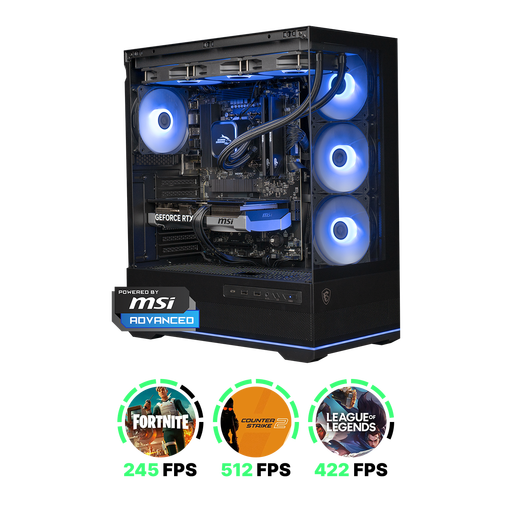 Image unavailable
Shark Ultimator R700 Gaming PC, Ryzen 7 7800X3D, RTX 5070, 16 GB DDR5, 1 TB NVMe SSD, Powered by MSI
The product description mentions photo and video editing; check the requirements of your own software before choosing this configuration for those tasks.
- Processor: Ryzen 7 7800X3D
- Graphics card: RTX 5070
- Memory: 16 GB DDR5
- Storage: 1 TB NVMe
View at Joybuy
 Image unavailable
Apple Mac mini M6, 12-core CPU, 12-core GPU, 16 GB, 256 GB SSD
This compact Mac mini configuration is designed to be used with a separately chosen monitor; check that macOS and the storage capacity suit your portfolio and software.
- Chip: Apple M6
- CPU: 12-core
- GPU: 12-core
- Memory: 16 GB
- Storage: 256 GB SSD
View at Joybuy
Image unavailable
Apple Mac mini M6, 12-core CPU, 12-core GPU, 16 GB, 512 GB SSD
This compact Mac mini configuration is designed to be used with a separately chosen monitor; compare the storage capacity with the size of your files and applications.
- Chip: Apple M6
- CPU: 12-core
- GPU: 12-core
- Memory: 16 GB
- Storage: 512 GB SSD
View at Joybuy
Image unavailable
Apple Mac mini M6, 12-core CPU, 12-core GPU, 24 GB, 512 GB SSD
This compact Mac mini configuration is designed to be used with a separately chosen monitor; check that the configuration works with your software and files.
- Chip: Apple M6
- CPU: 12-core
- GPU: 12-core
- Memory: 24 GB
- Storage: 512 GB SSD
View at Joybuy
 Image unavailable
Gaming Desktop PC, Ryzen 7 7800X3D, GeForce RTX 5080 16 GB, 32 GB DDR5, 1 TB NVMe SSD, Windows 11 Trial/Evaluation Version
This configuration lists 32 GB of memory and a 1 TB SSD; check the hardware and software version against the requirements of your portfolio applications.
- Processor: Ryzen 7 7800X3D
- Graphics card: GeForce RTX 5080, 16 GB
- Memory: 32 GB DDR5
- Storage: 1 TB NVMe SSD
- Operating system: Windows 11 Trial/Evaluation Version
View at Joybuy
Frequently asked questions
Is 8 GB RAM enough to edit your portfolio in Photoshop?
Adobe lists 8 GB RAM as the minimum and 16 GB or more as recommended for Photoshop 27.x on desktop. The minimum doesn’t mean that working with several large projects and programmes at once will be a smooth experience; check the requirements of your other software too.
What should you check before connecting an external monitor?
Compare the video output on your chosen desktop with the input and preferred resolution of your monitor. For colour-critical work, check the monitor’s own specifications too: a powerful computer can’t make an unsuitable monitor reproduce colour accurately.
How can you stop a revision from overwriting an earlier version of your portfolio?
Save revisions with clear names and keep a separate copy of the file you plan to submit. Adobe explains version history for InDesign cloud documents; check that your document has actually been saved as a cloud document.
Are you always entitled to a two-year statutory warranty on a desktop in the Netherlands?
No. The Dutch government states that there is no fixed statutory warranty period in the Netherlands: you’re entitled to a product that works as it should for a period that depends on what you can reasonably expect from it. A manufacturer’s or seller’s warranty may provide additional cover; if there’s a problem, contact the seller.
Can you return a desktop bought online in the Netherlands?
According to the Dutch government, consumers buying from a business at a distance generally have a 14-day cooling-off period in many cases. This isn’t an unconditional right to return every purchase, so check the applicable terms and exceptions.


