Vandaag of morgen in huis

Kwaliteit gegarandeerd

Welkomstaanbiedingen ontgrendelen: GRATIS bezorging | Tot 80% korting | Gratis 30 dagen JoyPlus-proefperiode
Download de app
An uncluttered desk with just a single cable to your laptop. That's the promise of a docking station. But the search for the right model, especially for a powerful Dell laptop, can be unexpectedly complicated. Many products promise the world but, in practice, leave you with flickering screens or a laptop that slowly drains while connected.
Before you make a choice, it's important to know the common pitfalls. Many buyers fall into the same marketing traps:
To avoid these problems, it's wise to check a few technical specifications. These aren't complicated details, but objective features that determine whether a docking station is suitable for your situation.
Power Delivery determines how much power the docking station can supply to your laptop. For a high-performance laptop like a Dell Precision or XPS, a docking station 130W Power Delivery is often a requirement. This ensures that your laptop not only receives power but can also charge at full speed, even when you're running demanding software. Always check the wattage your specific Dell model needs. A model with insufficient power can lead to performance loss and battery degradation.
Do you want a Dell docking station 4 monitors to drive your setup? Then look beyond the number of HDMI or DisplayPort connections. The specifications will state which resolutions (e.g., 4K or 1440p) and refresh rates (e.g., 60Hz) are supported when using a certain number of screens. A good laptop docking station for multiple screens uses recent standards like DisplayPort 1.4 to guarantee enough bandwidth for a smooth, crisp display on all your monitors.
For professionals who work with large files or need a stable connection for video conferences, a fast network port is essential. A docking station with 2.5Gbps ethernet offers more than double the speed of a standard Gigabit port. This can make a noticeable difference. Also, look at the type and speed of the USB ports. USB 3.2 Gen 2 (10Gbps) is significantly faster for external SSDs than the older USB 3.0 standard. Some models, like a Dell smart dock, also offer remote management for IT departments.
Based on these objective criteria, we have selected a number of products that fit different user profiles.
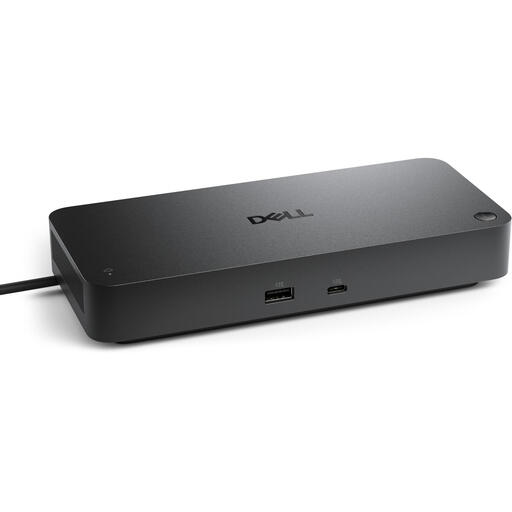
Why This Fits Their Persona: This is the solution for users of Dell's most powerful laptops (XPS, Precision) who refuse to compromise. Ideal for data analysts, video editors, and developers who need a comprehensive and high-speed workspace.
With 130W Power Delivery, it supplies enough power for the most demanding Dell laptops. The monitor support specifications are clear, and the 2.5Gbps ethernet port prevents network bottlenecks.
Supports up to 4 monitors, delivers 130W PD, and has a 2.5Gbps ethernet port. The 'smart' features enable remote management, a plus for IT departments.
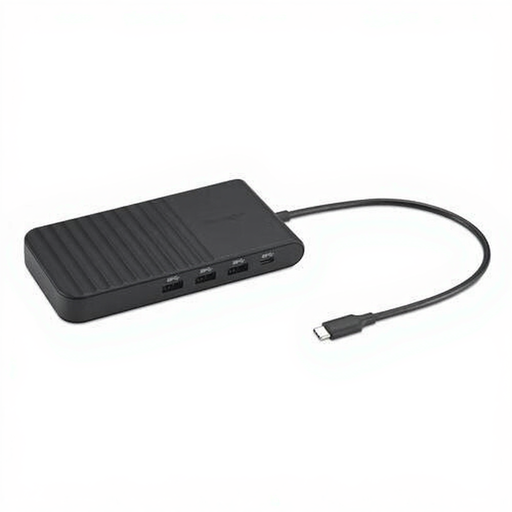
Why This Fits Their Persona: Suitable for professionals who need a powerful setup for home or the office but don't require the absolute top-tier specs of the Dell Pro model. Works well with a wide range of laptops.
This model offers a solid 85W Power Delivery, which is sufficient for many business laptops. It supports up to three external screens, with clear specifications on maximum resolutions.
A compact and versatile docking station that supports up to three external 4K screens. Its plug-and-play functionality makes installation easy on both Windows and macOS.
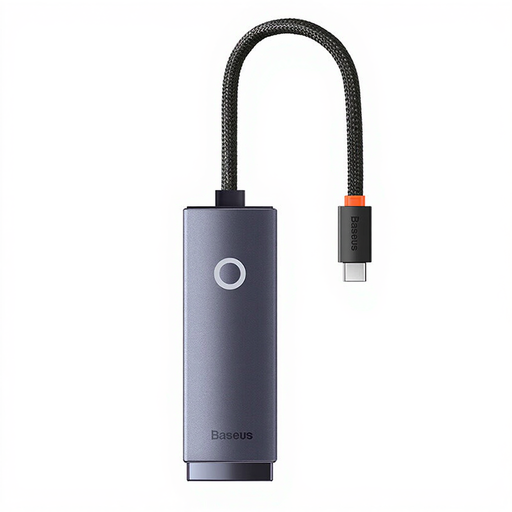
Why This Fits Their Persona: For the user who doesn't need a full docking station but wants a reliable, fast, wired internet connection for a modern laptop without an ethernet port. Perfect for on-the-go or a minimalist workspace.
This product does one thing and does it well. It avoids the complexity and potential instability of an all-in-one dock by focusing on delivering a stable Gigabit network connection.
Compact, affordable, and plug-and-play. It offers a direct solution to the common problem of missing ethernet ports on thin laptops, without the cost of a full docking station.
We have compiled a complete, up-to-date list of products that meet these selection criteria and applicable regulations.
Most features of a Dell USB-C docking station work via plug-and-play, without needing to install any software directly. However, for optimal performance, firmware updates, and advanced features (like those of a Dell smart dock), it is recommended to install the drivers and firmware from the Dell website. This ensures the best compatibility and stability.
Yes, in most cases. Because they use the universal USB-C and Thunderbolt standards, you can often use a Dell docking station with laptops from brands like HP, Lenovo, or Apple. However, keep in mind that specific features, such as delivering 130W Power Delivery or certain management functions, may only work fully in combination with a compatible Dell laptop. Always check the specifications.
These days, the terms are often used interchangeably. Historically, a Dell port replicator was a device that clicked into a proprietary connector on the bottom of a laptop. A modern Dell USB-C docking station fulfills the same role: it replicates and expands your laptop's ports. The main difference is that this is now done via a universal USB-C cable, which offers much more flexibility.