
Vandaag of morgen in huis

Kwaliteit gegarandeerd

Welkomstaanbiedingen ontgrendelen: GRATIS bezorging | Tot 80% korting | Gratis 30 dagen JoyPlus-proefperiode
Download de app
Choosing a new monitor can sometimes feel like navigating a minefield of technical specifications. You're looking for a sharp, smooth picture, but you end up with a screen that doesn't live up to its marketing promises. Especially with the popular combination of 27 inches, 4K, and 120Hz, a few costly pitfalls are waiting.
As a Product Recommendation Officer at Joybuy, I see where things go wrong every day. Before you buy a Dell 4K monitor, it's crucial to know what to look for. We'll discuss the two most common missteps so you can make an informed decision.
This guide will help you bypass these problems and choose the right specifications for your needs.
To choose the right professional 4K monitor, it's important to look beyond the basic numbers. Let's break down three crucial specifications.
A 27-inch monitor with a 4K resolution (3840 x 2160 pixels) is often considered the ideal combination for professionals. The pixel density is high enough to display razor-sharp text and images without needing to drastically adjust your operating system's scaling. This gives you a large, usable workspace, perfect for running applications side-by-side, editing photos, or managing complex spreadsheets.
A refresh rate of 120Hz means the screen updates 120 times per second, double the standard 60Hz. The difference is immediately noticeable: scrolling through web pages, moving windows, and even the motion of your mouse cursor feel significantly smoother and easier on the eyes. This was once a feature primarily for gamers, but it's now a valuable upgrade for any professional who spends a lot of time in front of a screen. Be aware: to achieve 120Hz at 4K, you need a computer and a cable that support HDMI 2.1 or DisplayPort 1.4.
A 4K monitor with USB-C can transform your workspace. With a single cable, you can:
The crucial detail here is the Power Delivery (PD) wattage, expressed in watts (W). For a MacBook Air or similar ultrabook, 65W is often sufficient. For a more powerful MacBook Pro or Windows laptop, you'll quickly need 90W or more. Always check this before you buy; otherwise, you'll still need a separate charger. This makes a good USB-C monitor an excellent 27-inch monitor for a Mac.
Based on these criteria, we have selected a few models that suit different user profiles.
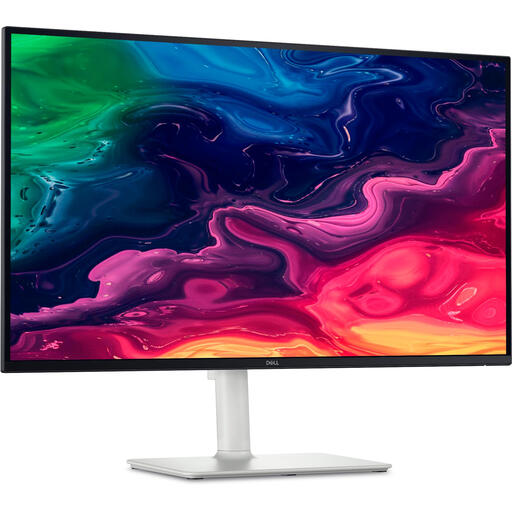
Why This Fits Their Persona: This is the ideal monitor for the modern professional who needs a versatile setup for both productivity and entertainment. The combination of 4K, 120Hz, and a clean workspace thanks to USB-C is perfect for remote work.
With HDMI 2.1 and USB-C (with DisplayPort mode), you can fully utilize 120Hz at 4K. The 65W Power Delivery is sufficient for most ultrabooks, avoiding the USB-C pitfall.
A balanced package with 4K, 120Hz, and a functional USB-C hub. The built-in speakers are a convenient extra for a minimalist desk.
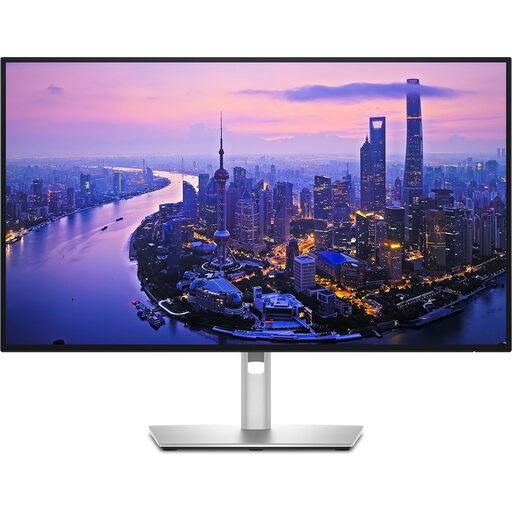
Why This Fits Their Persona: For graphic designers, video editors, and photographers for whom colour accuracy and detail are paramount. This screen is designed for professional creative workflows.
With Thunderbolt 4, this monitor offers the highest bandwidth for a stable 4K 120Hz experience and delivers up to 90W of power, more than enough for most professional laptops like a MacBook Pro.
The IPS Black technology provides superior contrast and deeper black levels. The wide colour gamut (99% DCI-P3) is essential for colour-critical work.
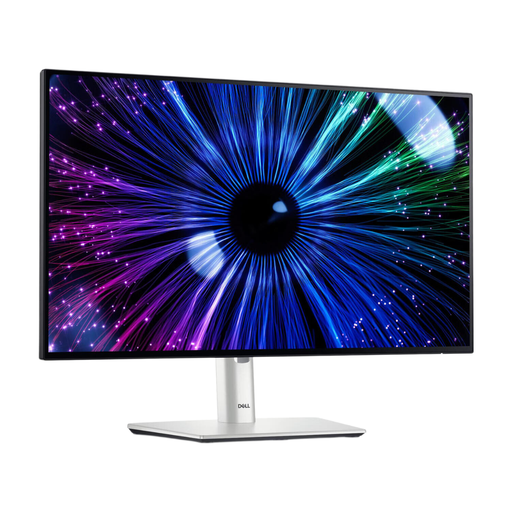
Why This Fits Their Persona: For the remote worker who prioritizes productivity and a clean desk. 4K isn't strictly necessary, but the smooth 120Hz experience and a powerful single-cable solution are.
This model expertly avoids the USB-C trap with a powerful 90W Power Delivery, enough for almost any business laptop. The 120Hz is also easier to drive at Full HD resolution.
Offers the premium 120Hz experience and highly capable USB-C hub functionality at a more accessible price point than the 4K models. According to the manufacturer, it has a T?V certification for eye comfort.
We have compiled a complete, up-to-date list of products that fully meet these strict selection criteria and local regulations.
Yes, it's essential. To use the full 120Hz at 4K resolution, you need a cable that can handle the high bandwidth. Opt for an HDMI 2.1 cable or a DisplayPort 1.4 cable. An older HDMI 2.0 cable will typically limit the refresh rate to 60Hz at 4K. Also, check that the ports on your laptop or computer support these standards.
Absolutely. A 27-inch 4K monitor is a popular choice for MacBook users. macOS scales excellently to this high resolution, resulting in an extremely sharp, 'Retina-like' display. For the simplest connection, choose a monitor with USB-C or Thunderbolt that provides sufficient Power Delivery (at least 65-90W). This allows you to charge your MacBook and transmit the video signal with a single cable.
A monitor with built-in speakers offers convenience and a minimalist workspace. You don't need separate speakers and extra cables on your desk. The sound quality is generally sufficient for system sounds, video conferences, and occasional video watching. However, for an immersive movie or music experience, external speakers or headphones remain a better choice.
