
Colleagues sharing one scanner
You want to send delivery notes from a shared workstation to the right destination and, if they contain personal data, limit unwanted access.


First decide how colleagues will share the scanner and where scans need to be saved. Then compare the number of sheets you scan at a time and the types of delivery notes you handle. A compact wireless scanner suits limited space and smaller batches, while a fixed network scanner with a larger feeder is a better fit for regular stacks. With either option, check access permissions and, for documents that are also invoices, the tax record-keeping requirements.
You want to send delivery notes from a shared workstation to the right destination and, if they contain personal data, limit unwanted access.
You regularly scan several sheets in succession and mainly want to refill the feeder less often. So compare the capacity of the feeder on the exact model.
You have limited space or receive delivery notes in a range of sizes. Before buying, check how the paper feeds through and whether scans remain easy to read.
A good fit if: you have limited desk space and usually scan small batches of delivery notes.
Bear in mind: a 20-sheet feeder needs refilling more often when you have larger stacks. The Brother ADS-1800W and Epson ES-C380W offer different scanning options; check which destinations and permissions are set up in your studio.
A good fit if: several colleagues regularly process stacks and a wired network connection is available. According to Brother, the Brother ADS-4300N has an 80-sheet feeder and can scan to a network folder.
Bear in mind: this is a fixed, wired setup, not a USB-C scanner that is easy to move around.
A good fit if: one fixed computer manages the scans. According to Canon, the Canon imageFORMULA R40 has a 60-sheet feeder and a USB 2.0 connection.
Bear in mind: check how files are moved from the computer to the right shared folder; USB is not the same as scanning directly to a network folder.
| What to consider | What should you look for? | Who is it important for? |
|---|---|---|
| Shared use and scan destination | Check whether you can scan to the required network folder or other destination, and whether you need to operate the scanner without a PC. Set up the folder’s access permissions too. | I want colleagues to be able to send scans to the agreed location without making personal data accessible to everyone; around 33% of consumers prioritise shared access. |
| Batch processing and double-sided scanning | Count the sheets in a typical scanning session and compare the feeder capacity and duplex scanning function of the exact model. | I often scan several delivery notes in succession and don’t want to keep refilling the feeder; around 25% of consumers mainly prioritise batch processing. |
| Paper sizes and workspace | Compare the permitted paper types and feeding method with the delivery notes you handle. Check how much space the scanner takes up when in use. | If our delivery notes vary, I want to know whether the feeder can handle them and whether the scanner will fit on the desk; around 25% of consumers prioritise paper variety and space. |
| Finding and storing scans | Check which OCR software is compatible with the scanner you’re considering and whether a test scan displays all relevant information clearly. Separately identify which documents count as invoices. | I want to be able to find scans later and store important documents carefully; around 17% of consumers mainly prioritise being able to retrieve their scans. |
A speed rating in pages per minute describes the scanner, not the time needed to sort, refill, check and save delivery notes.
Also compare the feeder capacity, scan destination and the steps colleagues take after scanning.
Allow time for sorting, refilling, checking and saving.
A network function does not determine who can view saved personal data. The Dutch Data Protection Authority states that organisations must protect personal data appropriately.
Test the intended destination using the actual user permissions before putting the workflow into practice.
Setting up and managing storage and access permissions takes time.
OCR makes text searchable, but a scan is not automatically suitable as a replacement for a paper invoice.
Check scans visually. For documents that count as invoices or receipts for tax records, separately check the Dutch Tax and Customs Administration’s requirements.
Brother offers models for both small wireless scanning sessions and fixed, wired scanning stations with larger feeders.
According to Epson, the ES-C380W is designed for compact use, with a U-turn path, a straight-through feed option and the ability to scan directly to destinations including a network folder.
Canon describes the imageFORMULA R40 as a USB desktop scanner with a 60-sheet feeder, and the DR-C225W II as a Wi-Fi model.
According to Ricoh, the ScanSnap iX1600 is designed for individual and shared use, with a touchscreen, Wi-Fi and a 50-sheet feeder.
The Joybuy products below are document scanners with automatic feeders for delivery notes. Choose according to your planned scanning workflow, paper feed and connection.
 Image unavailable
An option for anyone scanning loose delivery notes in batches who also wants to place bound or delicate material on the flatbed.
A4; 600 × 600 DPI.
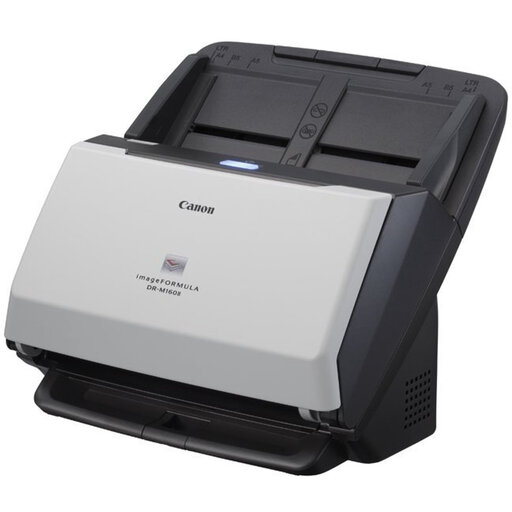 Image unavailable
An option to compare if you regularly process stacks of delivery notes and want to scan both sides too.
A4; 600 × 600 DPI.
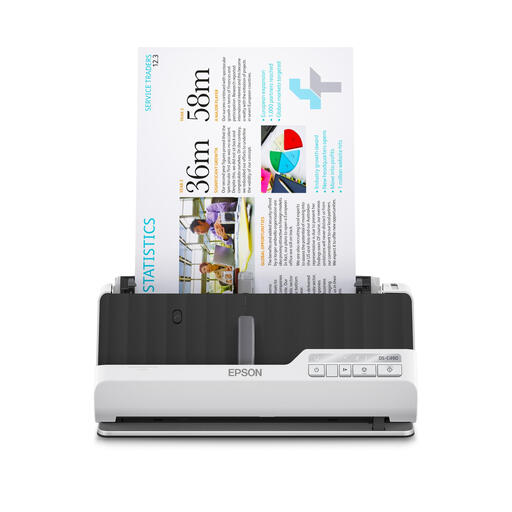 Image unavailable
An option for anyone scanning double-sided delivery notes who wants to weigh up different paper paths for their needs.
A4; 600 × 600 DPI.
 Image unavailable
An option to compare if you regularly process larger batches and manage scans via a computer.
A4; 600 × 600 DPI. The network interface is optional; shared network access depends on this add-on.
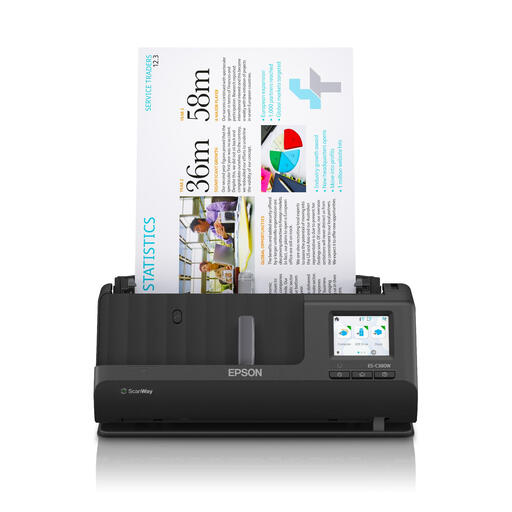 Image unavailable
A compact option for anyone who wants to scan directly from the scanner to a network folder without using a PC every time.
A4; 600 × 600 DPI. Automatic duplex scanning is not available.
Choose a destination that the right colleagues can access and set appropriate permissions. According to the product information, the Brother ADS-4300N and Epson ES-C380W can scan to a network folder; how this works depends on your studio’s network and folder setup.
No. Don’t assume that a scan can replace the original. If a document is also an invoice or receipt in your tax records, the Dutch Tax and Customs Administration allows digital replacement under certain conditions: the scan must accurately and completely reproduce the original, including its authenticity features. Assess ordinary delivery notes according to their own administrative purpose.
According to the Dutch Tax and Customs Administration, invoices are generally kept for 7 years. A 10-year retention period applies to invoices relating to immovable property and certain supplies under the specified One Stop Shop schemes. This applies to invoices and does not automatically apply to every delivery note.
If the studio processes personal data, it must protect it appropriately. The Dutch Data Protection Authority describes a risk analysis and measures tailored to the findings; a scanner brand or cloud feature alone does not prove that the entire process is set up appropriately.
Check which manuals, drivers and parts you need for the exact model. Brother lists a separate feed roller kit for the ADS-4300N; Epson has a product-specific support page for the ES-C380W.