What should you look for when buying?
First, check how your game looks at your intended screen size and viewing distance. Then compare the panel type, adjustability and connections with your own setup and devices.
| What to consider |
What should you check? |
Who should pay particular attention? |
| Card text legibility |
View your game at your intended screen size, resolution and viewing distance. Check the interface settings too, and consider the screen finish if reflections are distracting. |
If I’m reading cards and interface elements throughout a long session, I want to know whether the text is easy to follow from my viewing distance. Around 36% of consumers put card text legibility first. |
| Setup for long sessions |
Check the height adjustment, tilt, stand dimensions and position of light sources. |
When I play for a long time, I want to position the screen comfortably and adjust the viewing angle. Around 29% of consumers prioritise screen positioning. |
| Panel type for static images |
Check text on the exact model. For OLED, also read the panel care instructions and applicable warranty terms. |
If the same game interface stays on screen for a long time, I want to weigh the risk from static images against the picture qualities I value. Around 21% of consumers prioritise panel risk. |
| Connections and use with multiple devices |
Compare the connections with your devices and check which resolution and refresh rate are available on each input. |
If I want to use the monitor with different devices, I want to know which connections and display modes will work for me. Around 14% of consumers prioritise connections and versatility. |
Gaming monitors at Joybuy
These Joybuy product picks are aimed at gaming during long sessions and include QHD models in a range of screen sizes. Before choosing, check the text in your game and the adjustability of the exact version.
 No image available
Samsung Odyssey G5 G50F 32-inch IPS 180Hz LS32FG502EUXEN
Could suit you if you want to compare a larger QHD screen with an adjustable screen position.
32-inch IPS, 2560 × 1440 and 180 Hz. The description lists height, swivel, tilt and pivot adjustment, HDMI 2.0 and DisplayPort 1.2.
Joybuy
 No image available
AOC Q27G42XNE 27-inch QHD 180Hz
Could suit you if you want to compare QHD on a 27-inch gaming monitor; check for yourself how your game displays card text.
The product information lists a VA panel, 2560 × 1440, 180 Hz, FreeSync Premium and HDR10. Connections: 2× HDMI 2.0 and 1× DisplayPort 1.4.
Joybuy
 No image available
AOC G4 Q27G4ZR 27-inch QHD Fast IPS
Could suit you if you’re looking for a 27-inch QHD screen with an adjustable stand; check the card text from your own viewing distance.
2560 × 1440, Fast IPS and 240 Hz native, up to 260 Hz when overclocked. The description lists height adjustment, tilt, swivel and pivot.
Joybuy
 No image available
CRUA 49-inch curved ultrawide DQHD 165Hz
Could suit you if you want to compare an ultrawide DQHD setup; check that your game and desk are suitable for this size.
49 inches, 32:9, 5120 × 1440, 165 Hz and VA panel. The product information lists height adjustment and tilt.
The product description warns that your desk or VESA mount must support at least 15 kg and recommends installation by two people.
Joybuy
 No image available
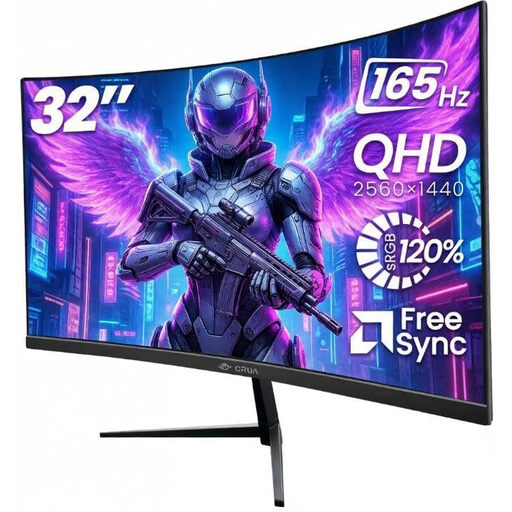
CRUA 32-inch curved 1500R QHD 165Hz
Could suit you if you want to compare a larger curved QHD screen; test the text in your game from your intended viewing distance.
32 inches, 2560 × 1440, 165 Hz and VA panel. The product information lists a tilt range of −5° to +15° and VESA 100 × 100 mm.
Joybuy
Frequently asked questions
What should you check first if card text looks small?
View the text in your game at your intended screen size, resolution and viewing distance. Reports from players about card text in Slay the Spire 2 are a reason to test it for yourself, not a measure that applies to other games or monitors.
How should you position a monitor for a long session?
For a workstation, Arboportaal advises placing the screen directly in front of you, with the top just below eye level and at a suitable tilt. Check whether your model’s stand allows this setup; this workplace advice is not a legal requirement for gaming at home.
Is the maximum refresh rate available through every connection?
Not always: Dell specifies QHD at 165 Hz via DisplayPort and 144 Hz via HDMI for the G2724D. Check the specifications for your exact monitor and connected device.
What should you consider when choosing an OLED monitor for deckbuilding games?
Weigh up the picture qualities against the risk of burn-in when the same interface stays visible for a long time. Also check text rendering on the exact model and read the panel care instructions and applicable Dutch warranty terms; Gigabyte says its terms can vary by region.
How long can you assess a monitor at home after buying it online?
For a standard online consumer purchase, you generally have a statutory cooling-off period of up to 14 days after delivery. The ACM also lists exceptions to this right, so check which terms apply to your purchase.


