
Players who prioritise deep blacks
You often play with the lights off and notice greyish blacks or a glow around stars. RTINGS explains how OLED pixels can be controlled individually for dark scenes.


If you mainly play in the dark and want black space scenes without halos around stars, start with OLED. If long periods with fixed HUD elements matter more, compare mini-LED and VA LCDs. Mini-LED can still show halos, while OLED can carry a risk of burn-in with prolonged static images and may sometimes suffer from VRR flicker. Also check whether your game supports ultrawide and whether your PC or console can deliver your chosen resolution and refresh rate through the connection you plan to use.
You often play with the lights off and notice greyish blacks or a glow around stars. RTINGS explains how OLED pixels can be controlled individually for dark scenes.
You choose your screen size and resolution with the gameplay, your game’s support and your PC or console’s output in mind. For example, Dell Netherlands lists different maximum refresh rates for each connection on the Alienware AW3423DWF.
You often leave the same interface or other static images on screen for long periods, so you take the risk of OLED burn-in into account. RTINGS highlights prolonged static elements as a consideration with OLED.
A good fit if: you mainly play in the dark and care about deep blacks around stars.
Trade-off: prolonged static images can cause burn-in; fluctuating frame rates can cause VRR flicker. RTINGS discusses both considerations.
A good fit if: you want to compare local dimming with OLED but are looking for an LCD option.
Trade-off: light around bright objects may still be visible. The number of dimming zones alone doesn’t show how much haloing you’ll see on a particular model.
A good fit if: you’re considering an LCD and want to avoid OLED burn-in.
Trade-off: black uniformity and motion handling vary by model. Assess the specific screen rather than relying on panel type alone.
A good fit if: your game supports the wider aspect ratio and you have room for the screen on your desk.
Trade-off: the wider gameplay view depends on game support, and the considerations around OLED still apply.
For space exploration games in a dark room, your choice mainly depends on your top picture priority and the output your gaming device can handle.
| Consideration | What should you check? | Who will find this important? |
|---|---|---|
| Black levels | Look for model-specific information on black uniformity and blooming, including when local dimming is enabled. | If I want to see stars clearly against a dark background, I pay attention to black levels and the glow around points of light. Around 33% of consumers give black levels top priority. |
| View of the cockpit | Check that the game supports the aspect ratio and resolution of the exact model, and that your PC or console does too. | If I want cockpit information and space panoramas to be easy to see, I match the screen size to my game and device. Around 27% of consumers prioritise a clear, detailed view. |
| Motion and connection | Compare the stated refresh rate for each input with your device’s output and your game’s support. | If smooth motion is my top priority, I want to know which mode my connection actually supports. Around 20% of consumers give motion performance top priority. |
| Static interface | Read the care instructions and terms for the exact OLED model; compare LCD alternatives if static images are often on screen for long periods. | If the same HUD or desktop elements stay on screen for a long time, I take the risk of OLED burn-in into account. Around 20% of consumers prioritise avoiding that risk. |
On LCDs, light around a bright object can be visible against a dark background, even when the screen uses local dimming.
Look for information on black uniformity and blooming for the exact model; don’t base your choice solely on the stated number of dimming zones.
The picture mode you can use depends on the monitor connection, the connected device and the game. Sony says 120Hz output on PS5 requires support from both the game and the screen.
Check the specifications for the input you’ll use and the output settings on your PC or console.
Prolonged display of the same static elements can cause OLED burn-in. A commercial warranty and your statutory rights are also not the same thing.
Read the panel care instructions and terms for the exact model, and take your usage habits into account.
The Joybuy title for the Samsung Odyssey OLED G6 G60SD states 240 Hz, while Samsung Netherlands lists 360 Hz. The relevant Joybuy product page also says the product is no longer available.
Check the full model code and product specifications before assessing a particular version.
The Odyssey range includes a QHD OLED option and a QHD LCD option.
The Q27G3XMN/BK is a 27-inch QHD mini-LED monitor with a VA panel.
The 27G64 is a 27-inch QHD QD mini-LED monitor, offering an LCD option for dark scenes.
Alienware offers an ultrawide QD-OLED option for players looking for a wider gameplay view.
The UltraGear range includes OLED monitors for anyone looking to compare OLED options.
These Joybuy models offer different options for screen size, resolution and panel type. For ultrawide models, check that your game supports the aspect ratio.
 Image unavailable
A QHD option for anyone looking for a 32-inch screen; the product information specifies an IPS panel.
QHD 2560 × 1440 and 180 Hz.
 Image unavailable
For games that support ultrawide, the product title specifies a 34-inch screen with 3440 × 1440 pixels.
The title lists a Fast VA panel, 144 Hz and 1500R curvature. No speakers are listed.
 Image unavailable
QD-OLED is an option to compare if deep blacks in dark scenes are a priority; your game’s fixed HUD remains a factor when considering OLED.
The product title lists 16:9, 2560 × 1440, 240 Hz and 0.03 ms GtG.
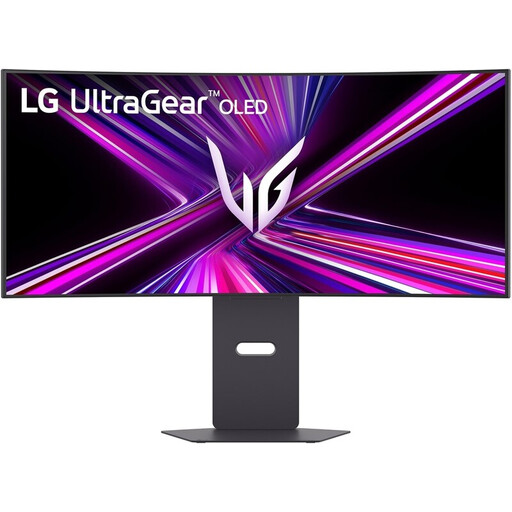 Image unavailable
This ultrawide OLED model is a good fit for games that support the wider view; with OLED, also bear in mind the effect of static HUD elements displayed for long periods.
The product title lists 21:9, 3440 × 1440, 240 Hz and MLA+ OLED.
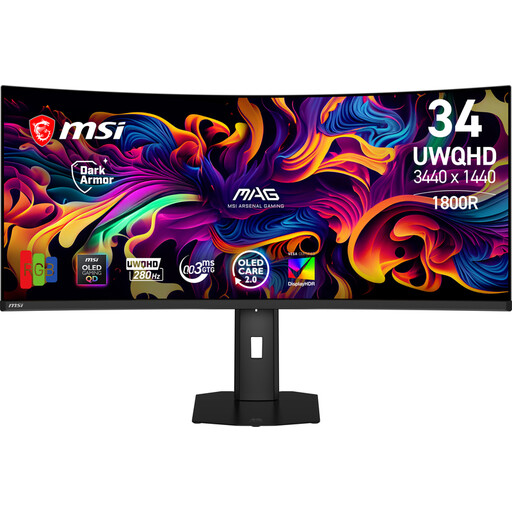 Image unavailable
An ultrawide OLED option for games that support the aspect ratio; bear in mind the effect of static interface elements displayed for long periods.
The product title lists 34.18 inches, 3440 × 1440, 280 Hz and 21:9.
No, OLED isn’t automatically the right choice for everyone. Individually controlled OLED pixels help deliver black scenes without halos from LCD backlighting, but prolonged display of fixed HUD elements and possible VRR flicker are reasons to compare LCD models too.
Sony describes a 120Hz output setting for games and screens that support 120 Hz. Also check which mode your monitor supports through the input you’re using; a higher monitor specification doesn’t automatically make a game compatible with 120 Hz.
Follow the instructions for your specific model and the panel care features available. Samsung lists Panel Care for its OLED monitors; these features can’t make burn-in impossible.
According to the Dutch government, if there’s a problem with a product, the seller must provide a solution. Statutory guarantees can also apply after a commercial warranty ends and depend on what you could reasonably expect from the product. For distance purchases, a 14-day cooling-off period applies in many cases. Check the relevant terms and exceptions.
The European Commission says EU energy labelling rules also cover computer monitors, and that electronic displays have a label on a scale from A to G. Use the label for the exact model when comparing energy consumption.