
The evening park builder
You want to assess dark rides and lighting clearly, but you also see menus on screen while building.


For long building sessions with menus that stay on screen, LCD avoids the specific risk of OLED burn-in. OLED may be appealing for dark park scenes. Also compare the screen size and resolution with your viewing distance and PC, and check the panel care instructions and warranty terms for the exact OLED model.
You want to assess dark rides and lighting clearly, but you also see menus on screen while building.
You spend a long time building and making adjustments, with the same interface elements appearing repeatedly. Readability and the risk from static images both factor into your choice.
You want to see your park and building interface at the same time, so you pay attention to screen size, resolution and what your PC can handle.
Best for: anyone who values dark scenes over displaying the same interface for long periods, and appreciates varied content. RTINGS.com explains that OLED pixels can switch off individually, producing deep blacks without light halos around bright objects.
Things to consider: menus that stay on screen can pose a burn-in risk. Also check for possible VRR flicker, and review the model’s panel care instructions and warranty terms.
Best for: anyone who values dark scenes but also works with building menus frequently. The Samsung Odyssey Neo G7 is one example, with mini LED backlighting, a 32-inch 4K screen and 1000R curvature.
Things to consider: assess light halos and dark detail on each model, and check that the curve, screen size and demands of 4K suit your desk and PC.
Best for: anyone who values readable menus, a flat screen and all-round use over the deepest blacks. The AOC Q27G4XF is a 27-inch QHD model, while the BenQ EX271U offers a 27-inch 4K screen.
Things to consider: a conventional IPS panel generally delivers less convincing blacks than OLED or a well-designed mini LED monitor. Choose 4K if you want the extra pixels and your PC can run the game at that resolution.
| What to consider | What should you check? | Who should pay particular attention? |
|---|---|---|
| Black levels | Compare the panel type and reviews of dark scenes for the exact model. Don’t take an HDR label as proof of good black levels. | If I mainly look at dark rides in the evening, I want to know how the blacks compare with bright lighting. Around 33% of consumers give black levels in a dark room top priority. |
| Building menus that stay on screen | For OLED, check the panel care instructions and the specific warranty terms. If you use static content frequently, compare LCD options too. | If I spend a long time building with the same menus on screen, OLED burn-in risk factors into my choice. Around 34% of consumers prioritise building menus that remain visible for long periods. |
| Overview and readability | Compare the screen diagonal, native resolution, desk space and how well your PC performs at that resolution. | If I want to see the park and tools at the same time, I’m looking for a screen size and resolution that suit my viewing distance. Around 22% of consumers prioritise an overview and sharp text. |
| Refresh rate and connections | Check which resolution and refresh rate your connection supports, and what frame rate your device can achieve in the game. | If I also use the monitor for other games, I want to know whether my equipment can make the most of its advertised refresh rate. Around 11% of consumers prioritise smooth performance and suitable connections. |
Panel types and backlight implementations vary. A specification alone won’t tell you how dark scenes look on the exact screen.
Compare black levels for the specific model alongside its HDR specifications.
Displaying the same interface elements for a long time is a known OLED risk. Panel care features don’t eliminate that risk.
Think about how long menus remain on screen at a time, follow the model’s instructions and check the warranty terms.
Frame rate, resolution and connection all affect whether you can make the most of the advertised refresh rate.
Check your device and game first, then compare resolution, screen size and picture quality in dark scenes too.
The AGON Q27G4XF is a 27-inch QHD IPS model for building and gaming.
The Odyssey Neo G7 LS32BG750NPXEN is an example of a large, curved 4K mini LED monitor.
The UltraGear 27GX704A-B is a 27-inch QHD OLED model.
The MPG 321URX QD-OLED is a 32-inch 4K OLED model.
The MOBIUZ EX271U offers a 27-inch 4K option with multiple connections.
This selection includes LCD and OLED monitors for anyone who wants to view park scenes and the building interface on one screen. If you choose OLED, consider how you use fixed menus. Screen size and resolution should also suit your desk and PC.
 Image unavailable
An LCD option for viewing dark scenes and park details; it doesn’t carry the specific OLED burn-in risk with building menus that stay on screen.
27 inches; 4K 160 Hz/FHD 320 Hz dual mode; Fast IPS; 1152 local dimming zones.
 Image unavailable
OLED and 4K suit anyone who values dark images and fine detail. Bear the risk of burn-in in mind if building menus remain visible for long periods.
26.5 inches; 3840 × 2160; OLED; 120 Hz.
 Image unavailable
A large OLED screen for anyone looking for dark scenes and a spacious view of the park and interface; static menus are still a factor to consider when using it.
31.5 inches; 4K UHD; QD-OLED; 165 Hz.
The risk of burn-in is relevant if static images remain on screen for long periods. The product description advises against displaying such images at high brightness for extended periods and recommends using OLED care features.
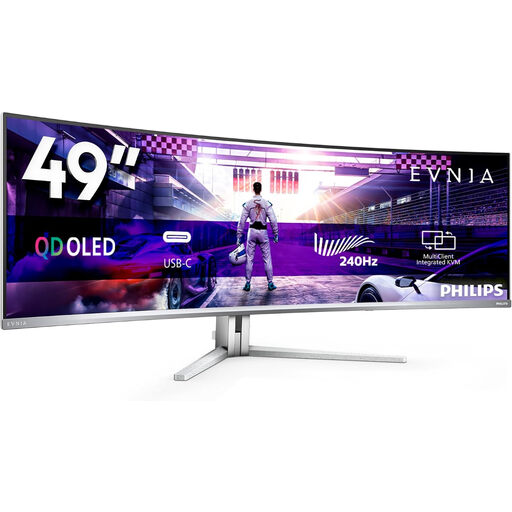 Image unavailable
The wide screen may suit anyone who wants to see plenty of the park and interface side by side; if you choose OLED, bear in mind that static menus may stay visible for long periods.
49 inches; 5120 × 1440; QD-OLED; 240 Hz; 32:9.
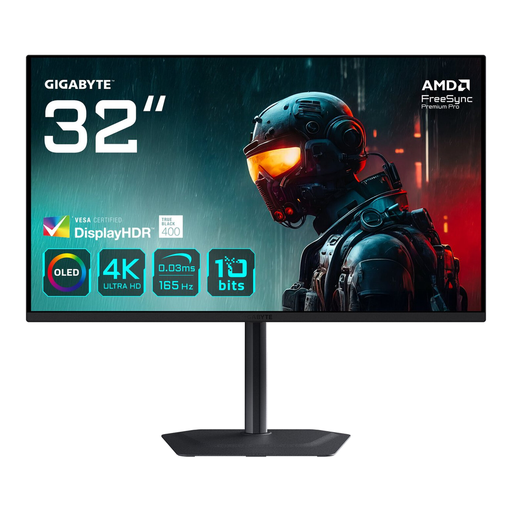 Image unavailable
A large 4K OLED screen for anyone who values park details and dark scenes; the risk of burn-in remains relevant if building menus stay visible for long periods.
31.5 inches; 3840 × 2160; OLED; 165 Hz.
No, not just because you’re building a theme park. First check the frame rate your device achieves in the game and what your connection supports. Also compare resolution, readability and panel performance.
Where possible, vary the content on screen and follow the panel care instructions for the exact model. MSI describes OLED Care 2.0 as a way to reduce the risk for the MPG 321URX; it doesn’t mean burn-in is impossible.
Check the EU energy label and model information in EPREL. The European Commission lists a scale from A to G for electronic displays, with separate information for HDR use. Compare models on the same basis of use.
When you buy as a consumer, you have a legal guarantee if a product doesn’t perform as you could reasonably expect under normal use. ACM ConsuWijzer says the retailer must then offer a suitable solution free of charge. Whether specific OLED burn-in is covered depends on the circumstances; a manufacturer’s warranty period doesn’t automatically set the limit of your legal rights.
If you buy online as a consumer from a business, you will generally have 14 days to change your mind. Before ordering, check who the seller is and what return information applies to your purchase.