
Route planner who needs a map and details
You want to keep the map visible while waypoints, route options or directions appear in a second work area. The Fietsersbond route planner offers options including waypoints and route types.


If you want to add to your existing screen, choose an extra monitor if your computer supports the combination. Two separate monitors give you two work areas that you can position independently. An ultrawide screen can show a map and route details side by side, but it remains one physical screen. Before buying, check how many external screens your computer can support and whether the connection method will work: Apple Support says this depends on the specific Mac model, while Dell Support lists requirements for daisy-chaining.
You want to keep the map visible while waypoints, route options or directions appear in a second work area. The Fietsersbond route planner offers options including waypoints and route types.
You already have a computer and screen, and mainly want to know whether an extra monitor, cable or dock will work with your setup. Apple Support recommends checking the number of supported screens and available ports on your exact computer model.
You want map labels and text to be easy to read, and both screens to be comfortable to position. Arboportaal and EIZO cover topics including readability, screen positioning and resolution for display screen work.
For consumers who want to view a route map and additional route details at the same time, the choice comes down to screen layout, computer compatibility, readability and your overall setup.
A good fit if: your current screen is suitable and you want to split the map and route details across two work areas.
Consider: you’ll need extra desk space and connections; check that your computer supports both screens.
A good fit if: you want to position two physical screens independently and your computer can drive both.
Consider: allow for the space and connections needed for two screens.
A good fit if: you want to view the map and route details at the same time without needing two separate physical screens.
Consider: you get one wide work area, not two screens that can be positioned independently.
| Priority | What to check before buying | What matters to consumers |
|---|---|---|
| Viewing the map and route details together | Compare the screen layout and resolution; try the map and a second window at your usual text size. | If I want to view the map and route details at the same time, I want to keep them side by side without the labels becoming too small to read. Around 33% of consumers put an overview of the map first. |
| Connecting two screens | Check the maximum number of external screens, video outputs and cables required for your computer. | When I expand my screen setup, I want to know in advance whether my computer can support the combination I’ve chosen. Connectivity is the main concern for around 27% of consumers. |
| Readability and positioning | Check map labels at your usual viewing distance; look at height adjustment, reflections and desk dimensions. | For longer planning sessions, I want to read text easily and position the screens comfortably. Readability and positioning come first for around 20% of consumers. |
| Total cost and energy use | Compare one extra screen with two new screens, and check the energy information for the exact models. | When choosing a complete setup, I want to factor in the purchase cost and energy use of the screens. This is the main priority for around 20% of consumers. |
The European Commission refers consumers to the EU energy label and EPREL data for electronic displays. Compare the information for the exact models you’re considering.
Your computer, monitors and chosen connection all need to support the setup you want. Dell Support says daisy-chaining won’t work via HDMI and depends on the equipment you’re using supporting it.
Check your exact computer model and the screen combinations it supports. Also make sure the daisy-chain connection you plan to use is compatible with both your computer and monitors.
At the same screen size, 1920 × 1080 and 2560 × 1440 pixels have different pixel densities. This can matter if you want to read small map labels; EIZO explains why resolution matters when screens have the same diagonal measurement.
Compare the map and second window at your usual viewing distance and with the text size you want to use.
An ultrawide can show multiple windows side by side, but it’s still one physical screen.
Before buying, decide whether you need two monitors that can be positioned independently or whether one wide work area will do.
ACM ConsuWijzer explains that there’s no fixed two-year term for statutory warranty in the Netherlands; what you can reasonably expect from the product is also taken into account.
Keep your purchase information and contact the seller if there’s a fault. Consider any additional warranty separately from your statutory rights.
The P2725DE is a 27-inch QHD USB-C hub monitor to consider if you’re looking for an extra screen to use with a laptop.
The ThinkVision T27QD-40 is a 27-inch QHD docking monitor to compare if connectivity and screen expansion are important to you.
The 27B2G5500/00 and 34B1U5600CH/00 give you examples to compare: a 27-inch QHD screen and a separate ultrawide option.
The 27U411A-B is a 27-inch Full HD IPS monitor to compare if having a separate extra screen matters more to you than QHD resolution.
EIZO’s workspace advice explains how screen size, resolution and window layout can affect readability.
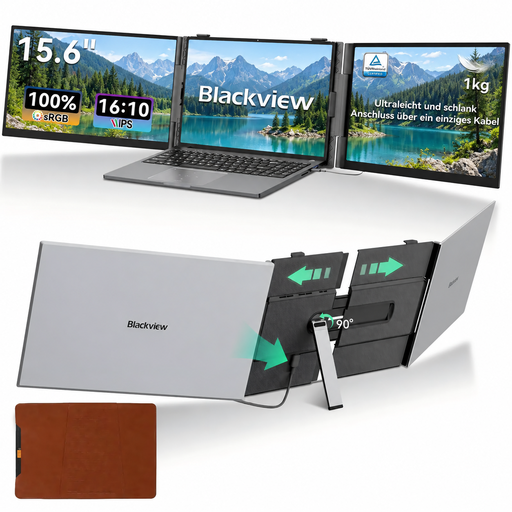
This selection focuses on adding an extra screen to an existing route-planning setup, including portable laptop extensions.
 No image available
An option to compare as an extra screen for maps and route details; check in advance that your computer supports the screen combination you want.
The product name lists 2K WQHD, 200 Hz and Rapid IPS.
 No image available
Worth comparing as an extra screen; check that the connections match your computer’s video outputs.
The product name lists 2560 × 1440 pixels, HDMI and DisplayPort.
 No image available
An extra-screen option to consider if the resolution suits the map and text size you want.
The product name lists 4K and IPS.
 No image available
A portable laptop extension to compare if you want to add extra work areas to a laptop setup.
14 inches; Full HD (1920 × 1080); designed for laptops from 13–17.3 inches.
 No image available
A portable dual-screen option if you want to add an extra visible work area to your laptop setup; check that the connection method is compatible with your device.
The product name lists FHD and USB-C.
It depends on your exact laptop model, the number of external screens it supports and the video outputs available. Apple Support advises Mac users to check what their specific model supports and which cables they need.
On a Windows computer, you can configure the screens in Display settings once they’re connected. Microsoft Support explains how to identify the screens, set their positions and use an extended desktop to show different windows.
No, it depends on your computer, monitors and connection method. Dell Support says daisy-chaining won’t work via HDMI, and that the required DisplayPort video feature or Thunderbolt support must be available.
Check the EU energy label and additional EPREL data for each exact model. Include details for both screens; your usage and electricity tariff also matter when calculating annual costs.
For eligible distance purchases in the Netherlands, you generally have 14 days to change your mind, subject to exceptions explained by the Dutch government. Statutory warranty isn’t limited to a fixed two-year period: what you can reasonably expect from the product is what matters, and ACM ConsuWijzer says to contact the seller.