
Route planning on an existing screen
You plan routes on a website and mainly want to check whether a compact PC will work with your current screen and desk set-up.


For planning cycling routes at a sit-stand desk, a mini PC with a suitable separate monitor is a good fit if you want to keep your existing screen. An all-in-one combines the computer and screen, while a tower is mainly worth considering if expandability matters for other uses. Komoot describes route planning via its website; for Garmin BaseCamp, you should also check that the operating system, software features and device are compatible.
You plan routes on a website and mainly want to check whether a compact PC will work with your current screen and desk set-up.
You want to manage routes or maps and transfer data to a device. The software, operating system and device all matter here; Garmin describes BaseCamp as available for Windows and macOS.
You may also be buying a screen or changing your workspace, and want to assess screen positioning, cable space and included accessories together.
Start with the route planner you want to use. Then consider your screen set-up and how much space the computer, power supply and cables will take up.
A good fit if: you want to keep your existing, adjustable screen and have limited space for the computer.
Check: the connections, and whether the screen and input devices are included with the configuration you choose.
A good fit if: you want to buy the computer and screen together.
Check: whether the screen on the specific model can be adjusted to your preferred height and angle. The Arboportaal guidance recommends positioning the screen directly in front of you, with the top just below eye level.
A good fit if: expandability for other computing tasks matters and you have room for a larger case.
Check: HP positions the Pro Tower 400 G9 as a scalable option; that does not mean you need a tower or multiple screens for route planning.
| What to consider | What should you check? | Who is this important for? |
|---|---|---|
| Software compatibility | Check the operating system and, for BaseCamp, whether the features you want work with your Garmin device. Garmin lists Windows and macOS, but not all features work with every device. | If I want to manage routes using a particular planner or GPS device, that specific combination needs to work; around 36% of consumers say software compatibility is their top purchasing priority. |
| Screen position | Check the height and tilt adjustments, and whether you can position your keyboard and mouse comfortably while sitting and standing. | When I switch between sitting and standing, I want to position my screen and input devices appropriately; around 29% of consumers prioritise this aspect of their workspace. |
| Space and cables | Consider where the computer will go and whether the connections and cables will work at both desk heights. | If desk space is limited, I want a compact set-up with cables that won’t get in the way when the desk moves; around 21% of consumers prioritise clear space and cable management. |
| Everything included | Check each configuration to see whether a screen, keyboard and mouse are included, and what any additional service covers. | I want to know in advance which components I already have and what else I need; around 14% of consumers make a complete purchase and service their top priority. |
Mini PCs and all-in-ones differ in what they include alongside the computer. For example, HP lists a screen, keyboard and mouse for the OmniStudio configuration reviewed. Check the contents of the exact model you’re considering.
Try the screen at both sitting and standing heights, and check which input devices you’ll need.
Garmin lists Windows and macOS as supported operating systems, but warns that not all features work with every device. Garmin describes the Mac version as intended for Intel-based Macs; Rosetta may enable it to run on Apple silicon.
Before you buy, check that the computer, the BaseCamp features you want and the Garmin device you use are compatible.
According to the Dutch Government, you’re entitled to a product that works properly, and there is no fixed statutory guarantee period in the Netherlands. Additional cover is separate from your statutory rights.
Compare what an extra service plan actually offers. If a product is faulty, the retailer is your point of contact.
Mac mini for anyone looking for a compact macOS desktop with a screen of their choice.
ThinkCentre Tiny desktops for a compact Windows set-up with a separate screen.
OmniStudio if you want to buy a computer and screen together; Pro Mini or Pro Tower if you’re looking for a separate screen and a small or larger case.
OptiPlex Micro as a compact desktop option with a separate screen.
This selection includes mini PCs for use with a separate screen, as well as an all-in-one for anyone who wants to buy a computer and screen together.
 No image available
A mini PC for route planning with a separate screen; check that its connections are compatible with your screen and desk set-up.
The product name lists Windows 11, Wi-Fi 5, 8 GB DDR4 and a 256 GB SATA SSD. The processor is listed as Intel Core i5 8250U/8350U.
 No image available
A compact desktop for anyone who wants to use a separate screen; check in advance that your chosen software works with your Garmin device.
The product name lists an M6 chip with a 12-core CPU and 12-core GPU, 16 GB of memory and a 256 GB SSD. Garmin describes the Mac version of BaseCamp as intended for Intel-based Macs; Rosetta may enable it to run on Apple silicon.
 No image available
An all-in-one for anyone who wants to buy a computer and screen together; check that the screen can be adjusted to suit both sitting and standing.
The product name lists a 23.8-inch Full HD IPS screen, Intel Core 5 120U, 16 GB DDR5, a 1 TB PCIe NVMe SSD and Windows 11 Home.
 No image available
A mini desktop for a compact set-up with an external screen; check that the listed configuration is compatible with your screen.
The product name lists an AMD R5 7430U, 16 GB LPDDR4X 3200MT/s, a 512 GB M.2 2280 SATA SSD and Windows 11 Pro.
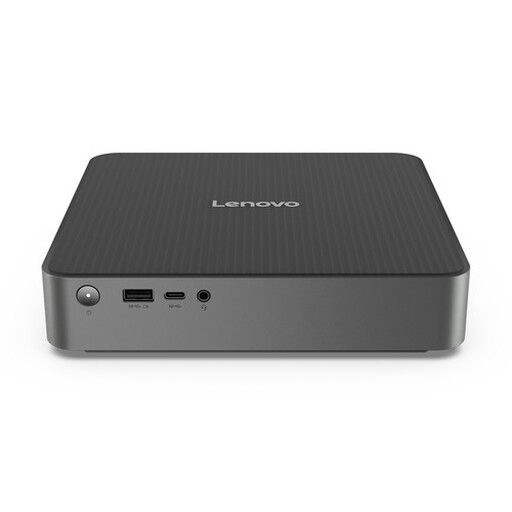 No image available
A compact desktop for route planning with a separate screen; check the connections and which components are included with the configuration you choose.
The route planning described via a website and Garmin BaseCamp does not, in itself, require a separate graphics card. Check the system requirements for the specific application if you want to use features such as 3D terrain.
Not without checking that your Mac, the software features you want and your Garmin device are compatible. Garmin describes the Mac version as intended for Intel-based Macs; Rosetta may enable it to run on Apple silicon, but this does not guarantee that every feature will work.
According to Arboportaal, the screen should be directly in front of you, with the top just below eye level. Check that you can position the screen and input devices appropriately while sitting and standing.
According to the Dutch Government, consumer purchases must be of satisfactory quality, and there is no fixed statutory guarantee period. For many online distance purchases from a business, a 14-day cooling-off period applies, although there are exceptions. Business purchases and specific circumstances need to be assessed separately.
Arboportaal states that if you work at a screen for more than two hours a day, the screen and keyboard must not be attached to each other. This information applies to screen-based work by employees; it is not a general purchasing requirement for every desktop.