For text with one reference window, an adjustable 27-inch QHD monitor is a sensible starting point. An ultrawide monitor suits you if you want several windows side by side and have enough desk space. A 27-inch 4K monitor is an option if you also look at illustrations and layout details, but you’ll still need a comfortable text size. Your tutorial’s version history depends on your storage service and software, not your monitor.
Who is this choice for?
Writers who compare revisions with their text
If you want to compare your tutorial with changes or source material while writing, start by considering how much space you have for windows. Dell and Philips describe models with QHD and ultrawide resolutions respectively, each suited to different screen layouts.
Makers checking illustrations
If you also look at images and details in the page layout, weigh the resolution against a text size that remains comfortable to read. LG specifies a 4K resolution for the 27UP850K-W model reviewed here.
People who work at a screen for long periods
If you write at a fixed workstation for long periods, pay particular attention to adjustability, reflections and posture. Arboportaal explains the Dutch rules for working with screens, including the conditions for employees who do screen work for more than two hours a day.
What should you look for?
27-inch QHD
Best for: mainly writing, with one list of changes or source material beside your text.
Trade-off: the Dell P2725DE reviewed here has 2560 × 1440 pixels; for more windows side by side, the Philips ultrawide reviewed here offers more horizontal pixels.
34-inch ultrawide
Best for: regularly viewing your tutorial, an older version and revision notes at the same time, with enough desk space.
Trade-off: Philips specifies a 21:9 aspect ratio and 3440 × 1440 pixels for the 346E2CUAE/00: more horizontal, but no more vertical, pixels than the QHD monitor reviewed here.
27-inch 4K
Best for: looking at illustrations, labels or page layout details as well as writing.
Trade-off: the LG 27UP850K-W has 3840 × 2160 pixels. More pixels won’t automatically make letters bigger, and they’re no substitute for checking a printed proof.
| What to consider |
What should you check? |
Who is this important for? |
| Text and revisions side by side |
Compare the horizontal and vertical resolution, aspect ratio and external dimensions of the exact model. |
If I want to keep the current text beside an older version or a list of changes, I focus on usable window space and the width of my desk. Around 33% of consumers in this decision-making context prioritise window space. |
| Illustrations and page details |
Check the resolution and try a text size that keeps instructions and images comfortable to read. |
If you check images and small details, you’ll want enough detail to see them without making the text unreadable. Around 25% of consumers put image detail first. |
| Adjustability for long sessions |
Check the range of adjustment, the space needed for the stand and the reflections in your intended workspace. |
For long writing sessions, I want to position the screen comfortably and minimise distracting reflections. For around 25% of consumers, setting up their workspace is the top priority. |
| Laptop and file workflow |
Compare the video input, cable and required charging power with your laptop; separately check where the file is saved and whether version history is available there. |
If I want to connect my laptop and access earlier document versions, I check these features separately. Around 17% of consumers prioritise their laptop and file workflow. |
Pitfalls to avoid when buying
-
Expecting a monitor to store version history
A screen can’t retrieve earlier versions of your text if your document’s storage and software don’t offer version history. Microsoft says that version history in Microsoft 365 works for Office files stored in OneDrive or SharePoint.
Set up your document storage first, then check the version history using a test file.
-
Assuming more pixels mean more readable workspace
A 4K screen has more pixels than the QHD option reviewed here, while the Philips ultrawide has more horizontal pixels. That alone doesn’t tell you which text size or window layout will be most comfortable.
Choose based on the windows you want to see at the same time, and try a comfortable text size.
-
Choosing USB-C without checking your laptop
A monitor’s USB-C port doesn’t guarantee that your laptop will receive a picture signal and enough power through the connection you choose.
Compare your laptop’s and monitor’s video and power specifications, and check that the cable is suitable.
Depending on the combination, you may still need a different cable, an adapter or a separate laptop power supply.
-
Confusing the manufacturer’s warranty with all your statutory rights
A manufacturer’s warranty and your statutory rights aren’t the same thing. According to the Dutch Government, there’s no fixed statutory warranty period in the Netherlands; if a product is faulty, the retailer is your point of contact.
Check what any additional warranty covers, and keep your proof of purchase.
Relevant brands to consider
Dell
The Pro Plus P2725DE reviewed here is a 27-inch QHD monitor for writing with a second window open and connecting a USB-C laptop.
- Dell specifies 2560 × 1440 pixels, height adjustment and USB-C power delivery up to 90 W for this model.
- Check that your laptop can output a video signal through the connection you choose and that the combination meets its charging requirements.
Philips
The E Line 346E2CUAE/00 reviewed here is a curved 34-inch ultrawide monitor for viewing several windows side by side.
- Philips specifies 3440 × 1440 pixels and a 21:9 aspect ratio for this model.
- It offers more horizontal, but no more vertical, pixels than the QHD monitor reviewed here; check that you have enough desk space too.
LG
The UltraFine 27UP850K-W reviewed here is a 27-inch 4K monitor for anyone who also looks at images and details in the page layout.
- LG specifies an IPS panel, 3840 × 2160 pixels, an adjustable stand and USB-C charging up to 96 W for this model.
- The stated colour coverage is a manufacturer specification, not an independent assessment of print colours.
Joybuy product picks
The Joybuy picks below focus on QHD for text with a reference window, and 4K for illustrations and page details.
 No image available
LG UltraFine 27U711B-B 27-inch 4K IPS monitor
An option if you want to look at illustrations and details as well as write on a 27-inch 4K screen.
The product name specifies an IPS panel and 4K.
View on Joybuy
 No image available
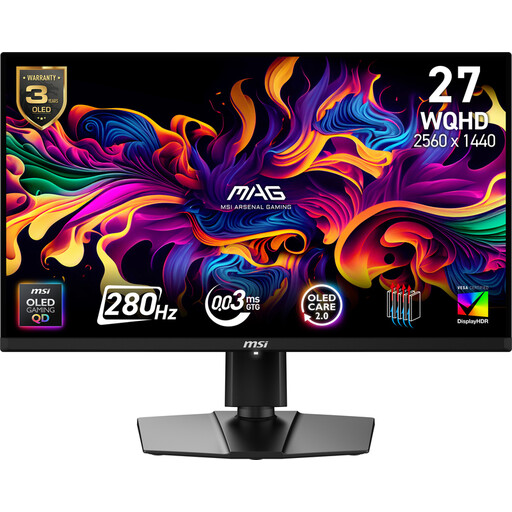
MSI MAG 271QP X28 27-inch WQHD OLED monitor, 280 Hz
A QHD option if you want to view text and a reference window on a 27-inch screen.
The product name specifies WQHD, OLED and 280 Hz.
View on Joybuy
 No image available
Philips 27E1N1800AE/00 27-inch 4K UHD IPS monitor
An option if you want to look at illustrations and page details as well as text on a 27-inch 4K screen.
The product name specifies 3840 × 2160 pixels, 60 Hz and a height-adjustable stand.
View on Joybuy
 No image available
AOC GAMING Q27G4ZDR 26.5-inch QHD QD-OLED monitor, 240 Hz
A QHD option for viewing text and a reference window on one screen.
The product name specifies 2560 × 1440 pixels, QD-OLED and 240 Hz.
View on Joybuy
 No image available
MSI Modern MD272UPHG 27-inch 4K monitor
An option if you want to look at illustrations and page layout details while writing.
The product name specifies 3840 × 2160 pixels and 4K Ultra HD.
View on Joybuy
Frequently asked questions
Does a monitor save earlier versions of your tutorial?
No, a monitor doesn’t manage version history. Microsoft says that version history in Microsoft 365 works for Office files stored in OneDrive or SharePoint, so check your document’s storage settings.
How should you set up your screen for long writing sessions?
Position your screen and lighting appropriately, and watch out for distracting reflections. Arboportaal explains that employees who do screen work for more than two hours a day must, among other things, have a screen and keyboard that aren’t attached to each other.
Does USB-C always provide a video signal and power to your laptop?
No, the port name alone doesn’t guarantee this. Compare your laptop and cable’s video input and charging requirements with the specifications of the exact monitor model; for example, Dell specifies USB-C power delivery up to 90 W for the P2725DE.
What are your rights if a monitor you bought online turns out to be faulty?
When you buy as a consumer, the retailer must offer a solution if the product is faulty. According to the Dutch Government, the Netherlands has no fixed statutory warranty period. The cooling-off period for online purchases is a separate right and isn’t the same as a solution for a faulty product.
Is the energy label relevant when comparing monitors?
Yes. EU rules for electronic displays include requirements for energy labelling and product information. Compare the label and product information for the models you’re considering.


