What should you look for when choosing?
First decide how many windows you actually want to use at once. Then check that you can position and connect the monitor to suit your needs. Compare colour features especially if images make up a significant part of your booklet.
| What to consider |
What to look for when buying |
Who should give this extra thought? |
| Documents side by side |
Test the number of windows you usually use and your preferred zoom level; also measure the available desk width. |
If I want to see draft text, steps and examples at the same time, I don’t want to keep switching between windows. Around 36% of consumers with this booklet task prioritise space to view documents simultaneously. |
| Reading comfort and positioning |
Check the height adjustment, whether it’s compatible with an arm, screen reflections and readability at your usual text size. |
During long writing and editing sessions, I want to set the screen position and text to suit my workspace. Around 29% of consumers prioritise reading comfort and positioning. |
| Connecting to your laptop |
Compare video support, the required power delivery and the cable with the specifications for the exact monitor model. |
If my laptop is running the booklet, I want to know whether the intended connection supports video and supplies enough power. Around 21% of consumers prioritise a suitable laptop connection. |
| Photos and illustrations |
Compare the stated colour gamut and resolution; check important print work with a proof as well. |
When illustrations or photos are central, I want to take colour information into account without treating the screen display as identical to print. Around 14% of consumers prioritise checking images. |
Joybuy product picks
These Joybuy product picks are suited to arranging windows and viewing documents and images. The selection includes ultrawide and 27-inch models.
 No image available
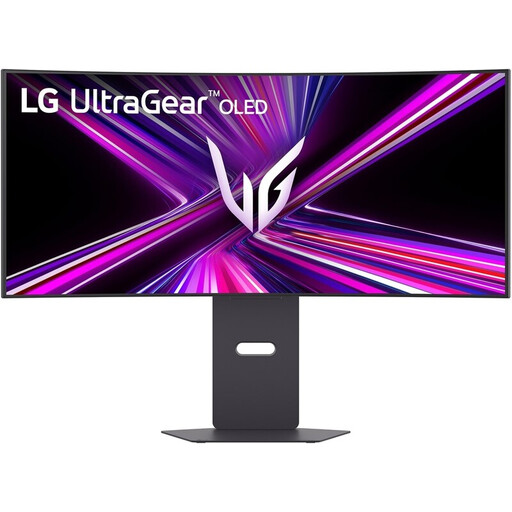
LG UltraGear 34GX900A-B 34-inch curved WQHD monitor
For anyone who wants to use an ultrawide screen to arrange several windows side by side.
34 inches; curved; 3440 × 1440; 240 Hz; MLA+ OLED; height-adjustable.
View at Joybuy
 No image available
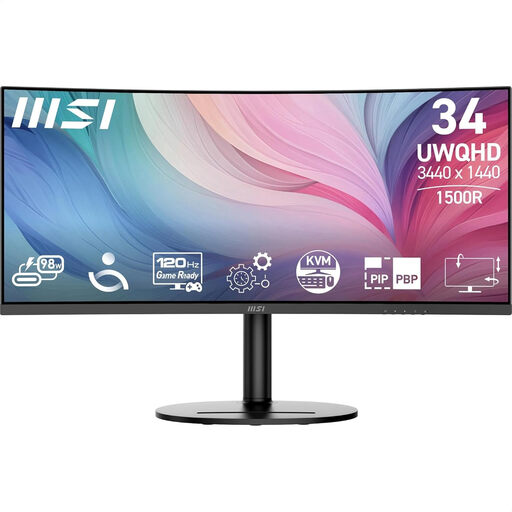
MSI Modern MD342CQP 34-inch ultrawide monitor
A wide-screen format for anyone who wants to view text and reference material at the same time.
34 inches; 3440 × 1440; UltraWide Quad HD; LCD.
View at Joybuy
 No image available
INNOCN CB27U1 27-inch 4K UHD monitor
For anyone who wants to consider the listed PIP and PBP split-screen features alongside document work.
27 inches; 3840 × 2160; IPS; 120 Hz; HDR500; FreeSync; PIP and PBP; 90 W USB-C.
View at Joybuy
 No image available
Dell UltraSharp U2724D 27-inch QHD monitor
A 27-inch desktop model for anyone who wants to arrange documents and windows without choosing an ultrawide.
27 inches; 2560 × 1440; Quad HD; LCD.
View at Joybuy
 No image available
ASUS ProArt PA278CV 27-inch QHD monitor
A 27-inch option for anyone combining document windows with creative work and wanting to compare colour features.
27 inches; 2560 × 1440; Quad HD; LED.
ASUS lists 100% sRGB and factory calibration for this model; these are manufacturer specifications, not an independent measurement.
View at Joybuy
Frequently asked questions
Do you need an ultrawide to view two Word documents side by side?
No, not for that alone. Microsoft Support describes the ‘View Side by Side’ feature for two open documents in the desktop versions of Word mentioned. Choose your screen width based on your text size and the other windows you want to see at the same time.
How can you arrange your display if you also have images and a list of steps open?
On Windows, you can snap windows side by side or into a grid using Snap. Test the layout at your usual zoom level before choosing a monitor based on screen width alone.
What should you consider when setting up and using your monitor for long periods?
Check that the screen position suits your workspace and that reflections aren’t distracting. Arboportaal outlines considerations for employers and employees within the scope of the rules on working with display screens; these aren’t automatically product specifications for every consumer.
Do you need an extended warranty package?
Not necessarily. The Dutch Government states that there is no fixed statutory warranty period and that you should contact the seller if a product is faulty. So compare what an additional package offers before deciding.
Which rules and rights apply when you buy a monitor online?
EU ecodesign and energy labelling rules apply to electronic displays, including monitors, subject to certain exceptions; check the label for the exact model. The Dutch Government states that when you buy at a distance, the seller must provide information about matters including the cooling-off period, which is usually 14 days.


