
Developer working with code and browser side by side
Wants to view the code and page at the same time while building enrolment forms. More screen space doesn’t replace performance testing for visitors.


Choose a monitor based on how much room you need for code and the enrolment page. An adjustable screen of around 24 inches may suit a compact desk, while a 27-inch QHD screen gives you more space to place windows side by side. A monitor won’t test a slow connection or mobile display, so check these separately using network throttling and a narrow viewport. Before buying, also check the ports, whether it provides USB-C power delivery, and the dimensions of your workspace.
Wants to view the code and page at the same time while building enrolment forms. More screen space doesn’t replace performance testing for visitors.
Checks that form steps and error messages remain usable in a narrow viewport, even when network requests are delayed.
Looking for a monitor that can connect to their laptop, and checks separately whether a single USB-C cable can provide both a picture and enough power.
A monitor can help you set up your development environment, but it won’t show you how an enrolment page performs when requests are slow. Google describes network throttling in Chrome DevTools as a way to test delayed or blocked requests. The W3C also explains how to assess a page in a narrow viewport.
| What to consider | What should you check? | Who is this most important for? |
|---|---|---|
| Space for code and the page | Compare screen size, resolution and aspect ratio; also check that the monitor will fit on your desk. | I want to view the code and enrolment page at the same time without filling up my desk. Around 40% of consumers prioritise workspace for code and the page when carrying out this task. |
| Testing on a small screen and a slow network | Check the form steps in a narrow viewport, and test delayed requests separately using network throttling. | When I check forms, I want to know whether the steps and error messages will still work on a narrow screen. Around 30% of consumers prioritise testing mobile enrolment and slow network requests. |
| Adjustability | Check the adjustment options available on the exact model’s standard stand, and how much space is needed to rotate the screen. | I want to adjust the monitor to suit my workspace during long working sessions. Around 20% of consumers prioritise monitor adjustability. |
| Laptop connectivity | Check whether the monitor receives a picture through the port you want to use, and whether its USB-C power delivery is suitable for your laptop. | If I want to use my laptop with as few separate connections as possible, I check the video connection and power output first. Around 10% of consumers prioritise laptop connectivity and the option of power through a single cable. |
A monitor doesn’t change visitors’ network conditions, and it won’t automatically show you how a form works in a narrow viewport.
Test the form steps separately in a narrow viewport, using your browser’s network throttling.
Dell says the USB-C downstream port on the P2425H is for data only; LG lists 65 W USB-C Power Delivery for the 27BA65QB-B. The features therefore vary by model.
Check the exact monitor port and your laptop’s video and power requirements.
Depending on the connection, you may need a separate video cable or laptop power supply.
Dell describes the P2425H as a compact, adjustable Full HD monitor.
LG describes the 27BA65QB-B as a 27-inch QHD monitor with an adjustable stand and USB-C.
According to Lenovo, the ThinkVision T24d-30 offers a workspace of around 24 inches in a 16:10 aspect ratio.
BenQ describes the RD280U as a programming monitor with a large screen and a 3:2 aspect ratio.
Philips describes the 24E1N1100A/00 as a Full HD monitor with an IPS panel.
This selection features monitors for a permanent development workspace. Compare the size and resolution with the windows you want to use side by side; test slow connections and mobile display separately.
 No image available
An option for a permanent workspace if you’d like a larger screen.
27 inches; 3840 × 2160; IPS; 60 Hz; 4 ms; HDMI and DisplayPort; height-adjustable stand.
 No image available
A 27-inch model to consider if you want to view code and the enrolment page on one screen.
27 inches; 2560 × 1440; Quad HD; LED.
 No image available
A 27-inch option for a permanent development workspace; check that it has the connections your laptop needs.
27 inches; 2560 × 1440; Quad HD; LED.
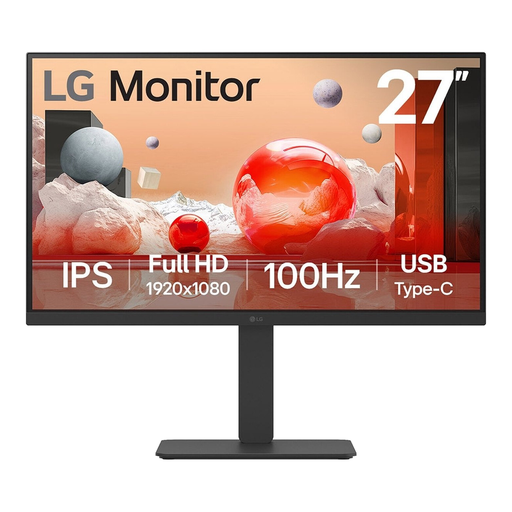 No image available
A 27-inch screen to consider if you’re looking for a Full HD monitor for a permanent workspace.
27 inches; 1920 × 1080; Full HD; LCD.
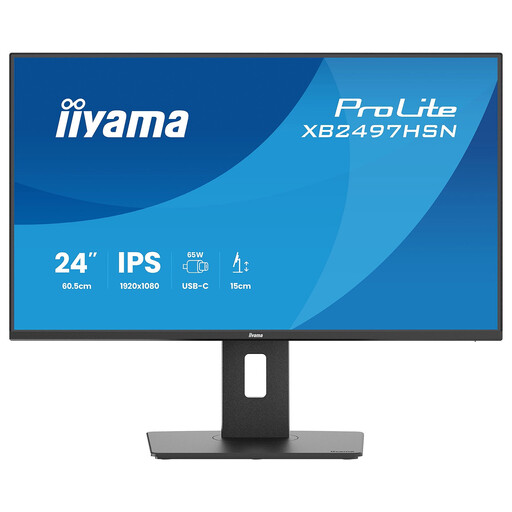 No image available
A more compact option to consider if you have less room for a larger screen.
24 inches; Full HD; 100 Hz; IPS.
No, you need to test that separately. Google describes network throttling in Chrome DevTools as a way to slow down or block requests; for the mobile layout, use a narrow viewport as well.
Don’t assume so: Dell lists HDMI and DisplayPort for video, and a USB-C downstream port for data with up to 15 W. Check your laptop’s ports and which cables you’ll need.
Compare the energy label and model information in EPREL, including the stated power consumption in SDR mode. The European Commission provides information about electronic displays in EPREL. To work out your own annual cost, you’ll also need your usage hours and electricity tariff.
No. According to the Dutch government, the Netherlands has no fixed legal guarantee period; what you can reasonably expect from a product is also taken into account. If there’s a fault, contact the seller. A manufacturer’s guarantee doesn’t replace your statutory rights.
For employees working from home, the Dutch government describes an employer’s duty of care to provide a proper and safe workspace that meets ergonomic standards. This doesn’t prescribe one specific monitor model; if needed, discuss your setup with your employer.