
Vandaag of morgen in huis

Kwaliteit gegarandeerd

Welkomstaanbiedingen ontgrendelen: GRATIS bezorging | Tot 80% korting | Gratis 30 dagen JoyPlus-proefperiode
Download de app
A Corsair PC fan can help cool your case, but not every fan will fit every PC. If you focus mainly on RGB lighting or maximum speed, you might only discover after buying that the fan doesn’t fit your case, needs extra hardware or is noisier than expected.
For gamers, PC builders and hardware enthusiasts, these are the three main pitfalls to watch out for:
Read on to find out which specifications to check before buying a Corsair case fan.
The most common sizes are 120mm PC fans and 140mm PC fans. Check your PC case’s manual or product specifications to see how many mounting positions it has and which sizes it supports.
A 140mm fan can move a lot of air at the same speed, but it also takes up more space. A 120mm model is more flexible for compact cases, radiators and rear mounting positions. Large cases, such as the Corsair FRAME 5000D RS, support multiple positions for 120mm and 140mm fans. According to the product information, this case comes with three 140mm front fans and one 140mm rear fan.
Also check the thickness. Many case fans are around 25mm thick. Some MAX models are 30mm thick. That can provide more room for airflow, but may also cause problems with a radiator, memory modules, cables or a narrow mounting position.
Maximum airflow is often important for an open front or rear position. With a radiator or a dense dust filter, static pressure matters too: it indicates how well a fan can push air through resistance.
Check these figures:
For example, the Corsair iCUE LINK RX140 MAX is listed with a speed range of 300 to 1600 RPM, a maximum airflow of 103,5 CFM and a noise level of 10 to 31 dB, according to the product specifications. The RX120 MAX RGB is listed with a maximum airflow of 71,3 CFM and a speed range of 400 to 2000 RPM.
Figures like these are useful for comparing models, but don’t treat manufacturer claims as a guarantee for every PC configuration. According to Corsair’s product information, these fans can be suitable for both case and radiator use. Always check the mounting points and available space in your own system.
A PWM fan usually uses a 4-pin connector. This allows the motherboard or a suitable controller to adjust the fan speed automatically according to a set fan curve. That’s more practical than a fan that only runs at a fixed speed.
RGB is a separate consideration. Check whether you’re choosing:
With iCUE LINK models, you can connect multiple fans using fewer separate cables, but a suitable hub or compatible case may be required. According to the product information, the Corsair 5000T LX RGB comes with three pre-installed 120mm RGB fans and an iCUE LINK System Hub. For individual models, check whether a controller is included. For example, the product description for the Corsair iCUE LINK RX140 MAX RGB 2-pack lists an RGB controller, but this isn’t the case for every model sold individually.
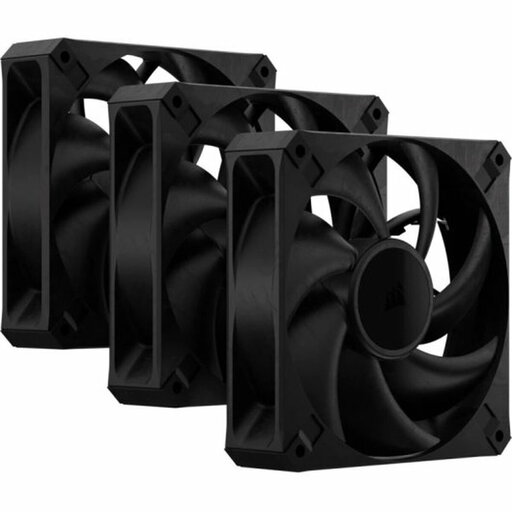
Why it suits this user: A practical choice if you want to fill several 120mm positions at once and don’t need RGB.
The pack contains three fans and uses PWM via a 4-pin connector. Be sure to check the 30mm thickness and available space first.
Three 120mm fans, up to 2000 RPM, up to 72 CFM and a stated maximum noise level of 29,5 dB.
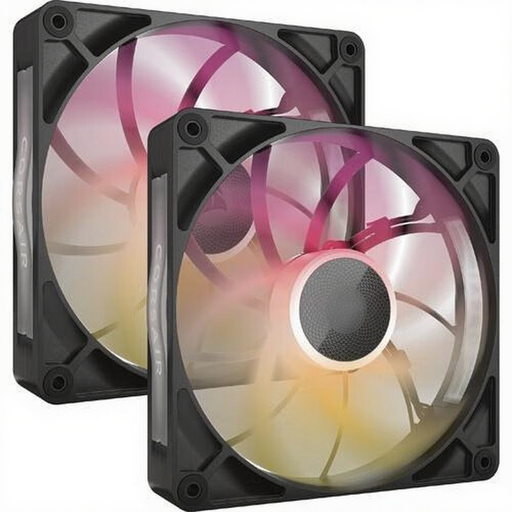
Why it suits this user: Designed for a spacious build with 140mm positions, PWM control and customisable RGB lighting.
The product specifications list PWM, iCUE LINK and an included RGB controller. The 30mm thickness is still an important point to check.
Two 140mm fans, up to 1600 RPM, up to 102,9 CFM, eight RGB LEDs per fan and up to 31 dB according to the product listing.
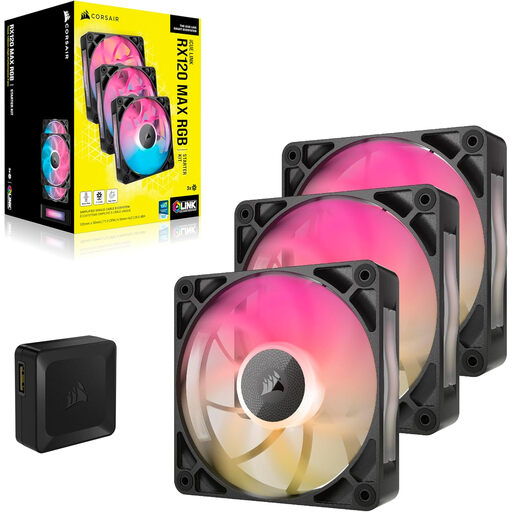
Why it suits this user: For a gaming PC with several 120mm positions, RGB lighting and software control.
According to the product information, the pack contains three fans and an RGB controller. Check that each mounting position can accommodate the maximum thickness of 30mm.
Three 120mm fans, PWM, eight RGB LEDs per fan, up to 2000 RPM and up to 29,5 dB according to the stated specifications.
Completely shut down your PC and unplug it from the mains before installing a Corsair PC fan. Check the arrows on the frame: they show the direction of rotation and airflow. In many builds, front and bottom fans draw air in, while rear and top fans expel warm air.
Connect PWM to a suitable 4-pin header or controller. Keep cables away from the blades and don’t overtighten the screws. Then set a fan curve in the BIOS/UEFI or Corsair iCUE. A lower speed under light loads can make your system quieter; the speed can increase as temperatures rise.
Regularly remove dust from your fans with a soft brush or compressed air. Don’t use water on the fan. If you hear rattling or notice vibrations, first check the mounting and cable routing.
We’ve put together a complete, up-to-date list of products that meet these strict selection criteria and the applicable European safety regulations.
That depends on the case, processor, graphics card and number of available mounting positions. A common layout draws air in at the front and expels it at the rear or top. Most importantly, check that the fan positions support the sizes you need.
Not necessarily. Noise levels are mainly affected by speed, bearing design, resonance and the fan curve. RGB LEDs control the lighting, not the noise level directly. So compare the stated dB figures and speed ranges.
A case fan typically uses relatively little power, but the exact consumption varies by model, speed, RGB lighting and controller. A PWM setting that reduces speed when your PC is under a light load can limit the fans’ power consumption. For an exact figure, check the technical documentation for your chosen model.
