
Vandaag of morgen in huis

Kwaliteit gegarandeerd

Welkomstaanbiedingen ontgrendelen: GRATIS bezorging | Tot 80% korting | Gratis 30 dagen JoyPlus-proefperiode
Download de app
Choosing a new Corsair PC case fan might seem straightforward. Yet, many PC builders buy a fan that doesn't fit their case, makes too much noise, or doesn't work with their existing lighting. That's because the RPM or number of RGB LEDs doesn't tell the whole story.
As a Joybuy Product Recommendation Officer, I focus on verifiable product specifications and practical compatibility. This helps you avoid paying for features you can't use.
A high maximum speed can be useful under heavy loads, but it doesn't automatically make it a better choice for your PC. The fan might also produce more noise at high speeds. Therefore, always check the combination of RPM, airflow, noise level and PWM control.
A PWM case fan uses a 4-pin connector to adjust its speed more precisely. Through your motherboard or compatible software, you can set a quiet fan curve for low temperatures and request more airflow when the processor or graphics card gets hotter.
A 120 mm PC fan fits in many compact and mid-sized cases. A 140 mm PC fan can move a lot of air at a lower speed, but its mounting points are different. Check your PC case manual or measure the available fan positions.
Also, pay attention to the thickness. Some models are 30 mm thick instead of the usual 25 mm. This can cause clearance issues with a radiator, memory modules, cables or the side panel.
RGB lighting only works when the connector and controller are compatible. A standard 4-pin PWM connector controls the fan speed, but not necessarily the lighting. For an RGB PC fan, you need to check if you need a compatible 5V connector, a Corsair controller, or an iCUE LINK hub.
An iCUE LINK fan can reduce the number of cables in your case by allowing you to link multiple fans together. However, make sure to check if the required hub or cable is included. With some expansion kits, it's sold separately.
Check these points before you order:
For a standard case, you can often use a 120 mm case fan at the rear or top. Fans at the front or bottom are usually installed as intakes. This creates a logical airflow through the case.
Airflow is often expressed in CFM or m³/h. This indicates how much air the fan can move according to its product specifications. A high static pressure fan is particularly relevant when air needs to be pushed through a radiator, dust filter or a restrictive fan grille.
So, for a radiator fan, you should look not only at the airflow but also at the specified static pressure. For example, the Corsair RS120 MAX lists a maximum of 4.2 mmH2O and a thickness of 30 mm. The Corsair iCUE LINK RX120 MAX lists 4.18 mmH2O. These are product specifications; actual performance also depends on the radiator, case and fan curve.
A specified noise level is usually measured under specific conditions. Therefore, don't just compare a value of 10 dB with another value of 10 dB as if the measurements are identical. Also, look at the maximum noise level and the minimum speed.
PWM control is practical for a quiet PC fan, as it means the fan doesn't have to run at maximum speed all the time. In addition, pay attention to the number of available fan headers on your motherboard and the power and connection options of a controller.
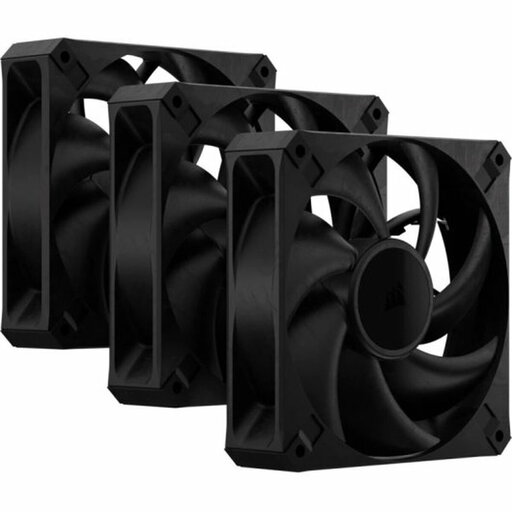
Why it fits this profile: This set includes three 120 mm fans for a complete basic setup without needing an RGB hub. This is practical for a first PC upgrade focused on airflow.
The specifications list PWM, 2000 RPM, a maximum of 72 CFM and a maximum of 29.5 dB. Do check the required space, though: the fans are 30 mm thick and have no LED lighting.
3-pack, 4-pin PWM connector, suitable for cases and radiators, and a black design.
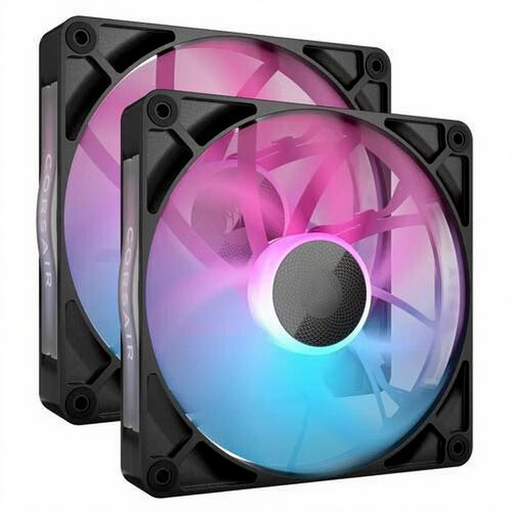
Why it fits this profile: This 140 mm set combines PWM control, RGB lighting and iCUE LINK functionality for a larger case, with a focus on aesthetics and cable management.
The size is clearly stated as 140 mm. The specified speed ranges from 300 to 1700 RPM and the noise level from 10 to 36 dB. Before buying, check that your case supports 140 mm fans.
Maximum of 94.7 CFM according to the product information, magnetic bearing technology, RGB and PWM.
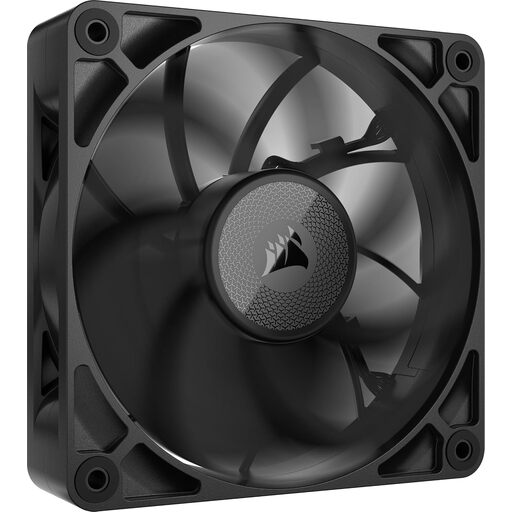
Why it fits this profile: This single 120 mm fan is intended as an expansion for an existing iCUE LINK setup and is suitable for radiator or case cooling where static pressure is important.
The product information mentions its 30 mm thickness and advises ensuring you have enough clearance. This lets you know beforehand that this fan is not suitable for every compact case.
Maximum of 71.6 CFM, static pressure up to 4.18 mmH2O, PWM and a range of 400 to 2000 RPM.
We have compiled a complete, up-to-date list of products that fully meet these strict selection criteria and comply with current European safety regulations.
Switch off your computer completely and unplug it from the mains socket before mounting a fan. When installing, pay attention to the arrows for airflow and tighten the screws firmly without overtightening them. Route the cables away from the blades.
For maintenance, use a soft brush or compressed air. Do not clean the fan with water. If you hear vibrations or an unusual noise after installation, check the mounting, cable routing and clearance.
You typically connect a PWM model to a 4-pin fan header on the motherboard. RGB or iCUE LINK models may also require a compatible controller, hub or lighting connector. Always check the manuals for your fan and motherboard.
The lifespan depends on usage, dust, temperature and the bearing construction. Regularly removing dust and setting an appropriate fan curve can reduce unnecessary strain. A statutory warranty of at least two years applies to these products under the stated EU consumer rules; additional rights may apply under UK law.
A single case fan generally uses very little power, but the exact consumption varies by model and speed. Check the specified current rating if you want to connect multiple fans to a single controller or motherboard header. Also, pay attention to the maximum load of that connection.
